


MeredithStotzner
Community Manager
Community Manager
July 22, 2024
Question

Generative AI in the Remove Tool for Photoshop (Beta)

  • July 22, 2024
  • 5 replies
  • 2565 views

Hello Beta Testers!
We're excited to announce the release of an improved Remove Tool in Photoshop (Beta), and we need your help to make it even better. As a valued beta tester, your feedback is crucial in helping us refine and perfect this feature before its official launch.


We're unleashing the power of Firefly inside the Remove Tool – designed to enhance your experience by seamlessly replacing pixels with the best-possible results.


The Remove Tool already has a virtual toolbox of multiple technologies available; it analysis your image and decides which is best to replace pixels you want to remove. Now we're adding generative AI as an option to ensure great results even with a large area or complex background.
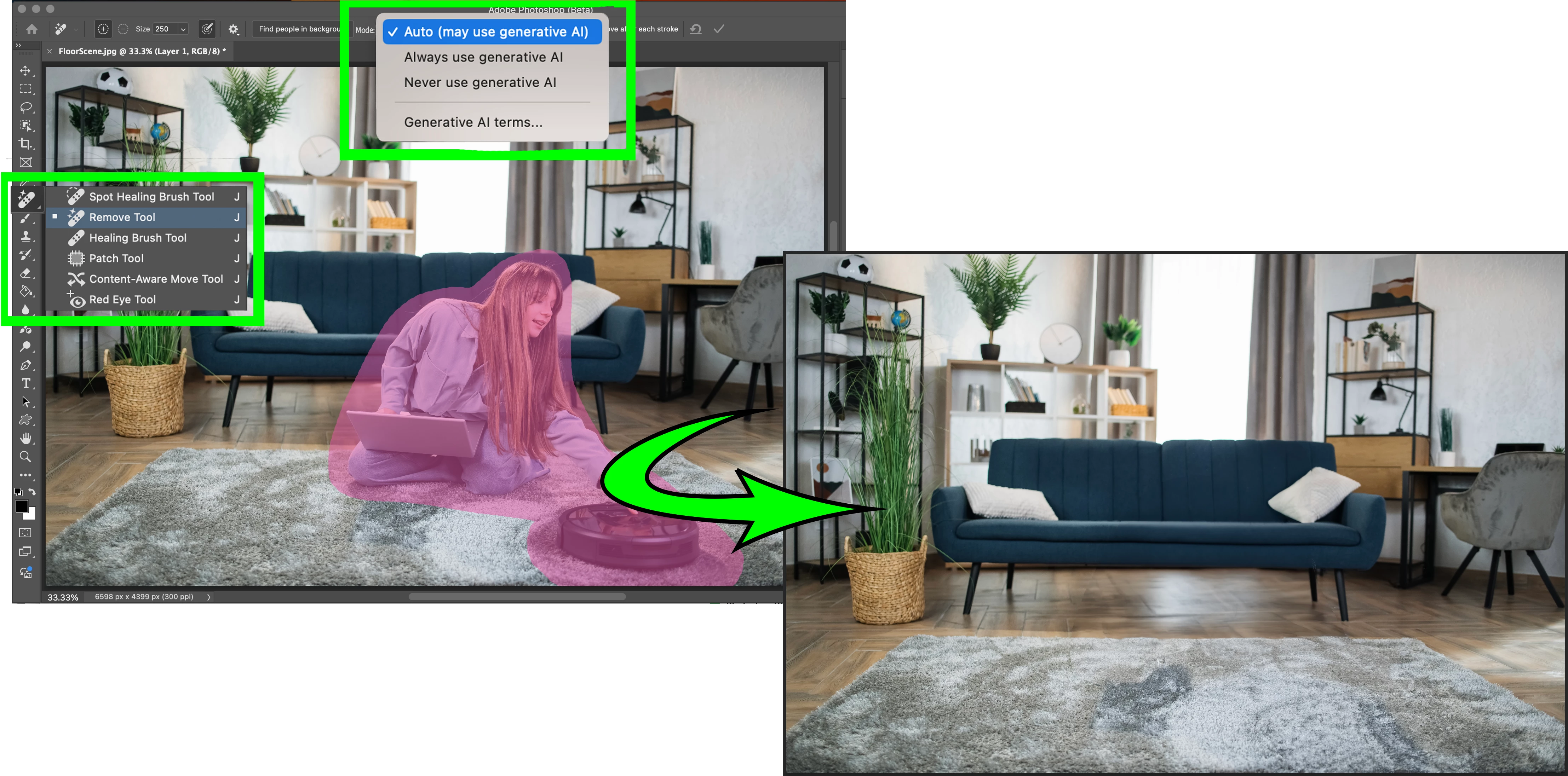


Here's how you can get started:

  1. Update Photoshop (Beta) Make sure you have the latest version installed.
  2. Explore the Remove Tool: Navigate to the Remove Tool in the Toolbar.
  3. Accept the Firefly Terms of Use: If you haven't already, agree to the Firefly Terms of Use that appears.
     
    •   The Mode setting in the Remove Tool is set based on the Terms of Use acceptance.
       Manually change the Mode setting in the options bar as needed:
          • Auto (May use generative AI) - default if TOU was accepted
          • Always use generative AI
          • Never use generative AI - default if TOU was declined 
  4. Use the Remove Tool as usual; it will choose from the best technology to fill each area.
  5. Share Your Feedback: Let us know what you think!
         Reply to this forum thread
         or
         Give it a thumbs up or thumbs down in the Beta Feedback panel.


Things to note:
• The Firefly model in Auto can be triggered for a fill area of any size, based on object analysis. Firefly will also be triggered by fill-area size; used for areas greater than 1000px.
• No variations provided - a curating technology decides the best result. 
• The results are returned as pixels on the current, selected layer - the way the Remove Tool has previously worked.
Tip: Use the Remove Tool non-destructively; create and target a new blank layer and turn on "Sample all Layers" from the Options Bar.
 

We appreciate your time and effort in helping us improve Photoshop. Thank you for being an essential part of our beta testing community. We look forward to hearing your thoughts!


Best regards,

Meredith Stotzner

Sr. Product Manager

Photoshop Team

5 replies

Known Participant
October 29, 2024

Using the romove tool an unwanted object appears , this is  happening with with the AI turned Off , I kept goin untilfinaly the object was gone,. it took several attempts. then added an adjustment layer for colur and tried to mask the areas i dont want affected the mask is non responsive.  Multiple attempt resulted in some uncontrolable and slow filling messes.

 I cant work without layers ! Mac os sonoma 14.1

Participating Frequently
September 9, 2024

Not sure if this is the right place, but something I've noticed with both the remove tool and Generative fill that if you select a dog's collar it tries to replace it with a different collar design. It does not remove it. You have to select small sections at a time for it not to read that what's being selected is a collar and will start removing it and adding appropriate fur in its place.

Participating Frequently
August 31, 2024

Just to clarify, when the Remove Tool in the beta is not using generative AI, it behaves the way it does in the official Photoshop release and uses machine learning? So now we can choose between machine learning and generative AI rather than "AI or not AI"? Thanks/

AlanGilbertson
Community Expert
Community Expert
September 2, 2024

Hi @JoeMurti AI comes in many flavors. Machine Learning is a form of AI. Generative AI is another form of AI, which is employed by Firefly and other image-generating apps. In the Control Panel, there is a setting you can change in order to exclude any generative AI:

Participant
July 26, 2024

depois de descarregar e intalar o ultimo updete não consigo do Photoshop mais do que isto

CShubert
Community Manager
Community Manager
July 30, 2024

Hi @jcgp it is possible that your OS is becoming out of date for support. We support two versions of Mac OS behind the current release, and with Apple's new OS around the corner, this might be what you are seeing?  Curious if you have any issues with Ps GA release or you only see this with Ps beta?


Some customers also use the CCD cleaner tool to wipe Ps beta from their system and then install... let us know if this works for you.


https://helpx.adobe.com/creative-cloud/kb/cc-cleaner-tool-installation-problems.html


Thanks,

Cory - Photoshop Product Manager

Legend
July 24, 2024

A significant improvement to the Remove Tool in Ps. I like the Mode choices given to users so that we can choose how Firefly's Generative AI will be used or not.


Without an Internet connection, if the Mode is set to Auto or Always Use Generative AI, it will fail if Ps tries to use Generative AI. The Error message dialog is a bit vague.