


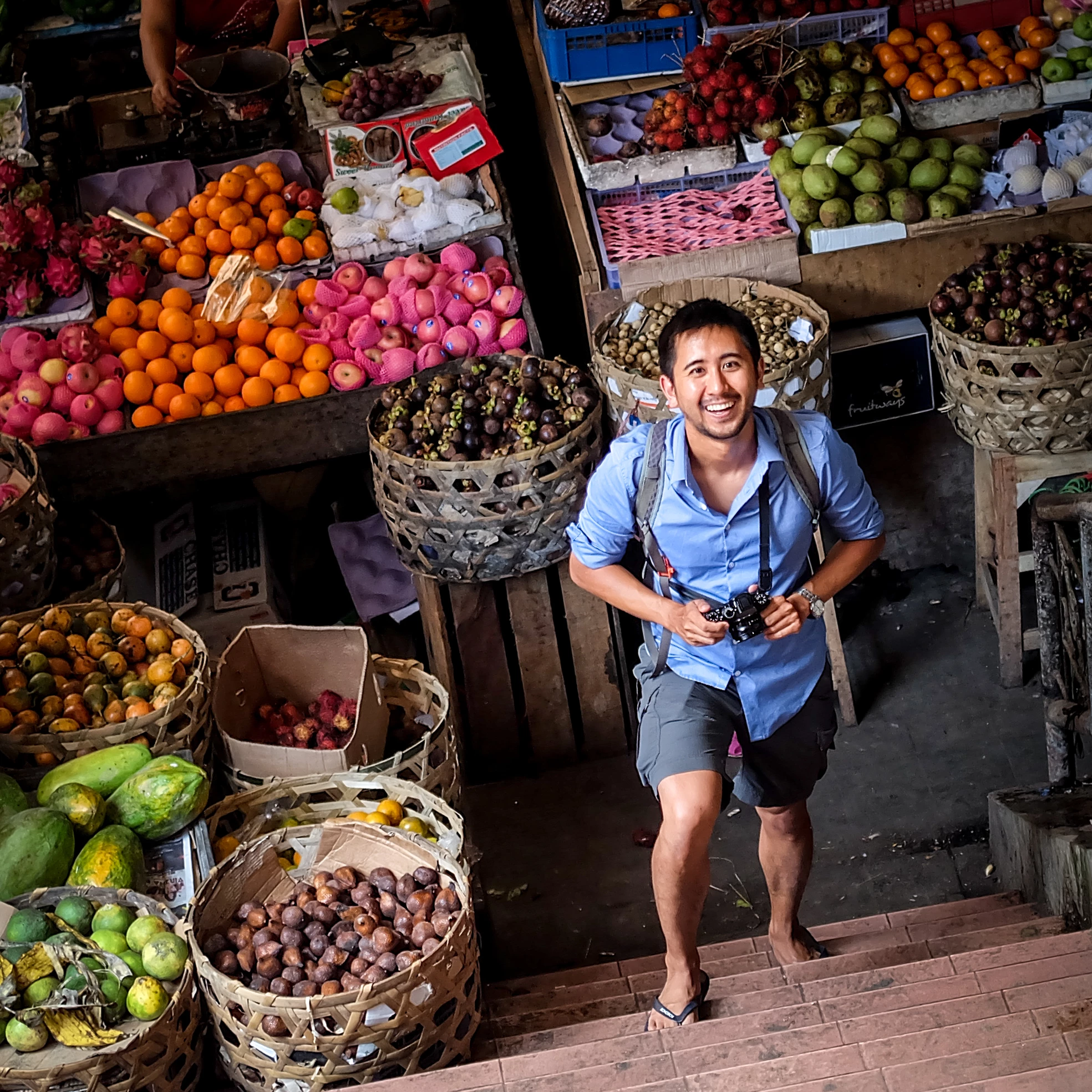

Generative Workspace in Photoshop (beta)
We’re excited to preview a new feature with you in Photoshop (beta) desktop 26.0: Generative Workspace.
Extending the capabilities of Generate Image in Photoshop, Generative Workspace helps you create elements you need for your images and designs faster than ever. You can explore many prompts and ideas simultaneously without waiting, generate dozens of images in the background, curate favorites, reuse images and prompts from an automatically organized searchable history, reference the style and composition from your previous images, and instantly explore different variations. With Generative Workspace, quickly create the elements you need to realize your vision and bring it all together seamlessly in Photoshop.
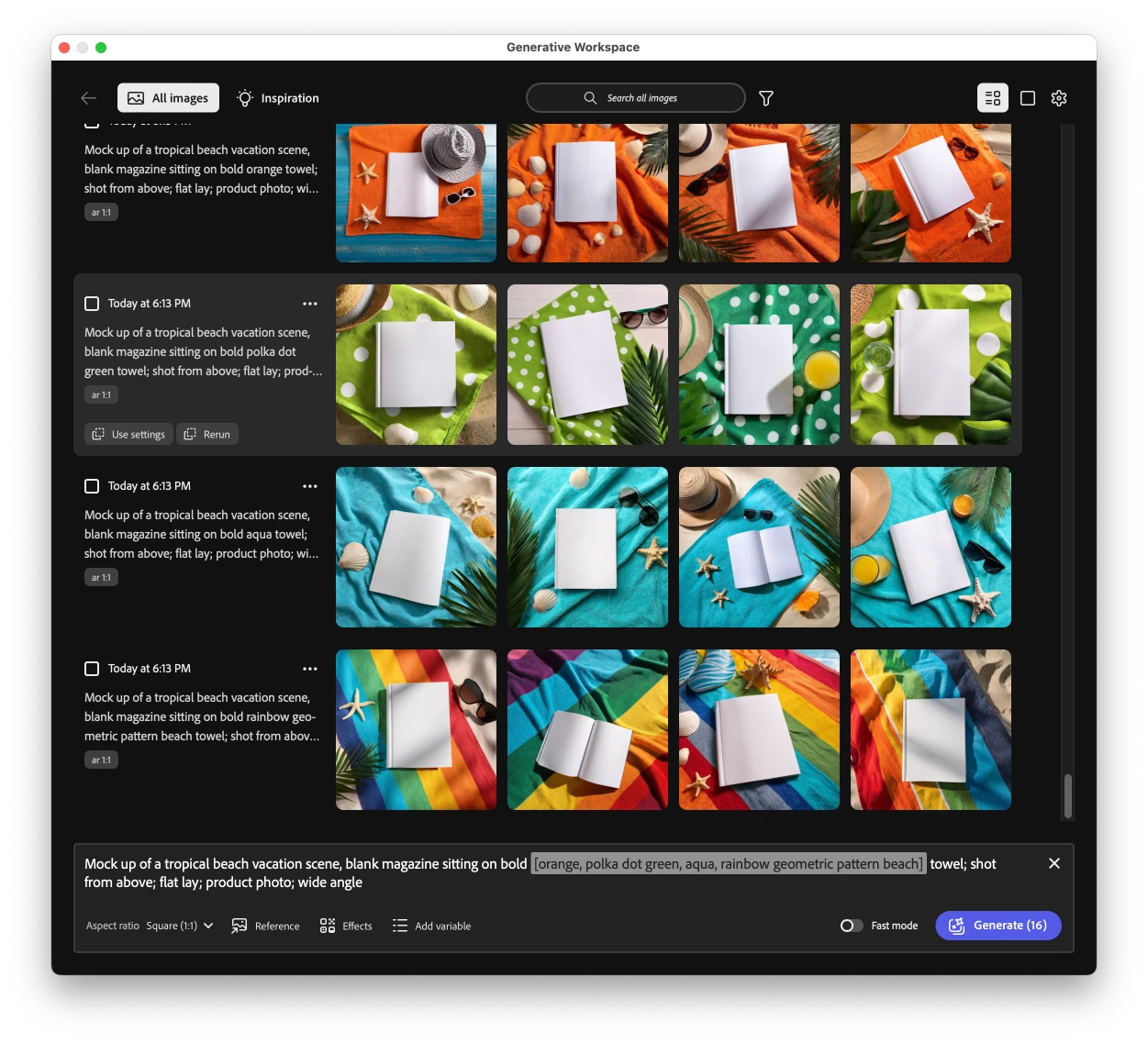
To start using Generative Workspace:
- Update to the latest Photoshop (beta), at minimum the October 2024 Photoshop (beta) desktop 26.1 release. Note: Generative Workspace is available in English during this preview in beta.
- Select “Generative Workspace” from the “Edit” menu.
- Type in a prompt describing the image element you’d like to create. Or: browse the Inspiration gallery and click on an image you like, then modify the prompt however you’d like.
- Click “Generate” to start generating four results based on your prompt.
- You don’t need to wait for results to finish generating before trying new ideas! Experiment with different prompts or play with different generation styles and settings without waiting, then click “Generate” again. Generative Workspace will generate images in the background, so you can experiment with lots of ideas, curate earlier results, and iterate quickly to find what best fits your vision.
Get more creative control and power:
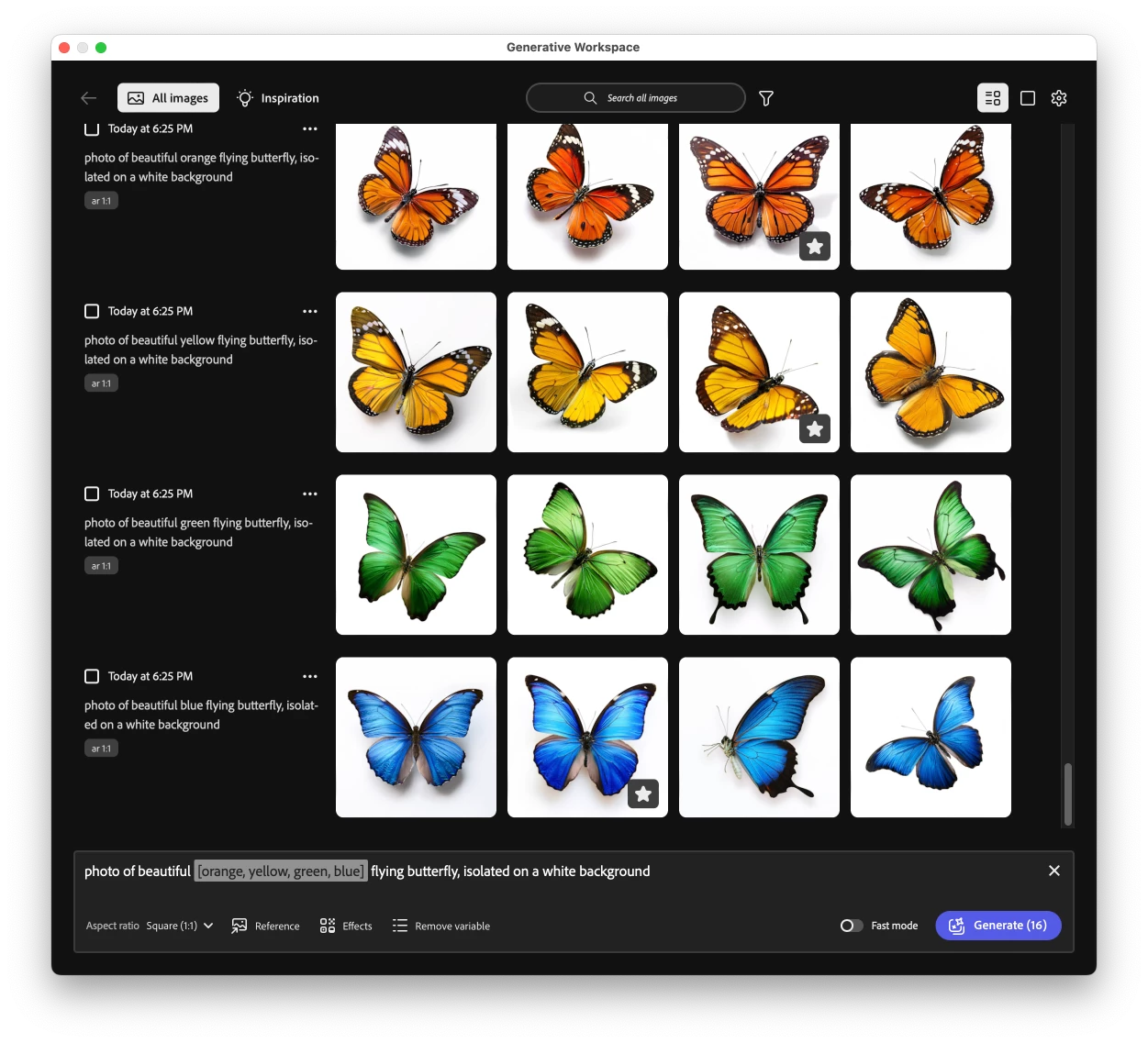
- Variables: Use variables to quickly explore multiple ideas at the same time. To create a variable, type different options in square brackets, separated by commas. For example, the prompt “beautiful [orange, yellow, blue] butterflies photo” will generate orange, yellow, and blue butterflies at the same time, so you can quickly compare results and find the color you like best. Use variables to quickly experiment with different subjects, backgrounds, lighting, etc. – anything you can describe — simultaneously.
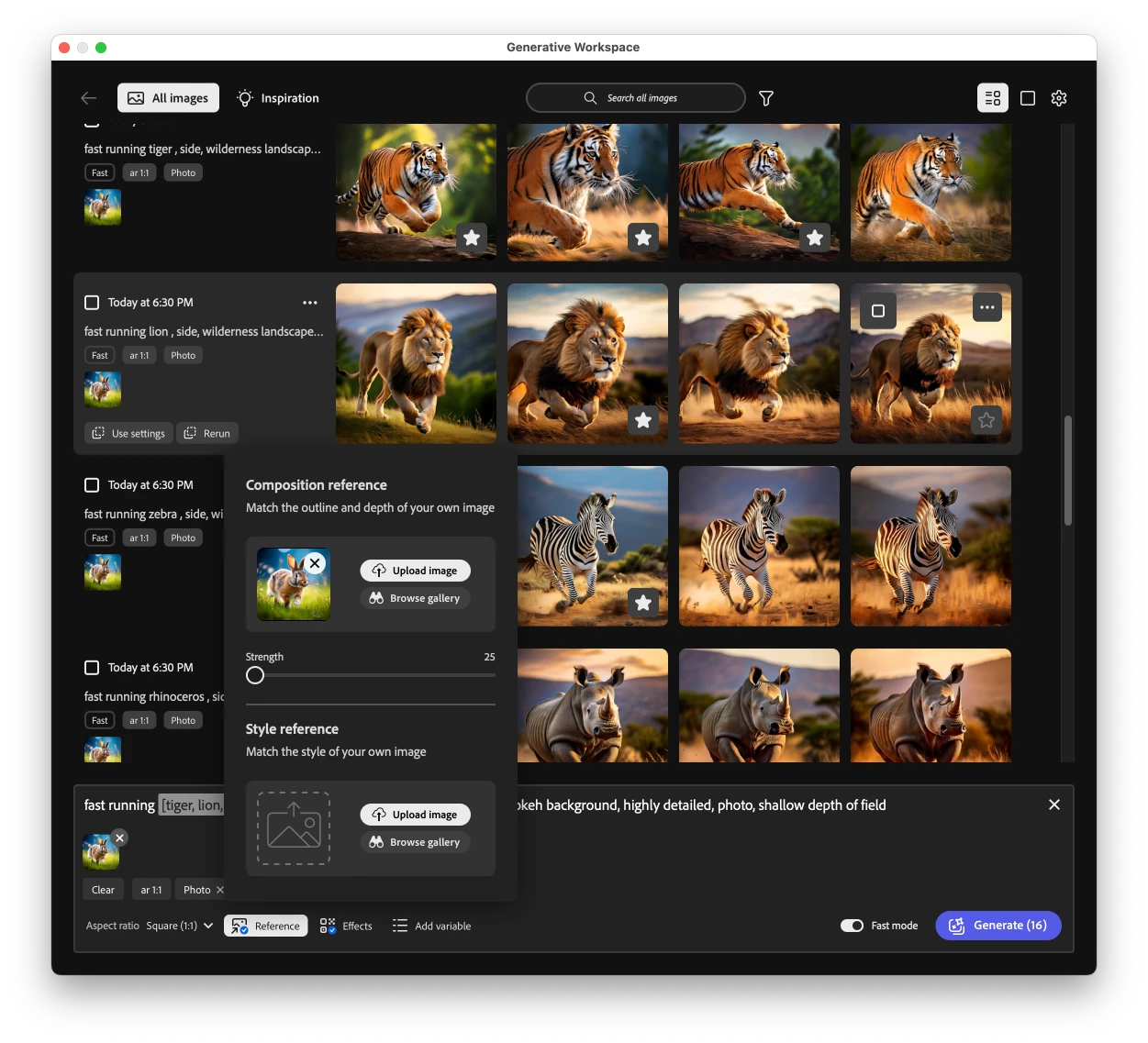
- Composition reference lets you control how visual elements and subjects are arranged within the frame. Suppose you created an image of a rabbit in a specific running pose, and you want to create more animals in the same pose. Click “Reference” below the generate bar, then upload your image as a “Composition reference”. Images you generate will be guided by the composition/layout of the your reference image.
- Style reference lets you apply the style from one of your existing images to others. Click “Reference” below the generate bar, upload an image, and you get a consistent look/aesthetic across a variety of assets you create.
Tips and tricks:
- Your history “notebook” of images is automatically saved and organized by prompt and date — and searchable — so you can easily experiment and compare many different ideas to find what works best for you.
- Click the star icon to mark an image as a favorite. Filter (near the search bar) to quickly see favorite images to move forward with.
- To reuse or remix a prompt from an image you like, click “Use settings” to copy its prompt and settings to the generate bar. Or from the “…” menu of any thumbnail, use the image as a composition or style reference to guide different prompts.
- Double-click a thumbnail to view it in Detail (or select “Open in Detail” from the “…” menu on the thumbnail).
- In “All images”, you can select one or multiple images by selecting their checkbox. Then you can quickly open, favorite, delete, or download them all at the same time from the contextual task bar.
- Quickly add one or multiple images from Generative Workspace to any Photoshop document. Select them, then click “Add to…” from the contextual task bar. You can add the images to a new document or any existing open PSD, and choose to add them as separate layers (to composite together) or as variations in a single layer (to easily swap between variations via the Properties panel, to see which looks best in the context of your design).
- To create image elements ready for compositing, add “isolated on white background” to your prompt (or “isolated on black background”). Then you can more easily remove/mask the background after you add it to your Photoshop document.
Feedback requested!
- Tell us what you think about the experience of using Generative Workspace. What do you like most about the feature?
- What changes would make this feature better for you?
- Tell us what you think about the images / results created with this feature.
- How are you using this tool with your creative projects?
- Are there more controls or changes to the workflow that you’d like, that would improve your creative workflow?
Known issues:
- Windows: Please update to Windows 10 or newer with Microsoft Edge 125 or newer for the best experience.
- macOS: Please update to macOS 13 Ventura or newer and Safari 16.6.1 or newer for the best experience.
- Downloads by default are downloaded into the "Documents" folder and have lengthy randomized filenames.
- Uploading reference images may take several seconds longer than expected
- “Fast mode” generation performs best with simple topics, backgrounds, illustrations, and close portraits. For some prompts, turning it off may yield better results or increase the stylistic variety of results.
Please share your feedback, and as always we hope you find this addition a benefit to your workflow. We really value your input to help improve this capability, and we're excited to see what you create!
 AdChoices