


MeredithStotzner
Community Manager
Community Manager
Aug 3, 2022 9:03 AM UTC
Question

Multi-Image Content-Aware Fill in Beta for Photoshop Desktop

Have you ever wanted to use a second image to complete your photo AND let Photoshop do the matching and blending?   Our Beta version of Content-Aware Fill can sample pixels from a second similar image. 
Check out the details here:
https://helpx.adobe.com/photoshop/using/multi-image-content-aware-fill.html

Multi-ImageContent-Aware Fill in Action
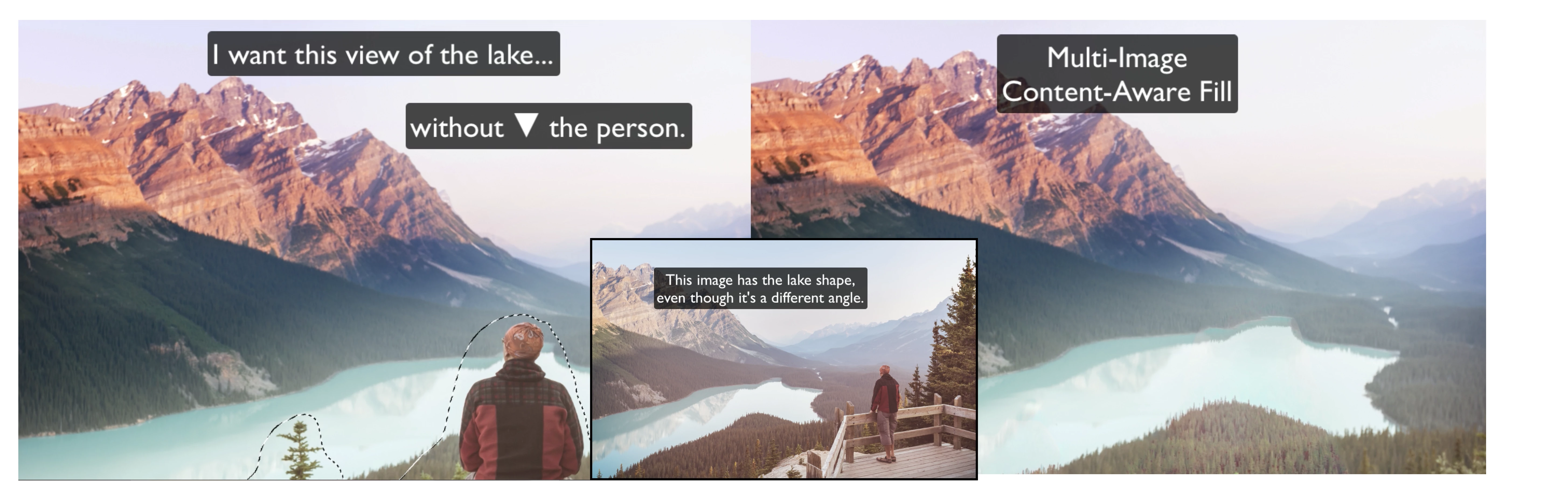
In the example below, the person in the original image (left) was removed and the unique shape of the lake was preserved by using a second image (inset).  The in-panel color controls were used to help make the final match (right).


Complete What's Missing 
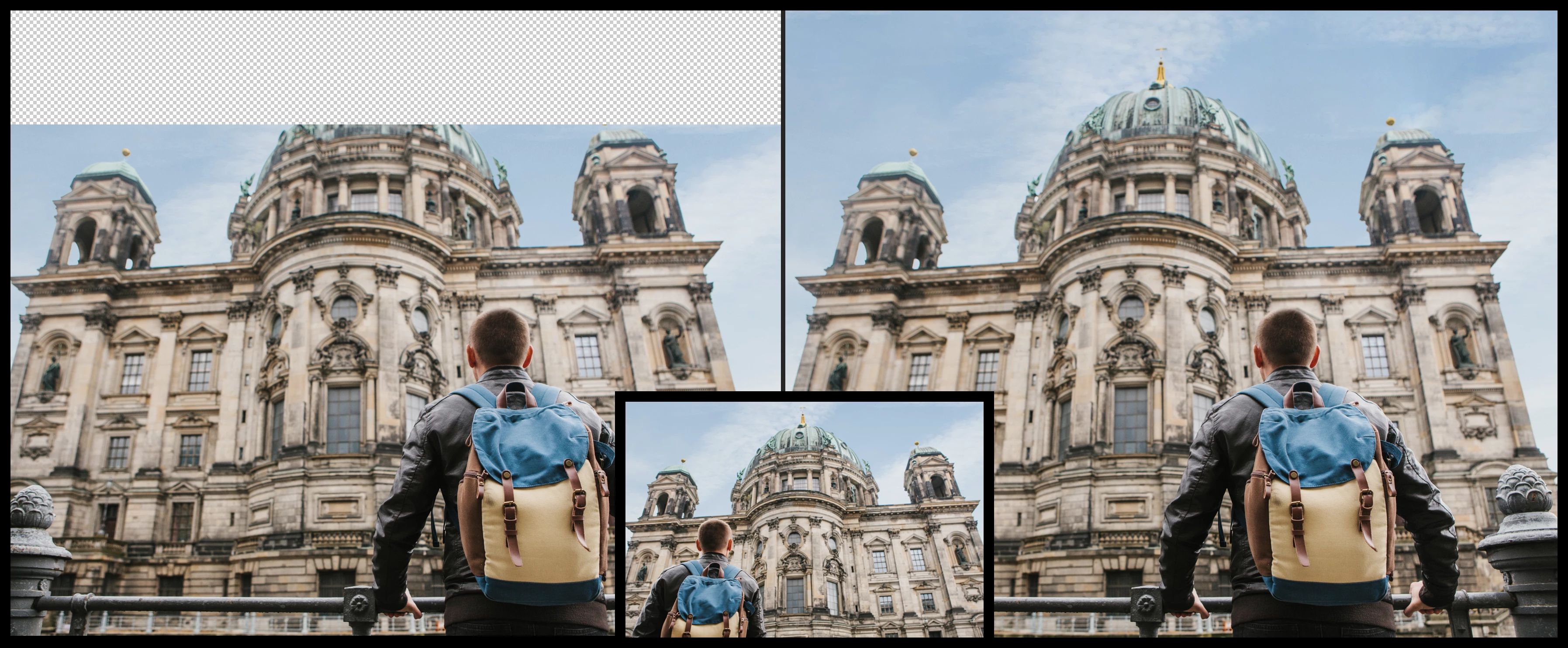
In another example, the top of the building didn't make it into the frame (left) so we added some canvas to the image, then used Multi-Image Content-Aware Fill to complete the dome from another photo (inset). The result is nearly flawless (right).
Get Aligned
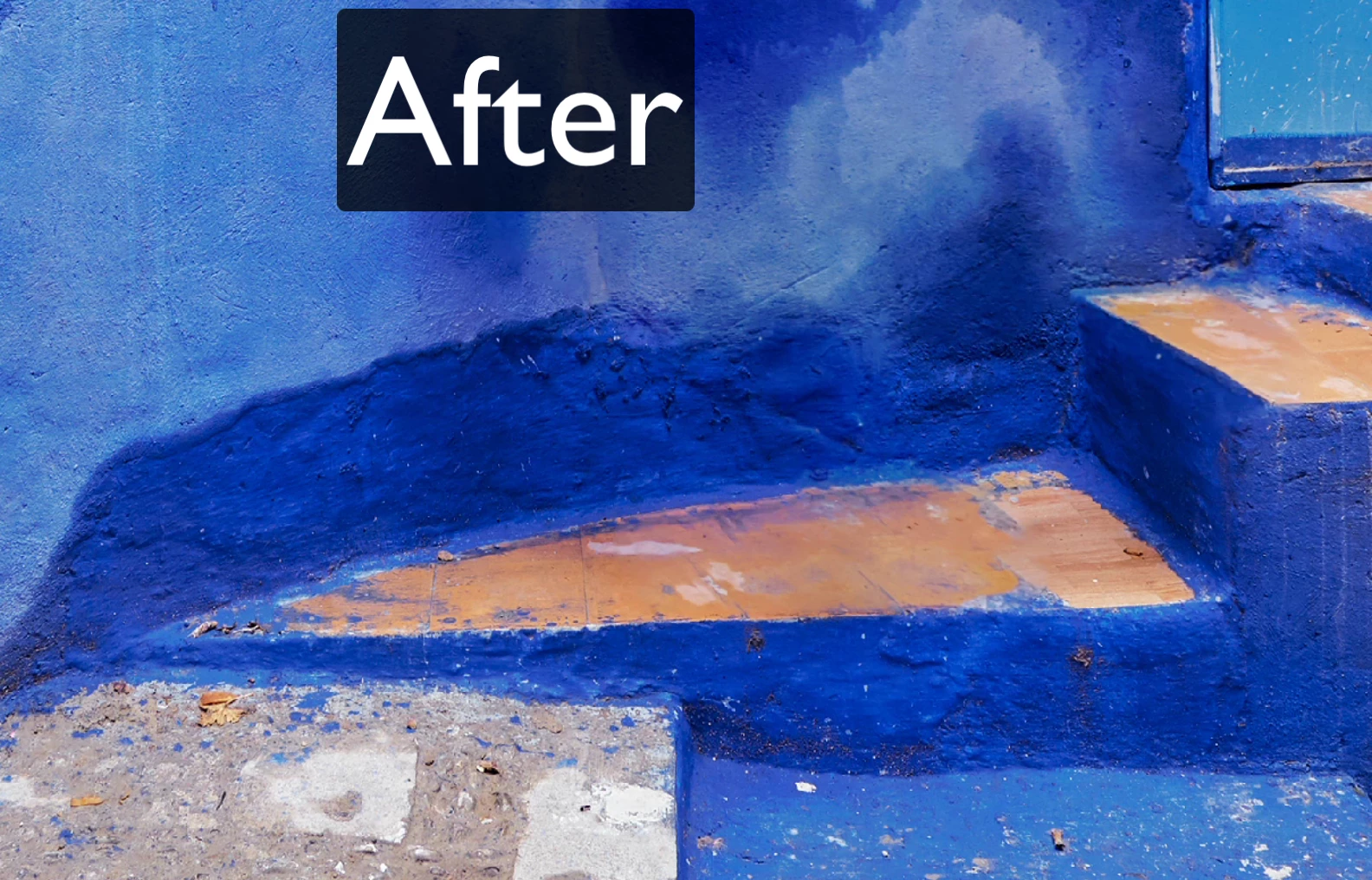
Sometimes the fill result can be improved by identifying corresponding points between the main image and the additional image. Use the Alignment tool to identify these points.
.    
 

These are some of our shining examples - now it's your turn!

Did it work for you?
Why or why not?

We are looking forward to hearing from you!
The MiCAF Team

This topic is closed to new replies. Start a new post to keep the conversation going.

10 replies

Trevor.Dennis
Community Expert
Community Expert
Feb 7, 2024 8:40 AM UTC

Good gracious!  This was posted eighteen months ago, and I didn't know it was a thing?

Translate
cagneyl56755649
Participant
Oct 30, 2022 4:19 PM UTC

I have the most up-to-date PS Beta. When I go into the CAF window the option for "Additional Document" is grayed out for the drop down box. Is there a setting somewhere I need to enable to make this work? 

Translate
CShubert
Community Manager
Community Manager
Oct 31, 2022 4:13 PM UTC

Hi @cagneyl56755649 sorry to hear this. Could you share a screenshot of what you are seeing for the team?

Try resetting Prefs for the Beta:

/Users/yoourname/Library/Preferences/Adobe\ Photoshop\ \(Beta\)\ Settings 

Launch BETA Photoshop While Pressing The Keyboard Shortcut

With Photoshop closed, press and hold Shift+Ctrl+Alt (Win) / Shift+Command+Option (Mac) on your keyboard and then Launch Photoshop the way you normally would.


It may help if we could see your Photoshop System Info. Launch Photoshop, and select Help >System Info...and copy/paste the text in a reply.  


Thank you,

Cory

Translate
Participant
Aug 22, 2022 8:03 PM UTC

I downloaded the Photoshop Beta but Multi Image Content was not available, just Restoration. I am using the most current version of photoshop. 

Translate
Pete.Green
Adobe Employee
Nov 3, 2022 10:36 PM UTC

Hi @mlnfhecht,


Where were you looking for Multi Image Content aware fill?

Hopefully you've found it by now, but if not, you can find it by making a selection and then choosing Edit > Content Aware Fill, and find the additional document settings on the right pane: 


Translate
cagneyl56755649
Participant
Nov 4, 2022 1:05 AM UTC
Right, but the drop down is grayed out as if there is no other image to
choose.
Translate
Participant
Aug 13, 2022 8:48 PM UTC

I am very pleased to see Multi-image Content-Aware Fill hopefully being added to Photoshop! Just saw Colin Smith's video on it, downloaded the beta, and gave it a twirl. It removed a person in an image that was in front of a complex background with buildings, shadows, and lots of different textures and colors in seconds that took me about an hour to do yesterday using conventional Ps tools and looked much better than my efforts. I hope y'all can get this working prime time for the next Ps version. Thanks.

Translate