
Participant
October 26, 2023
Question

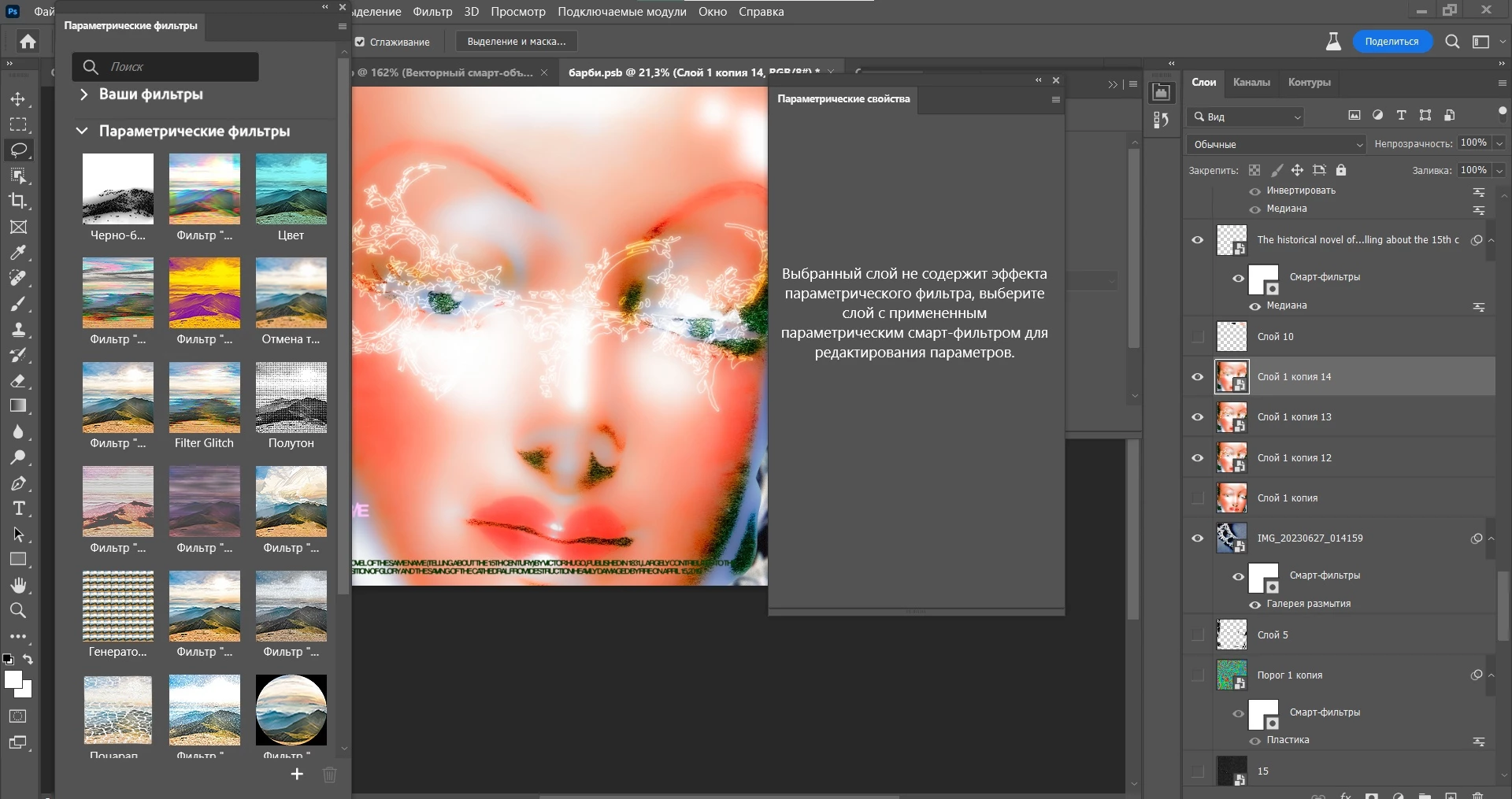
Parametric filters don't work

  • October 26, 2023
  • 5 replies
  • 2681 views

When I open parametric filters, the filter menu appears, but when I want to apply a filter to a layer, nothing happens and the control panel says that the selected layer does not contain an effect. Help solve the problem, as filters are very necessary
5 replies

Trevor.Dennis
Community Expert
Community Expert
October 28, 2023

Participant
October 28, 2023


Thank you very much for your help, but could you clarify where to download them from after removing them from the folder?

Trevor.Dennis
Community Expert
Community Expert
October 27, 2023

BTW  I have not had much of a play with the Parametric filters before, but having now put that to right, some of them are a lot of fun, and remind me of some of the Filter Forge effects.  Some are actually quite useful from an illustration point of view, like Snow, Rain, Spherical and Symmetry.


This is the many headed Wide Mouthed Mona.  Bless her little heart. 😉

The only thing I am still confused about is that being American, shouldn't it be called the ParaImperial Filter?

Trevor.Dennis
Community Expert
Community Expert
October 27, 2023


The position of your Layers Panel scroll bar indicates you have a number of layers higher up the stack that we can't see.  Are you sure none of them are hiding the layer you have selected, and the layer that the effects of the filter would be applied to.  To be 100% sure you need to either work on the uppermost layer, or add a Copy Merged layer to the top of the stack (Shift Ctrl Alt E) and apply the filter to that layer.  Or at least show us that the hidden layers have no content.


Pete.Green
Community Manager
Community Manager
October 26, 2023

Hi @Daystar328087103rna,


Does an Uninstall and Reinstall of the Photoshop beta help at all here?


The reason I suggest Uninstall, is this has been an issue if the filter needs to be replaced. Ideally an Uninstall should remove the filter itself, but in the case that it doesn't it can be removed manually by deleting these two files. Delete those then reinstall if the first round doesn't work.


On MacOS:

  • Delete the "/Applications/Adobe Photoshop (Beta)/Adobe Photoshop (Beta).app/Contents/PlugIns/Required/Filters/MaterialFilter.plugin" file
  • Delete the "/Applications/Adobe Photoshop (Beta)/Adobe Photoshop (Beta).app/Contents/PlugIns/Required/Filters/MaterialSuite.plugin" file


On Windows:

  • Delete the "C:/Program Files/Adobe/Adobe Photoshop (Beta)/Required/Plug-ins/Filters/MaterialFilter.plugin" file
  • Delete the "C:/Program Files/Adobe/Adobe Photoshop (Beta)/Required/Plug-ins/Filters/MaterialSuite.plugin" file