Participant
October 14, 2023
Answered

Problems with "Remove Tool"

  • October 14, 2023
  • 2 replies
  • 426 views

Hi. Suddenly the "Remove Tool" started to leave color marks of discrepant inks (please see attached images), it does it in some attempts, in others it works as usual. Can you tell me if this is a fixable problem? Thank you.
 
Currently using: 25.2.0 (beta), 25.0.0 (classic), macOS Monterey 12.7

This topic has been closed for replies.
Correct answer CShubert

Hi @Q T are you using the latest Ps beta? Adobe Photoshop Version: 25.2.0 20231014.m.2363 a76db7f x64


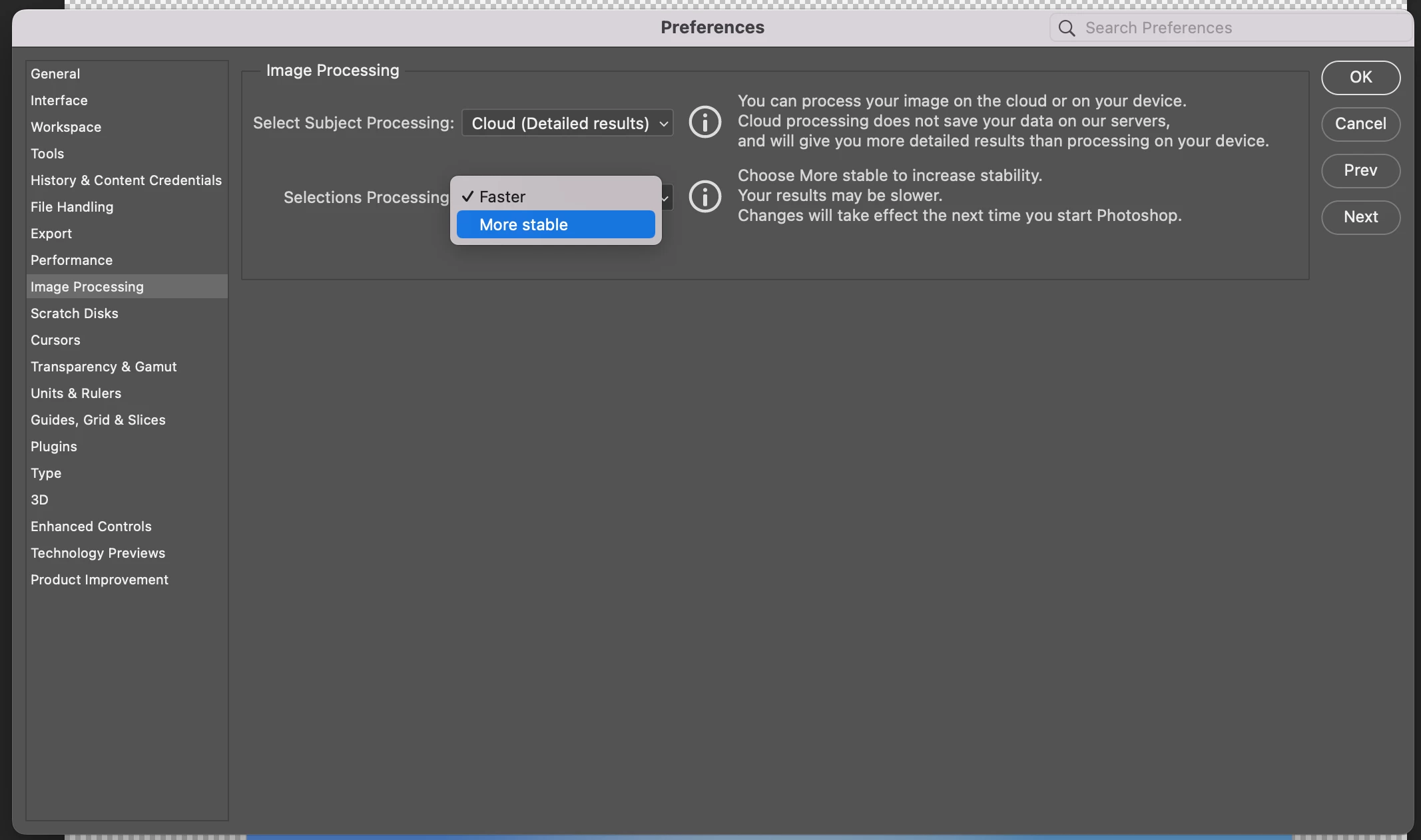
One thing to try is set your prefs to more stable
Try resetting Prefs for the Beta:

/Users/yourname/Library/Preferences/ Photoshop Beta Settings (Mac Ventura)

/Users/yourname/Library/Preferences/Adobe\ Photoshop\ \(Beta\)\ Settings (Mac)
C:\Users\user name\AppData\Roaming\Adobe\Adobe Photoshop (Beta)\Adobe Photoshop (Beta) Settings )Win)

Launch BETA Photoshop While Pressing The Keyboard Shortcut

With Photoshop closed, press and hold Shift+Ctrl+Alt (Win) / Shift+Command+Option (Mac) on your keyboard and then Launch Photoshop the way you normally would.

https://helpx.adobe.com/photoshop/using/preferences.html#Manually 


It may help if we could see your Photoshop System Info. Launch Photoshop, and select Help >System Info...and copy/paste the text in a reply.  


2 replies

Q TAuthor
Participant
October 18, 2023

Yes sir, genius you are. Switching to "more stable" solved the problem, now it works as usual. Kudos to CoryShubert! 🙂

CShubert
Community Manager
CShubertCommunity ManagerCorrect answer
Community Manager
October 17, 2023

Hi @Q T are you using the latest Ps beta? Adobe Photoshop Version: 25.2.0 20231014.m.2363 a76db7f x64


One thing to try is set your prefs to more stable

Try resetting Prefs for the Beta:

/Users/yourname/Library/Preferences/ Photoshop Beta Settings (Mac Ventura)

/Users/yourname/Library/Preferences/Adobe\ Photoshop\ \(Beta\)\ Settings (Mac)
C:\Users\user name\AppData\Roaming\Adobe\Adobe Photoshop (Beta)\Adobe Photoshop (Beta) Settings )Win)

Launch BETA Photoshop While Pressing The Keyboard Shortcut

With Photoshop closed, press and hold Shift+Ctrl+Alt (Win) / Shift+Command+Option (Mac) on your keyboard and then Launch Photoshop the way you normally would.

https://helpx.adobe.com/photoshop/using/preferences.html#Manually 


It may help if we could see your Photoshop System Info. Launch Photoshop, and select Help >System Info...and copy/paste the text in a reply.
