
MeredithStotzner
Community Manager
Community Manager
March 31, 2023
Question

Remove Tool in Beta for Photoshop Desktop

  • March 31, 2023
  • 67 replies
  • 158469 views

Hello Beta Team,
The Remove tool replaces areas of your image with realistic and relevant content.
 Use this tool to remove any distracting regions or elements, no matter how small or large.

Simply brush this artificial-Intelligence-powered tool over objects and people to make them disappear… as if they were never there. 

Complicated backgrounds and structures, such as fences or edges are seamlessly completed.



What we want for you:
This should seem like the magic you expect out of Photoshop!

For our experienced users and those with a discerning eye, our goal is to reduce or eliminate the clean-up after the fill. You should be spending less time repeating a fill for better results. You should also not need to clean-up by switching to another tool, such as the Clone Stamp.


What we want from you:

If you have multiple systems, please try this tool on all of them. Hardware will make a difference.

Please compare the results to your usual method of removing/filling objects. Let us know…
Was it like magic?
Did this save you time?


Let us know by clicking on the Beaker and giving the results a thumbs-up or a thumbs-down.



How to use the Remove Tool in Photoshop Desktop Beta
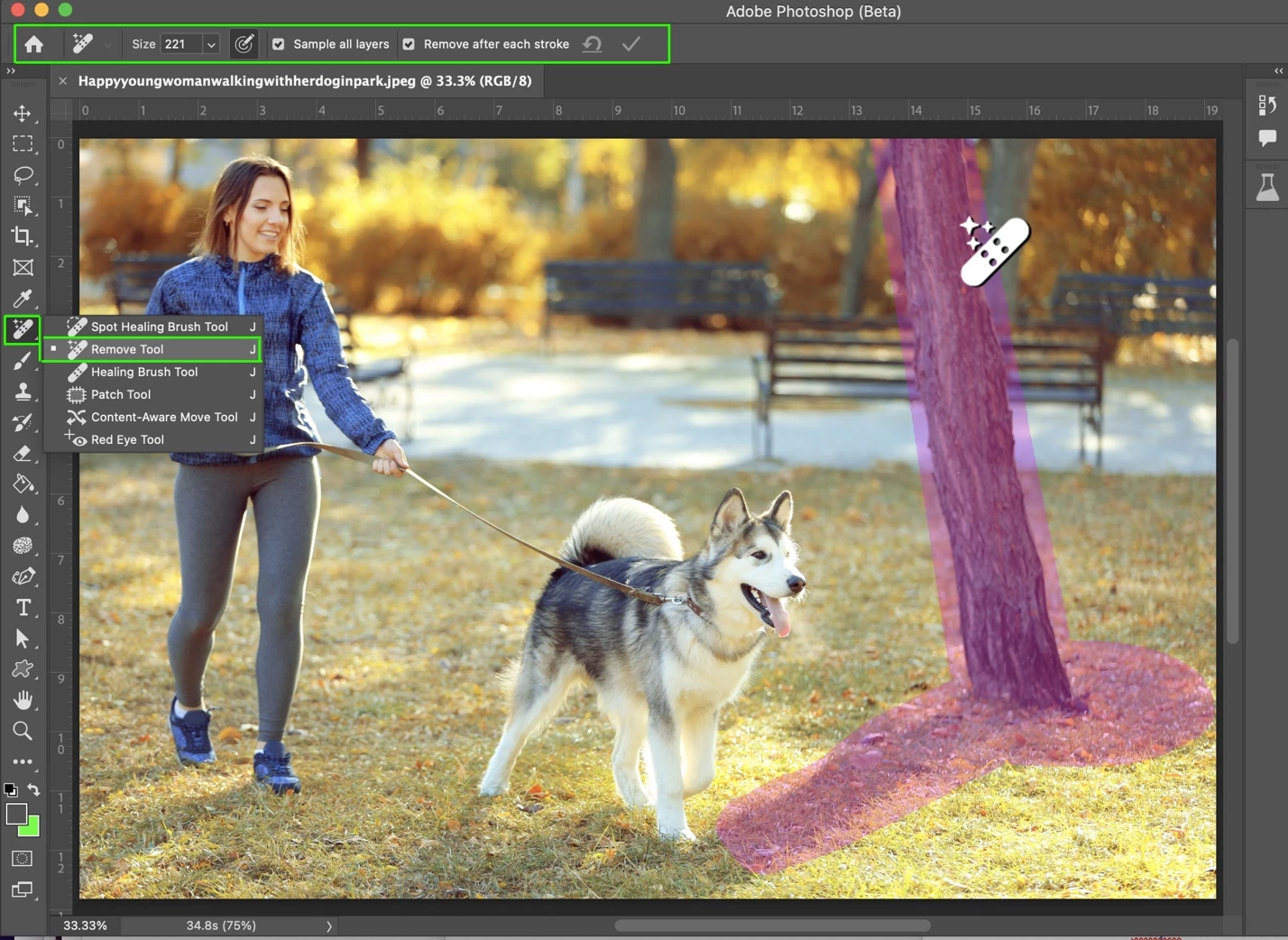
 

  1. Select the Remove tool from the toolbox.
    Find it in the Healing brush tool group. Expand the group by clicking on the Spot Healing Brush tool, Patch tool, or Red Eye tool to show the Remove Tool.

    Note: You may see a “Installing required components…” dialog the first time you use the tool after installation. Don’t worry, that’s normal.

  2. Choose a brush size in the options bar.
    • Choose a brush size that lets you brush over the entire object – with a little extra for good measure – so you don’t have to do a lot of brushing!
    • Brush hardness and brush opacity settings are not used by this tool
             
  3. (Optional) If you want to make multiple brush strokes to cover the large or complex object, turn off Remove after each stroke in the options bar.
    • Remove after each stroke = ON  will apply the fill as soon as you complete a single stroke with the tool.
    • Remove after each stroke = OFF will apply the fill after clicking the apply button; allowing for multiple strokes of the brush on the object before applying the fill.  
         
  4. (Optional) Turn on Sample All Layers in the options bar to sample data from all visible layers.
    Note: The new pixels will be created on the current, selected layer.
    Hint: Create & select a new layer, then turn on Sample All Layers for a non-destructive workflow.

  5. Click and drag over area you want to remove.
    • Be sure to cover the entire area. Results are better if a bit of the background behind the object or person is also covered.

    If Remove after each stroke = ON is selected, the new pixels will be appear after completing the stroke. Skip the next step. You’re done!


  1. If Remove after each stroke = OFF, continue to stroke of the area(s) to be removed, then click Apply in the Options bar or  Enter/Return on the keyboard.
    • Use Reset all Brush Strokes to clear all the strokes and start over.


We are looking forward to hearing from you!
Thank you,
The Remove Tool Team


This topic has been closed for replies.

67 replies

Participant
April 12, 2023

My 'Remove Tool" disappeared.  After downloading (Beta) I was able to use it but now I can't find it.

MeredithStotzner
Community Manager
Community Manager
April 14, 2023

Hi ns176000076 - Did it wind up in the Extra Tools? (Edit > Toolbar....  or https://helpx.adobe.com/photoshop/kb/bringing-back-tools.html)?
Would love to know if these instructions were helpful.
Thank you,

Meredith

MeredithStotzner
Community Manager
Community Manager
April 11, 2023

TO GET THE LATEST BETA BUILD
The latest update of the public Beta release of PS 2023 has the Remove tool for testing. Check out this link for information on where to find and download it. 
https://www.youtube.com/watch?v=2tbm_-XCEDg

THE REMOVE TOOL IS MISSING
If you have the most-recent public Beta build, but still can't find the tool, it may be in the Extra Tools. This occurs for people who have previously customized their toolbar. Here are instructions on how to retrieve tools from the Extra Tools.
https://helpx.adobe.com/photoshop/kb/bringing-back-tools.html

"COMPUTER HARDWARE DOES NOT MEET THE TOOL REQUIREMENTS" MESSAGE 

You will still be able to use the Remove Tool, but it may be slower than on other systems.

I LIKED/DIDN'T LIKE THE RESULTS
Please give feedback here or in the Beta Feedback Panel (click the beaker icon in the Photoshop applicaton).
 

I WANT TO SHARE THE RESULTS I GOT
We love to see the successes, the not-so-successful, and the downright confusing!
Please post your results here, in a private message (envelope icon in the top-right corner), or email me directly.
meredith at adobe dot com 

KBStudiosInc
Inspiring
April 11, 2023

After reading the tool description above, should have before posting, I have found two things that greatly improved my experience.  First the trouble with lines not staying true has been solved by selecting a larger brush size and making a single click with the Remove Tool in with the remove after each stroke checked.  Repeated tests on the Bronco Raptor gave perfectly aligned body lines.  The second issue I thought I had was the speed at which the tool processed the area.  This was solved, know not why, by selecting the preference to sample of all layers.  This changed the processing time from around 5 seconds to instanteous.  I am falling in love with this tool.

MeredithStotzner
Community Manager
Community Manager
April 11, 2023

Hi KBStudiosInc, Great! Thank you for the follow-up.
I have a few addiitonal questions about the learning curve for this tool. If you have time, please send me a message at meredith at adobe dot com.
Thank you,
Meredith

jklnbrg
Participant
April 11, 2023

MacOS, Ventura 13.2.1. 
The tool does not show as an option, below are the only options I could add when customizing the tool bar:

Olaf Giermann
Community Expert
Community Expert
April 11, 2023

Are you sure, that you are actually using the Beta-version of Photoshop?

---------Adobe Community Expert: "Gewusst wie, spart Energie." 😉
Known Participant
April 11, 2023

Doesn't work under MacOS, all that happens is "unable to use this tool at this time"...

CShubert
Community Manager
Community Manager
April 11, 2023

Hi @Toastman3000 testing here on Mac OS and it is working as expected.  Could you share a screenshot of the error you are seeing?


Try resetting Prefs for the Beta:

/Users/yourname/Library/Preferences/Adobe\ Photoshop\ \(Beta\)\ Settings 

Launch BETA Photoshop While Pressing The Keyboard Shortcut

With Photoshop closed, press and hold Shift+Ctrl+Alt (Win) / Shift+Command+Option (Mac) on your keyboard and then Launch Photoshop the way you normally would.


KBStudiosInc
Inspiring
April 10, 2023

Used this new tool to remove reflection in a Ford Bronco Raptor side door panel I recently shot.  I usually use the Frequency Separation or the Patch tool.  Both have their short comings.  So I was really interested to see how the Remove Tool work when compared to the other two methods.  After a little trial and error, was happy with my results. I was surprised at the processing time being less than instaneous.  However, the results were quite good except for trying to cleanup a reflection that ran across a straight body edge.  My repeated attempts to get the lines to line up all failed.  I am thinking this is operator error and will attempt other situations with a similar problem. Or if there is a trick, please share.  Thanks Kim

Ivan Zajats
Inspiring
April 9, 2023

looks nice! just curious, why haven't you modified the Spot Healing? 

some users still confuse the function of two brushes and you're introducing the 3rd 🙂 


Olaf Giermann
Community Expert
Community Expert
April 9, 2023

The Remove tool is not as fast yet as the Spot healing tool. And in certain circumstances (many small details, spots in gradients like the sky …) one of the three modes of the older spot healing tool produces better results. So I am quite glad, they did not replace the Spot healing tool with the new remove tool. For testing having a new tool is easier, but I would not mind if both tools are merged into one eventually.

---------Adobe Community Expert: "Gewusst wie, spart Energie." 😉