
Select subject tool
PS Beta 25.8.0
Win10 Pro 19045.4353 Feature Experience Pack 120.2212.3920.0
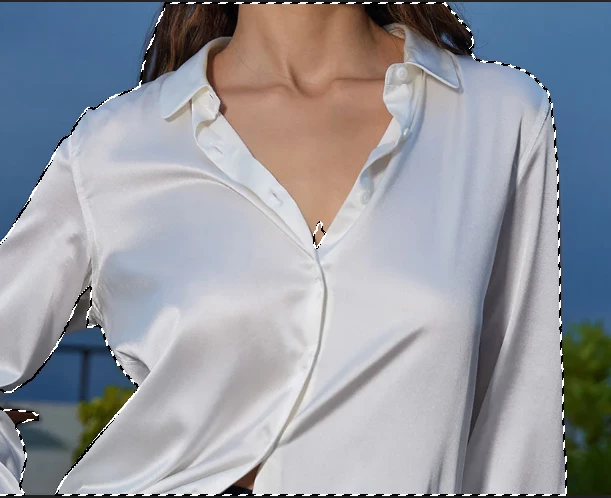
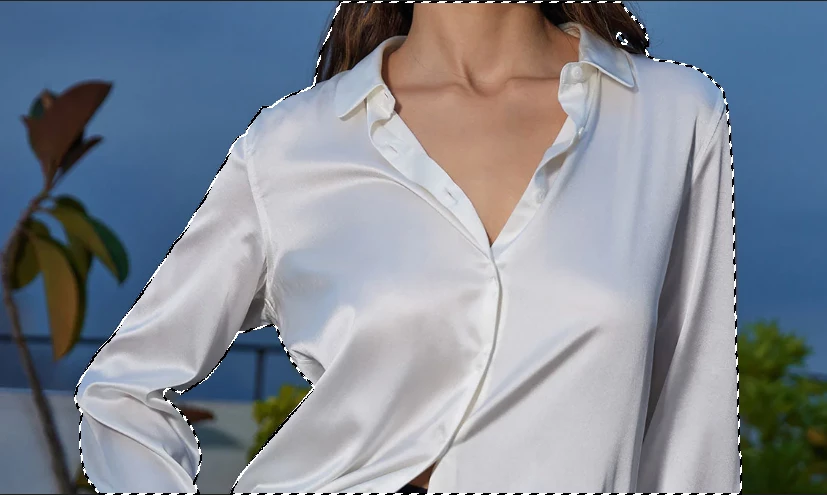
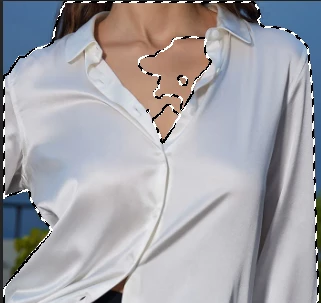
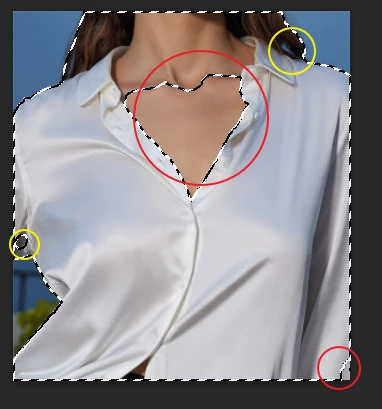
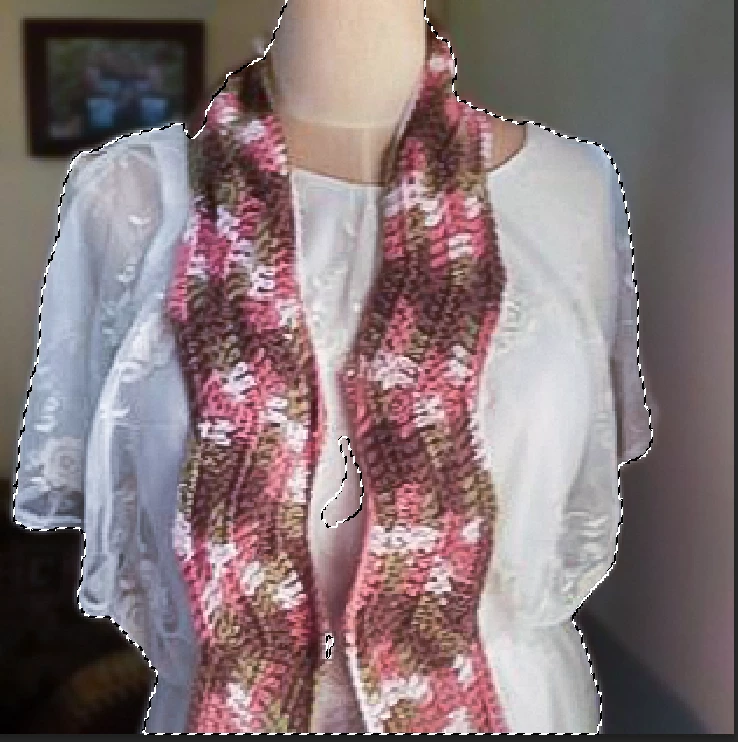
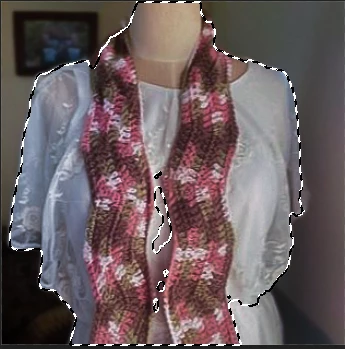
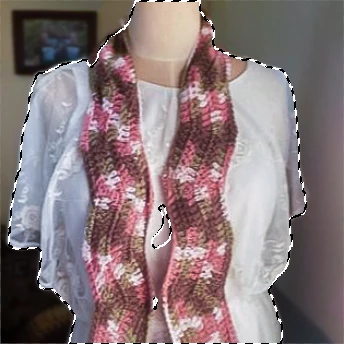
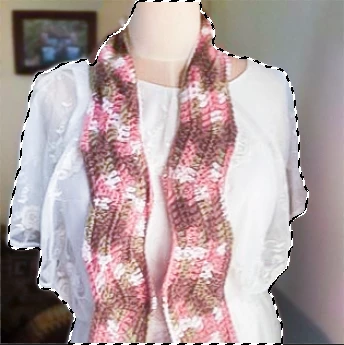
I can't say for sure when I noticed this but sometime in the last few months, the "Subject Selection" has been giving me strange random holes in subjects selected that it wasn't doing last year. I'm not sure sure if it's specific to the beta or happening in the regular release as well. I'll do some further testing later with the regular release.
I've been working to reproduce it consistently enough to predict it but not having a lot of success. I can't find anything consistent. For example, making an adjustment in ACR either way may or may not increase, decrease or even relocate holes in the selection.
Common sense would tell me that this might happen with an area that's either blown out or horribly underexposed but it doesn't seem to trend towards one or the other. Nothing in the spot(s) unselected indicates that it's anything but random. If anything it tends to lean a bit towards middle grey but that's speculation I have yet to start tracking.
To add to it, making changes to the image and then selecting the subject again will often change the spot(s) sizes and locations, but not always. When it moves and reshapes, nothing in the colors has changed at all.
Resizing also impacts it but in no predictable way. Scale up or down and the holes will move to other random places and in other shapes. Scale up a 1200 ppi image to 2400, different result. Downsize it back to 1200 and the holes will appear in different places.
But undo back to the the previous and select the subject again and it reselects the same area as though there is "something" specific triggering it.
Save it, close PS, relaunch, open the image, select subject and again the same holes in the same shapes and places. Save it as a bitmap, jpeg, psd, png, it almost doesn't matter. But save it as a gif, close it, open the gif, change the mode to RGB and it will select the item without problem. But then it only has 256 colors. So the complex color information seemed to be the underlying issue. So I converted to greyscal and tried again. It STILL left holes but in a different place. Adjusting the sliders when converting to black & White will alter the shape and location but the shade of grey selected is never the same.
I'm at a complete loss trying to find some kind of recognizable cause or a sensible workaround. There's no pattern I can discern. Anytime I come up with a new hypothesis, it gets proven wrong almost immediately. The one thing that has seemed to do it is to push the exposure up in ACR until the whites all over begin to blow out which isn't a solution.
I know... simple... "just add to the selection with the lasso."... lol But after working with Adobe the last 26 years or so I want to help when and where I can. 🙂
I've spent about 30 hours the last two weeks trying to nail this one down though and I'm stumped.
Here's some examples. I had several more but the board limited me to 10 images.
Note: These are not my images. Some are my daughters and the others are grabs off the internet as I wanted to try white silk for testing. I'm pretty sure that troubleshooting using public images constitutes fair use.
I put some notes in the images themselves when I uploaded them. Not sure where they display.


 AdChoices