
P: Bug/Problem in Layer Styles on Group Layers
---------------------------------------------------
I am using Photoshop CS6 on a Mac OSX 10.6
I have situations when using Layer Styles on a Group Layer that the "Shape" for applying the Layer Styles is not proper formed and inconsistent. Could always be pilot error yet I believe this is a bug. I have created a test condition that I will walk through below that demonstrates the problem.
The test image is 2 lower layers starting with a solid blue background, with a solid red layer on top (neither has any special settings).
The top two Layers are a fully transparent Layer within a Group Layer set to Normal. In the Layer Styles for this Group Layer the Fill Opacity is set to 0%, knockout is set to Deep and the Transparency Shapes Layer box is unchecked. Under these conditions I would have expected the image to be solid blue as the knockout should go to the background layer as it would if the transparent Layer was standalone and not contained in a Group Layer: 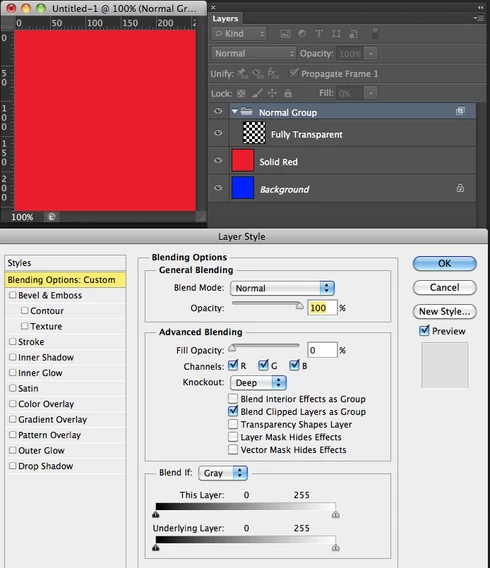
Selecting the full transparent Layer I use the pencil tool send to round (color is green yet you can use any color) and 100% hardness. I click in each of the LL and UR corners of the Transparent Layer. It shows up in Blue yet as square patches. I suspect the PS is identifying the Shape Boundaries for that Layer thought this behavior is strange since the Transparency Shapes Layer is turned off:
image would be appreciated. 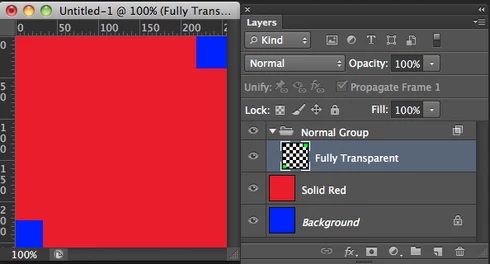
Now this next image is the same as above except that I turn off the visibility of the Group Layer. It turns solid red as expected: 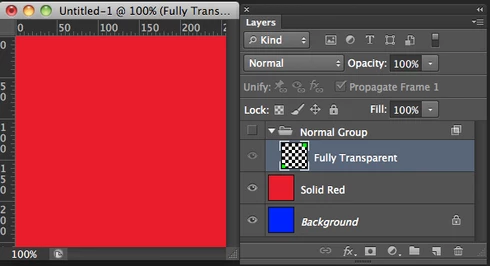
Now for the really strange part. All I did for this next image is turn the Group Layer visibility back on. Now it is totally Blue: 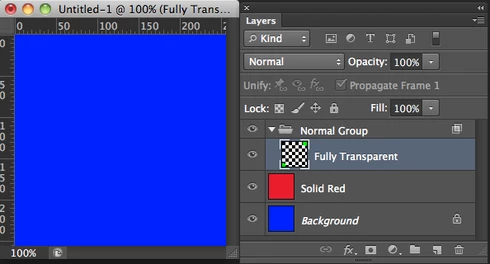
I believe the formation of the Layer Shape boundaries via transparency has some bug with the Transparency Shapes Layer option is turned off.
Help from Adobe would be appreciated and confirmation from others viewing this
 AdChoices