
steveharrington1974
Known Participant
April 22, 2025

P: Photoshop 2025 v26.6 Bug - black document window

  • April 22, 2025
  • 179 replies
  • 36821 views

Photoshop 2025 v26.5 was working absolutely fine, then I made the mistake of updating to the latest patch, version 26.6.0 on my M4 Mac Mini.


After updating to 26.6, the actual document window is solid black - even if I open a photo or previous document...
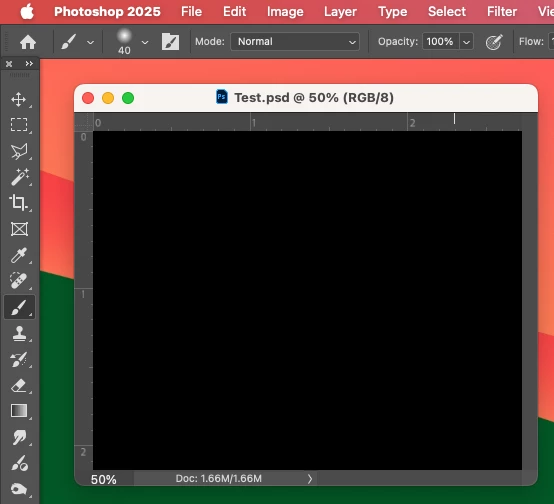


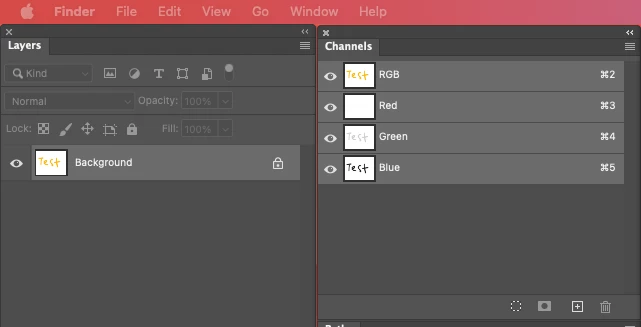
Even though the Layers and Channels palette preview thumbnails are showing what's in the document...


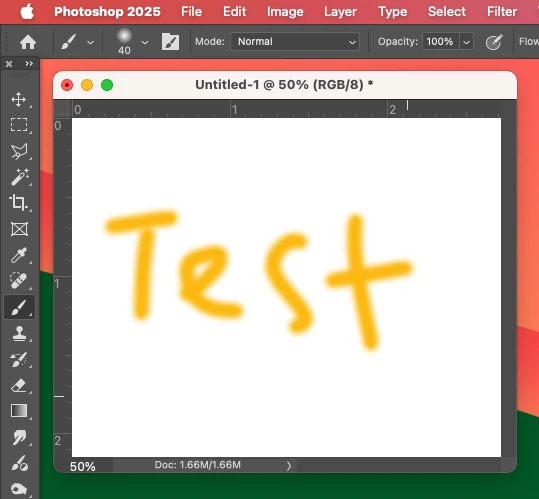
After digging around in Preferences, I tried turning off the "Use Graphics Processing" option and relaunching Photoshop afterwards, and it's working fine again...


I'm just wondering if this is a bug related to the M4 Mac Mini graphics driver compatibility with the version 26.6.0 release? And, if so, when can we expect a fix from Adobe. 


I've discovered the workaround for now, but obviously turning off the Graphics Processing setting will affect perfomance. Like I say, with this option switched on previously to the latest 26.6.0 release, it was working fine so it must be a new bug with 26.6.


I'm never updating this software ever again!!

179 replies

Participant
April 24, 2025

I recently installed Sequoia 15.4.1 and now when I open Photoshop (Latest) and try to open a PNG or JPG its black, on both my laptop and second screen. I can open it in LR and in AI and see it with no issue.


Any help is appreciated


Thanks

NB, colourmanagement
Community Expert
Community Expert
April 24, 2025

@Kratch Its tedious I know, but 

Perhaps try a thorough reset of Photoshop preferences, this has solved a multitude of user issues. I get a lot of "correct answer" and upvotes on this solution

(read this entire text before acting please)


Unexpected behaviour of Photoshop may indicate damaged preferences, which are saved when Photoshop closes.. Restoring preferences to their default settings is a good idea when trying to troubleshoot unexpected behaviours in Photoshop.

When preferences become corrupt, then various issues can occur.


Here’s some info from Adobe about preferences:

Learn how to access and modify Photoshop preferences and customise according to your frequent workflows

https://helpx.adobe.com/photoshop/using/preferences.html#reset_preferences


According to Adobe, manually removing preferences files is the most complete method for restoring Photoshop to its default state. This method ensures that all preferences and any user presets which may be causing a problem are not loaded. More here: https://helpx.adobe.com/photoshop/using/preferences.html#Manually

The process:

  1. Quit Photoshop.
  2. Navigate to Photoshop's Preferences folder.
    macOS: Users/[user name]/Library/Preferences/Adobe Photoshop [version] Settings
    Windows: Users/[user name]/AppData/Roaming/Adobe/Adobe Photoshop [version]/Adobe Photoshop [version] Settings
     
    Note: The user Library folder is hidden by default on macOS. To access files in the hidden user Library folder, see How to access hidden user library files.
  3. Drag the entire Adobe Photoshop [Version] Settings folder to the desktop or somewhere safe for a backup of your settings
  4. Open Photoshop.
     New preferences files will be created in the original location.


You may want to back up your settings and custom presets, brushes & actions before restoring Photoshop's preferences.

Here is general info about that:  https://helpx.adobe.com/photoshop/using/preferences.html#BackupPhotoshoppreferences


And here’s an Adobe Quick Tips link as an aid to overall understanding

https://community.adobe.com/t5/photoshop-ecosystem-discussions/quick-tips-how-to-reset-photoshop-preferences/td-p/12502668


Thanks to Digitaldog for this quick and simple method:

Press and hold Alt+Control+Shift (Windows) or Option+Command+Shift (macOS) immediately after launching Photoshop. You will be prompted to delete the current settings.

You can also reset preferences on quit, if Photoshop is running, by going into General Preferences>General>Reset on Quit.

This action only affects the items found in the preferences dialog box. Numerous program settings are stored in the Adobe Photoshop Preferences file, including general display options, file-saving options, performance options, cursor options, transparency options, type options, and options for plug‑ins and scratch disks. Brushes (and lots of other settings) are not affected by the above instructions for deleting preferences.

You may wish to make a screen capture of the settings in the Preferences dialog to reset them prior to deleting this file. 


Before you reset your preferences, in case of future issues, I suggest you make a backup copy as Adobe may need one to check problematic preferences. 

Quit Photoshop.
Go to Photoshop's Preferences folder

Preferences file locations: https://helpx.adobe.com/photoshop/kb/preference-file-names-locations-photoshop.html\


  [on MacOS see: Users/[user name]/Library/Preferences/Adobe Photoshop [version] Settings

  Note for those on macOS: - Be aware that the user Library folder is hidden by default on macOS. More on that here:

  https://helpx.adobe.com/x-productkb/global/access-hidden-user-library-files.html

  In the Finder, open the “Go” menu whilst holding down the Option (Alt) key.

  "Library" will now appear in the list - below the current user's “home” directory. ]


Now you can drag the entire Adobe Photoshop [Version] Settings folder to the desktop or somewhere safe as a backup of your settings.


Note for macOS:

Preference preservation is affected by macOS permissions,

You’ll need to allow Photoshop ‘Full Disk Access’ in your Mac OS Preferences/Security and Privacy


If resetting preferences doesn't fix your issue:

Go to Preferences > Performance... and uncheck Multithreaded Compositing - and restart Photoshop.

Is Photoshop still hanging? 

Go to Preferences > Performance... click Advanced Settings... and uncheck "GPU Compositing" - then restart Photoshop. 


It may even be time to reinstall Photoshop.


It’s recommended that you use the Adobe CC cleaner tool to remove all traces first.

(See above about preserving preferences first, though! It’s worth preserving them unless they are corrupted.)

How and when to use the Creative Cloud Cleaner tool | Advanced steps

https://helpx.adobe.com/creative-cloud/kb/cc-cleaner-tool-installation-problems.html


Uninstall Photoshop BUT make sure to choose the option “Yes, remove app preference”.


Once that process finishes, start the installation process and look into the “Advanced Options”. Uncheck “Import previous settings and preferences” and choose to “Remove old versions”.


neil barstow - adobe forum volunteer,

colourmanagement consultant & co-author of 'getting colour right'

See my free articles on colour management

Help others by clicking "Correct Answer" if the question is answered.

Found the answer elsewhere? Share it here. "Upvote" is for useful posts


Participant
April 24, 2025

I was just going to post when I saw this...thanks very much!.

I did the cleaner and that didnt work. HOWEVER what did work was something very simple...Deselect Use Graphics Processor


Who knew something so simple would actually work. I used to know this stuff...im getting old.

Participant
April 24, 2025

I am running an Intel chip based iMac and am seeing the same issues described. Plus, an additional bug of the "carots" associated with diference tools in the Tool Bar, which allow one to change the Tool, or the tool behavior will not provide the "drop down" menu to make changes. All other version of PS work as they should. I updated this morning and that is when PS feel apart. 


Legend
April 24, 2025

Yes bugs can be general or hardware-specific. Hopefully Adobe can narrow it down. I can't test things like resetting prefs if I don't see the issue. Also, I did not have the beta installed which may or may not be a factor (some past bugs have been caused by that.)

steveharrington1974
Known Participant
April 24, 2025

It's possibly just related to certain graphics cards/chipsets - you've maybe just been lucky if yours is one that's not affected by this bug.

Legend
April 24, 2025

I don't have any issues here.

Legend
April 24, 2025

I am not seeing this on an Intel MacBook Pro with Sequoia 15.4.1 and just-updated Photoshop 26.6. Images display correctly.

Inspiring
April 24, 2025

Dear @Srishti Bali, i would very much appreciate it if we can stick to a bit of privacy. I will definitely not publicly share a system report here that shows the serial number, among other things. I would have expected a bit of professionalism from Adobe. So please provide us with a directory where we can upload the file securely! Thank you very much.

Srishti Bali
Community Manager
Community Manager
April 24, 2025

Absolutely—no need to share it here. You can send it via DM instead. Just click on my name to open my profile, then click Send Message.

Hope that works!


Inspiring
April 24, 2025

Macos 15.4.1

Srishti Bali
Community Manager
Community Manager
April 24, 2025

Could you please save the System Information file to your desktop and share it with us using Creative Cloud, Dropbox, WeTransfer, or any similar file-sharing service? Just drop the link here once it's ready.

Thanks for your help!


Srishti Bali
Community Manager
Community Manager
April 24, 2025

@heffSTL Thanks for sharing these details.


We’ve attempted to reproduce the issue on our end but haven’t been able to replicate the behavior.

To help us investigate further, could you please share your system information? You can find it by going to Help > System Info while in Photoshop. Just copy the text, paste it into a text file, and attach it here. That’ll help us take a closer look!


Looking forward to your response!

Known Participant
April 24, 2025

One additional data point...


The solid black rendering issue in RGB mode appears to be a problem with Photoshop itself and NOT Camera Raw. I rolled back Ps to v26.5 but left Camera Raw at 17.3 and the issue is resolved.