

Jqqerry
Inspiring
January 6, 2025

P: Photoshop 26.2 feedback for the Remove Tool; it is extremely slow.

  • January 6, 2025
  • 16 replies
  • 1898 views

The current version of Photoshop continues to have issues.

Especially in versions after 26.0, the Remove Tool often triggers crash reports after being used a few times and operates very slowly.
(Please don’t mention the Faster or More Stable options, as they are not fundamental solutions to the problem.)


This is how the Remove Tool performs in version 25.12.
While 25.12 isn’t the most stable version, its speed isn’t too bad. (As I’ve mentioned in other threads, there’s also this bug: in versions 25.12/26.2, it seems that the first stroke is always processed by the CPU, which makes it slow, while the GPU seems to take over from the second stroke onward.)


And this is how the Remove Tool performs in version 26.2. You’ll definitely notice the difference in speed—it’s extremely slow. During the time you wait for it to process, the results are either the same as in 25.12, fail to remove the object properly, or trigger a crash report, making it a very unstable version.

Additionally, the reason I kept Generative AI turned ON is that enabling it produced results similar to those in version 25.12.
When it’s turned OFF, the speed improves slightly, but it’s still slower than the standard Content-Aware tool, the results are inaccurate, and it’s practically unusable for actual work.
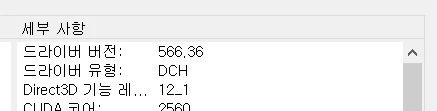


Also, the studio driver is already up-to-date.
I’ve been reporting issues regarding the stability of the Remove Tool since last year, but it seems to be becoming increasingly unstable and slower over time.

Of course, I’m always grateful for Adobe’s continuous advancements and technology offerings, but I hope the Photoshop team can address this issue.
The main advantage of the Remove Tool, in my opinion, was that it was faster, automated, and provided fairly decent results compared to traditional tools like the Healing Brush or Clone Stamp.

However, at this point, it’s slower than doing it manually, and the quality is even worse (in version 26.12). It feels like the identity of the Remove Tool has weakened considerably.

Of course, even if you're lucky enough to get a good result, there’s still a chance of a crash report being triggered. So, it’s both funny and sad that you have to immediately press Ctrl+S before and after using the Remove Tool to save the PSD and protect your data.
I’m not joking. 

From the massive crashes caused by Object Selection and Select Subject, the introduction of the "More Stable - GPU bypass" wasn’t really a solution either. Until that feature was introduced, I kept reporting bugs while constantly pressing Ctrl+S with every step.

And now, I see that the same “More Stable” option is being recommended for most reports related to the Remove Tool.
Please, fix Faster so it can operate with its original speed and stability. I just want to focus on my work.

Having to press Ctrl+S every time I use a tool is terrifying.


16 replies

Inspiring
July 1, 2025

Whenever the Remove tool slows down, I add a 50% grey overlay layer and place an empty layer above it. After that, the tool works flawlessly. This workaround consistently solves the issue for me.

Inspiring
June 26, 2025

I noticed it's slow if your device is hot or low battery or many tabs open. 

Jqqerry
JqqerryAuthor
Inspiring
May 28, 2025

@Pablo.S  There's already a reproduction phase at the beginning of my text and video.....and that's all..........................................


It's not a product hardware level issue because it was reproducible on a laptop. Adobe can already see for himself the differences in the releases I gave as examples, and what's clear is that it's slow after certain versions.

Adobe Employee
May 16, 2025

Hello, thank you for your patience @Jqqerry . Can you please share your test file, hardware specs, and reproduction steps to verify the Remove tool performance issue with Ps version 26.2?

Dramenon
Inspiring
May 16, 2025

Sorry for the delay. They are actively investigating.

/end of line/
Inspiring
May 13, 2025

Whenever the Remove tool slows down, I add a 50% grey overlay layer and place an empty layer above it. After that, the tool works flawlessly. This workaround consistently solves the issue for me.

Jqqerry
JqqerryAuthor
Inspiring
April 13, 2025

@Dramenon  

Is there no update on this?
We're already halfway through April.
The Remove Tool was somewhat less sluggish in the 25.xx versions of Photoshop, but it was still unstable and ultimately unusable. Now, starting from version 26.2, it takes tens of seconds just to remove even a tiny speck of dust.
This is what I wrote in the thread:
"The essence of the Remove Tool is that users can achieve a level of quality similar to what they would achieve manually, but with just a simple click and in a short amount of time.
However, that essence has been compromised, and the current Remove Tool holds no meaningful value in that regard."

I really don’t understand the current reason for the Remove Tool’s existence.

Jqqerry
JqqerryAuthor
Inspiring
March 30, 2025

It's a pity that there's still no news.

Inspiring
March 20, 2025

I found a very strange solution to this problem. I had two images that were pretty similar in size and layers. In one image, the remove tool worked fine, but in the other, it was incredibly slow. So, I duplicated the image where the tool was working normally, then copied everything from the slow image into that one—and suddenly the remove tool worked perfectly.


I'll stick with that for now and update if I discover anything more in-depth.

Known Participant
March 5, 2025

Part of the problem, if it's like I was experiencing, may be that the box at the top of the page, just left of center, that says something about generative remove, is turned on and it needs to be turned off. That cleared up a lot of it for me. The other thing is that it's a RAM hog. The first few uses of the remove tool it works well and quickly. Then if I keep using it, it just gets slower and slower.