
Known Participant
June 30, 2013
Answered

100% zoom is too small on screen (designers don't get high resolution displays)

  • June 30, 2013
  • 62 replies
  • 294946 views

Hello, I'm using photoshop CC on amacbook pro retina. I mainly use photoshop for web design and when I open a document that is 300x200 px, the 100% view is too small on screen. Any ideas, It was this way on PS cs6 also before I upgraded. I just tried to delete the prefs file and restarted PS and it did not change. I have also tried to change my screen resolution to "best for retina" and it is still the same.

Steve
This topic has been closed for replies.
Correct answer D Fosse

...and just for kicks, I started to read from the beginning of this endless thread. It turns out that the whole "problem" was fully explained inside 20 posts or so. The rest of the thread, 360 or so posts by now, is just repetition, over and over and over again.

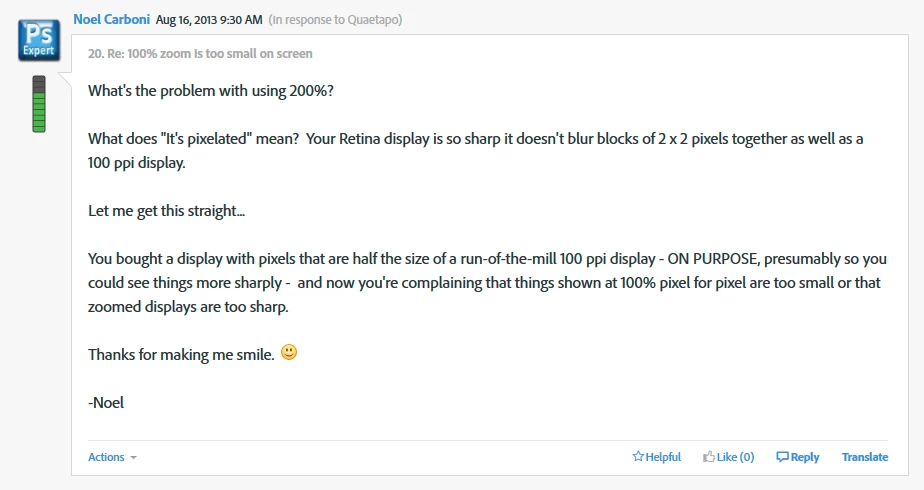
This one, post #20, from Noel Carboni, gave me an acute sense of déjà vu...

And two posts later, he went all in with a detailed and comprehensive rundown on every aspect of high resolution displays. Read it, everyone, please. And when you've read it, read it again, and again, until it's understood:

https://forums.adobe.com/message/5601271#5601271

Case closed, you might think...

62 replies

D Fosse
Community Expert
Community Expert
September 2, 2016

OK, thanks. I need to read this a couple of times

pziecina
Legend
September 2, 2016

Hi

One thing I forgot yesterday, was the impact of 4k tv's and consoles, (and to some extent hd tv's).

4k tv's as you can imagine are on average 45+ inch screen size, and as far as I can see are all smart tv's. This means that they have a browser built in, and unlike the hd tv's, keyboard and pointer type devices are available for them, (as with consoles). At the beginning of this year the Playstation browser entered the web browser charts, (the x-box browser is IE or Edge, so no separate data is available for those).

Even though the percentage is currently less than 2%, if one estimates that x-box has a similar market share, this means that smart tv's and consoles have a higher market penetration than IE6 to IE9 combined, so ignoring these users is not advisable, as they are increasing every month.

If you can imagine creating a full width header image or even photos for inclusion in a lightbox, (a lightbox is when I think 1:1 images can be achieved using inches in the css). Then with current practices the image for the header would have to be at a minimum 90 inches wide, a width that becomes unmanageable for most standard monitors

Now srcset etc. is a standard for delivering various image to a browser, the creation of these images, that will have to cover everything from small smartphones to large tv's, is not something that many are willing to discuss sensibly. I am not saying my method is best, but until everyone is willing to stop, think and discuss 'a best way', the problem will only get worse, and  'normal' web designers ignoring it, (as is currently happening) will only cause problems for them.

8k monitors mobile devices and TV's have already been developed, and will reach the market in a few years time.

Parsa9
Participating Frequently
September 1, 2016

Just a comparison. Here's a link to a screenshot.

The image is 144ppi x 144ppi. Theoretically it should be a 2 inch wide image. My screen setting is on a MBP Retina display set to medium (1140x900 resolution).

Upper left: Firefox — measured exactly 1.3 inches across.
Lower left: Apple Preview — 1.3 inches across.
Upper right: Photoshop CS6 — 0.65 inches across.

Lower right: GraphicConverter 9 — 0.65 inches across.

http://www.americanroads.us/forum_files/144px_image_comparison.jpg

pziecina
Legend
September 1, 2016

Parsa9 wrote:

Just a comparison. Here's a link to a screenshot.

The image is 144ppi x 144ppi. Theoretically it should be a 2 inch wide image. My screen setting is on a MBP Retina display set to medium (1140x900 resolution).

Upper left: Firefox — measured exactly 1.3 inches across.
Lower left: Apple Preview — 1.3 inches across.
Upper right: Photoshop CS6 — 0.65 inches across.

Lower right: GraphicConverter 9 — 0.65 inches across.

http://www.americanroads.us/forum_files/144px_image_comparison.jpg

First using144ppi the image size is correct. It is a complete misconception that many designers have that the web work on 72ppi, as this only ever applied to Safari, and even then Safari has used 96ppi since at the latest 2004.

The web works on 96ppi, (css pixels) and you can read this in both the html5 specs and the css specs, see, (hi-dpi devices will display images at the resolution the device browser supports, (between 130ppi and 300ppi)) -

https://www.w3.org/TR/css3-images/#resolution-type

https://www.w3.org/TR/html5/embedded-content-0.html#attr-dim-width

As for Ps this displays 1 pixel as 1 pixel, and the size of the image will depend on your system settings for the monitor and graphics card in use.

D Fosse
Community Expert
Community Expert
September 1, 2016

Ok, this is what I don't get. I know next to nothing about web coding, so bear with me.

But I do regularly contribute photos to several websites, and what I can see are two options: Either the image is displayed 1:1 (or 1:4 as the case may be) - or it is scaled according to browser window size (I believe this is what they call adaptive).

I just don't get where ppi comes in?

Participant
August 8, 2016

I´ve resolved this problem by using Commands

Participant
July 14, 2016

SOLUTION FOR IMAC:

App called SwitchResX. Its 14€.

It gives you options for any kind of screen resolution. Choose any non-HiDPI resolutions and use photoshop as before.

Participant
May 12, 2016

This is all a bit of a mess so I'll sum it up as:

"We've put black opaque windows on your car".

"Yes, but I cannot drive properly".

"I know, but this is what it is supposed to be like, your car is supposed to have black windows. One day everyone will have black windows on their cars!"

"But it's blurry, I cannot see outside the window".

"Yes but you have the future today. You'll thank us tomorrow".

"Can you add features to allow me to drive properly today?"

"If you get another window and hook it up to your car, you can drive through that. Till then enjoy the black windows".

ThoughtNozzle
Participating Frequently
June 18, 2016

Perfect.

Barb Binder
Community Expert
Community Expert
May 6, 2016

This was a thread from a few days ago that might help:

To make Photoshop CC behave like a non-retina application, select the Photoshop application in the Finder and choose File > Get Info. If you have a Retina display, under General, there will be an option to “Open in Low Resolution”.

—Gener7  Photoshop CC with retina screen - image sizes now smaller...?

~Barb at Rocky Mountain Training
Participant
May 6, 2016

Solution: 1. Make your image size 200% bigger 600x400 (300x200 @2x).

                2. Use photoshop web preview to Google Chrome.

                 3. And simple zoom out 50%.

tip: Don't close the tab in browser with preview. If you make changes of your design just use web preview again. Your new design is still on 50% zoom.

rkdf
Inspiring
April 7, 2016

I have the same issue, 2 screens, image looks the same size on both screens, one says it's at 100% and the other at 200% yet I just move the window from one screen to another and the scale factor changes

rkdf
Inspiring
April 7, 2016

only solution I found is going to the applications folder, and right-click on Photoshop's app icon and select Get info, tick the "open in low resolutions" box

Benji-11
Inspiring
April 12, 2016

It's so weird that a huge company like Adobe hasn't fixed this problem!!!

Participant
March 29, 2016

I've found the easiest way to get this "issue" handled in a normal workflow. It uses the Display Menu menu bar app which was mentioned in this thread but got quickly buried (for me at least).

Basically, using Display Menu, you can select your current dimensions, BUT it will change your display to be out of HiDPI for the time being. A quick selection of your original display settings in the preference pane and your back to the HiDPI/retina display.


Here's an image of screengrabs showing the process:

  • Top screen shows same image in Photoshop and Chrome, with the Photoshop image half the size (the point of this thread)
  • Second screen shows selecting 1440x90 from Display Menu
  • Third screen shows same image in Photoshop and Chrome, with both images equal size
  • Fourth screen shows setting display back to HiDPI/retina using the system preference, selecting "Looks like 1440x900"

With Display Menu in the menu bar, you don't have to quit anything, zoom, change any DPI back and forth, etc., and it's quick to change back and forth between the two. I use the "Looks like 1440x900" setting for my display but others will work too -- just select it's corresponding display in Display Menu.

Participant
February 21, 2016

Hm. Count me in for another frustrated customer of CC. I thought we're supposed to get really quick updates with the whole 'cloud updates'? Two whole years for this feature bug?