Inspiring
December 29, 2021
Répondu

2022 Photoshop Gradient Tool not working

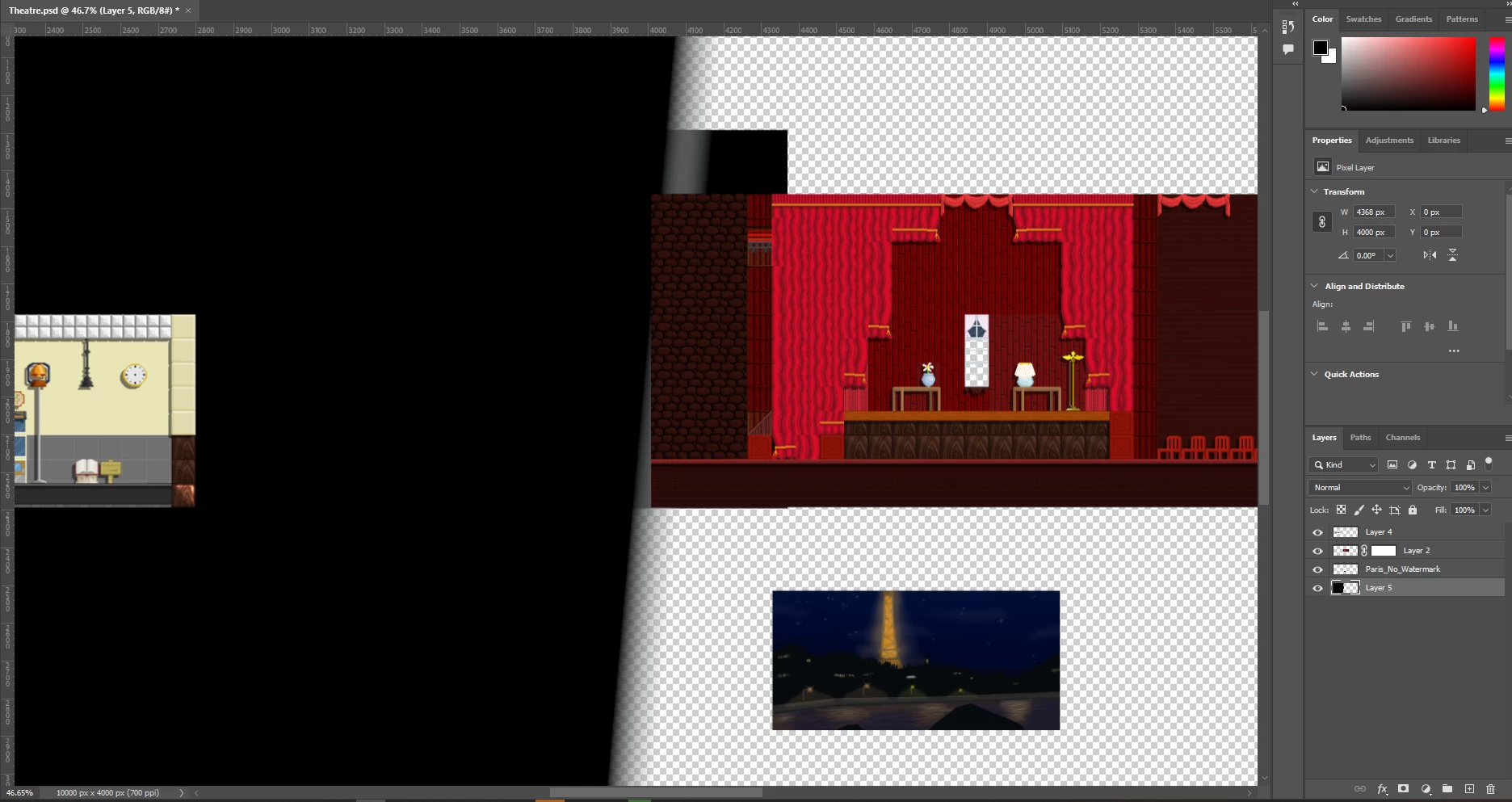
My Gradient tool keep making a large black line acroiss the screen when I add it. I wanted to fade from red to black

Ce sujet a été fermé aux réponses.
Meilleure réponse par Chris 486

Errr sorry are you still in the forum?


Hi! Work caught up with me today. Here are the steps.


1.Create a new layer on top of your room layers and highlight it as the active layer.

2. Select your Marquee tool and select the area where you want the gradient to show for your first room. It doesn't have to be perfect as you can refine this later.

3. Select the add mask button option at the bottom of the layers panel. this will create a mask to hide where you don't want the gradient to show.
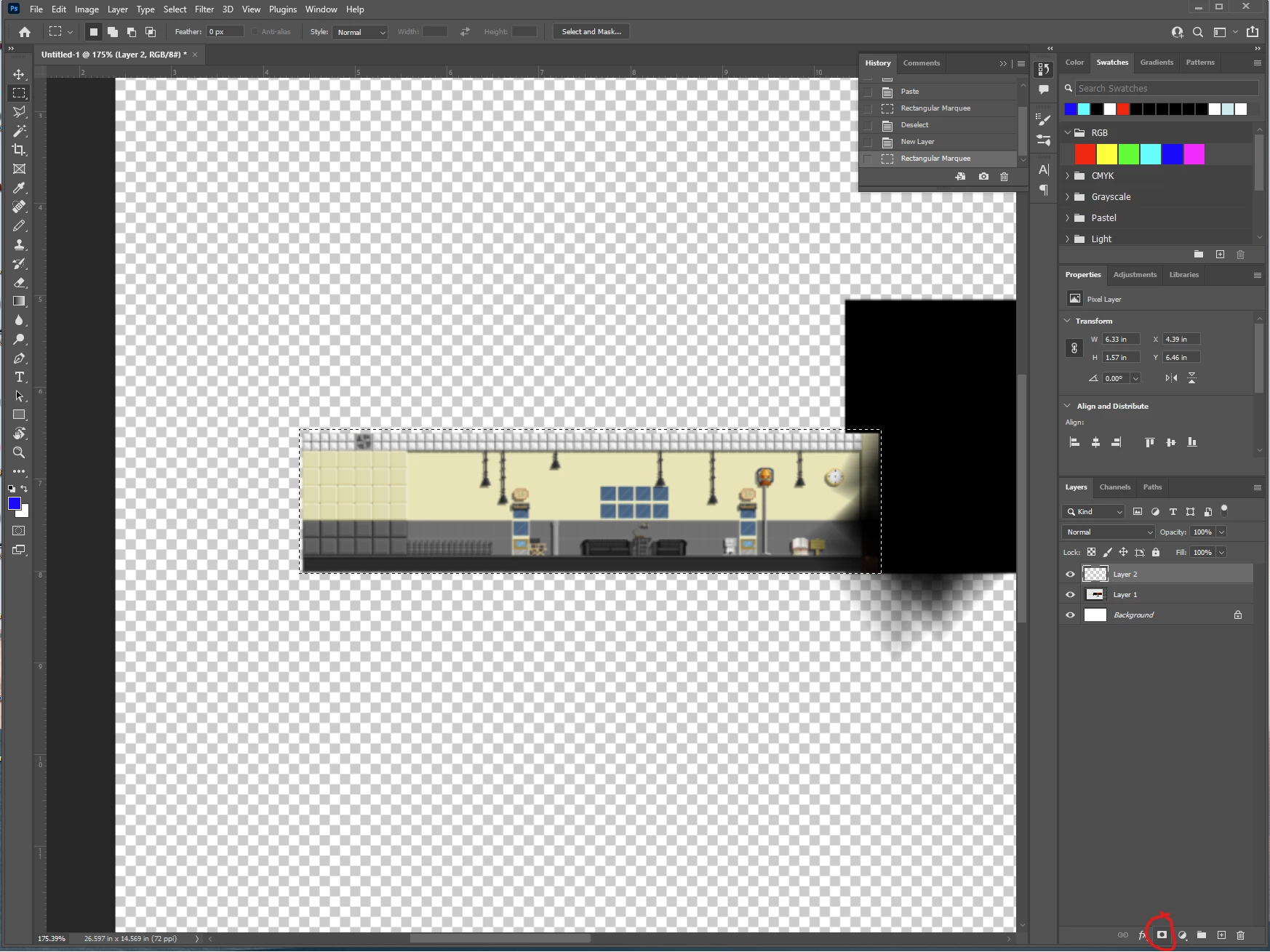
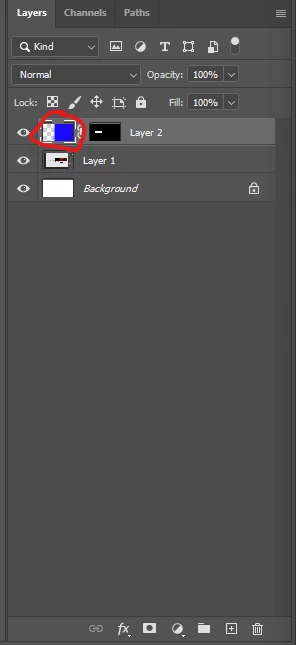
4. Click on your layer to select it and sdd your gradient to the first room like we did before. you can redraw the gradient to get it looking how you want.
 

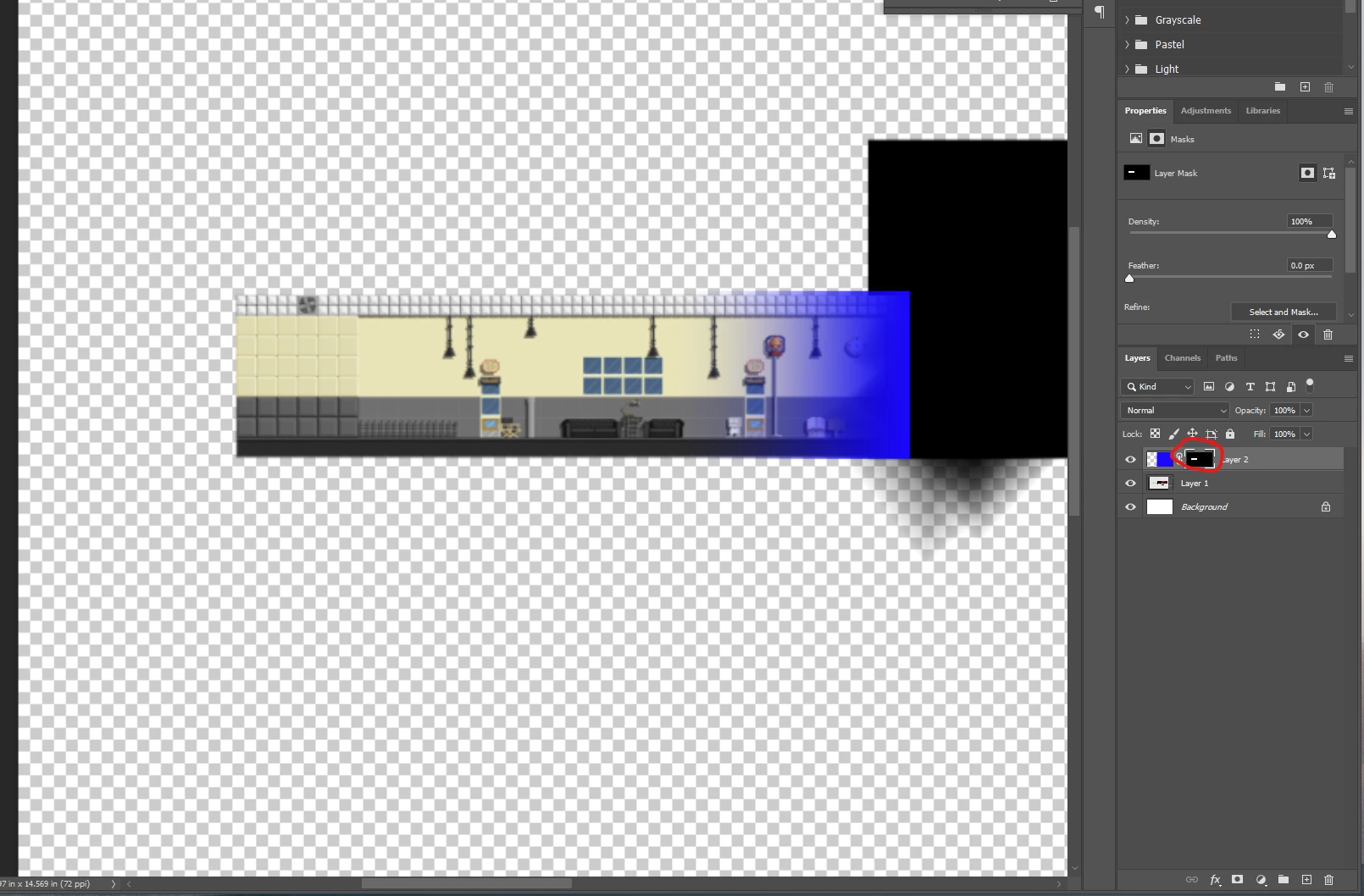
5. Select your mask in your layer and you can use either the paintbrush or selection tools to get the mask pixel perfect. 
 

Repeat the above steps for teh other room as well. You should have 2 new layers with your gradients and masks to hide where you don't want the gradient to show.
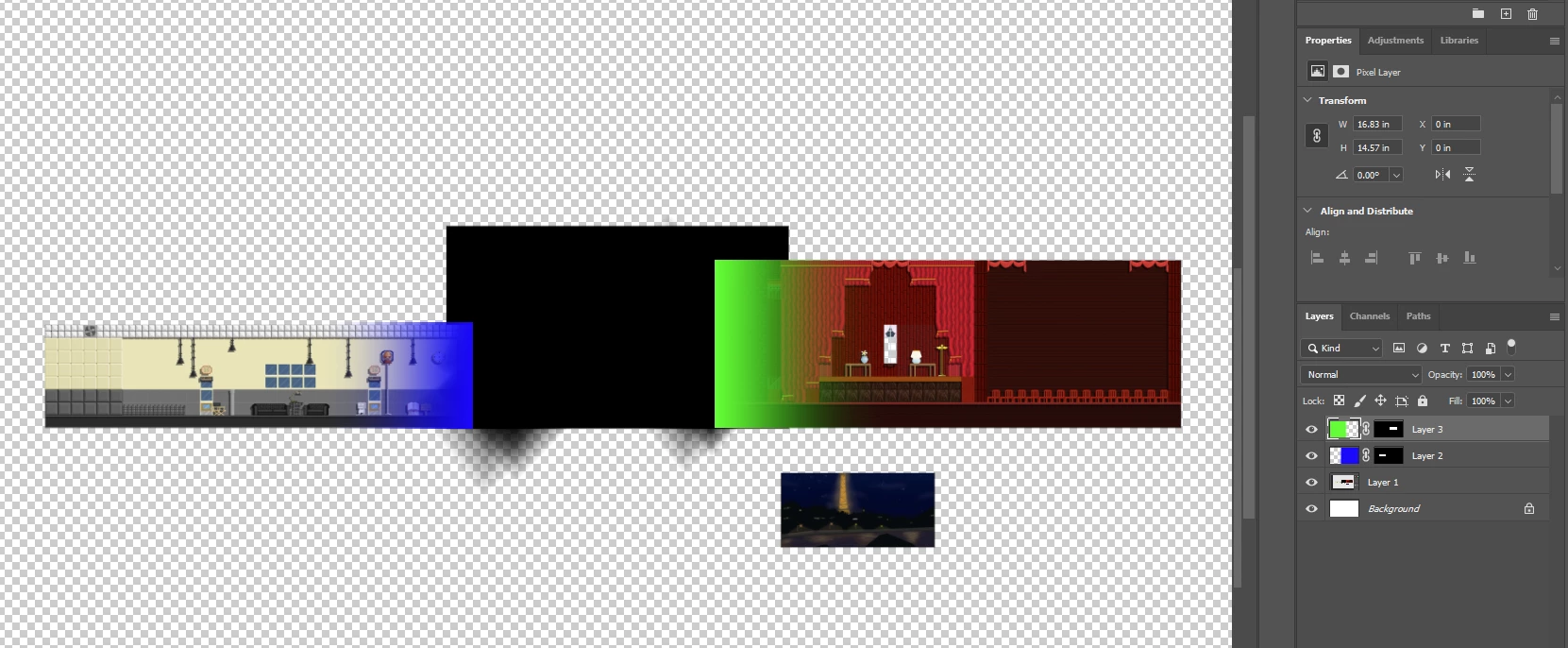
 

Here is more information about masks to help you out: Use masks to hide layers in Photoshop (adobe.com)


Here is the gradient help again: Use gradients in Photoshop (adobe.com)


5 commentaires

Participant
February 25, 2023

Absolutely no need to apologise! We are here to assist you. :slight smile: We appreciate your patience while we work with you to solve this.

https://essentialsclothing.co/
Participant
February 25, 2023

Aply a layers mask on the layer do you want to aply the transparency.

Chris 486
Community Expert
Community Expert
December 29, 2021

Based on our conversation this video might help as well.

How To Make Transparent Gradients In Photoshop - The Complete Guide - YouTube


Or possible this one:

How to Create a Transparent Gradient in Photoshop - YouTube


Additionally, have you tried going through the Gradient help section in photoshop? That might help you go through your options as well! 

Gradients in Photoshop (adobe.com)

Inspiring
December 29, 2021

I watched these videos and i realised that my gradient is different, It is doing in the whoel screen but i wanted to do it to "a" layer not the entire screen like the red room merge to black slowly going transparent in the black area but it makes the whole screen black instead

Chris 486
Community Expert
Community Expert
December 29, 2021

I clipped an example. Are you looking for something like this?


with the black making one side of the room darker?

Chris 486
Community Expert
Community Expert
December 29, 2021

Hi Sciencio5EC6!


As mglush mentioned, it will be helpful to see snapshot of your gradient window. Best guess I can see so far is that you have your gradient selected to be foreground and background colors which are currently black and white. 

Inspiring
December 29, 2021

 Here it is. Sry for the late reply

Chris 486
Community Expert
Community Expert
December 29, 2021

Thanks a ton!


Still looks like you have black and white selected. In the gradient editor, can you choose your colors?


mglush
Community Expert
Community Expert
December 29, 2021

Hi,

It would be really helpful to see what you have selected in the toolbar and what is showing in your options bar to figure out why this is happeing. 


Also what version of Photoshop are you using? And what OS are you running?

Michelle

Inspiring
December 29, 2021

Hello! I have replied to the person below me of the gradient tool, sorry for the late reply. I am using Window 10 and Photoshop 2022 23.0.2. I remember messing with the gradient option to make a background gradient.