
Participating Frequently
July 31, 2019
Question

3D materials in Photoshop CC 2019 not working

  • July 31, 2019
  • 2 replies
  • 3841 views

Hello, dear Community,

I am new to Photoshop and I have two problems that others, who want to edit their 3d models in Photoshop, seem not to have. The first problem is that when I import my models the materials don't get imported, two. I read in the internet that Photoshop does not import .mtl files. Is that right?

That wouldn't for me if I could give materials to them in Photoshop. But exactly this is the second problem. When I try to add a material to one of my models, the model disappears from the screen, and I get this:

Okay, the object doesn't really "disappear". I just can't see it anymore.

But in the layer bar my it is still shown:
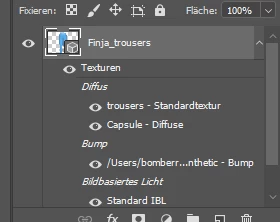
Here you can see my material settings:
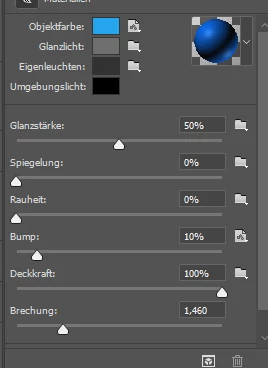
Meanwhile, adding textures to my objects works fine. My CC version is 20.0.2. What should I do?

This topic has been closed for replies.

2 replies

Ussnorway7605025
Legend
August 1, 2019

rajal37430390  wrote

Hello, dear Community,

I am new to Photoshop and I have two problems that others, who want to edit their 3d models in Photoshop, seem not to have. The first problem is that when I import my models the materials don't get imported, two. I read in the internet that Photoshop does not import .mtl files. Is that right?

it is sort of right, a mtl is a map saying what textures to use and where are they located... Photoshop is notorious for failing to read them correct because the 3D tool is so old and no two 3d softwares make the same kind of model. Photoshop reads textures and your image shows them in place so;

A, there is some issue with your textures, they are damaged or just not there

B, the model is not a standard wavefront Obj and Photoshop can't read the ui map i.e, it sees the models but not the instructions showing how textures should be rapped around it... some use more than one map [in layers if you will] and Photoshop only reads the first one

the fix for A is to manually place the textures (old or make new) so Photoshop can rendor correct

the fix for B is to generate a new map for the model... most any 3d software can do this, Blender, Dimension and Photoshop all make them automatically but some also allow you to edit them yourself

p.s, if you can share the model then we can take a look?

Participating Frequently
August 2, 2019

Thanks, Ussnorway. These are my avatar and its trousers. As you can see, the avatar has a lot of faces since it was made in Sculptris. But the trousers don't have much faces, and so far (sorry if my english isn't very good) I only imported the trousers more often than the avatar, so that can't be the problem???

Ussnorway7605025
Legend
August 2, 2019

1st, when save the material that you already have & load one of the other default Photoshop materials does the trousers load them or crash?

if the trousers load other material fine... if not then I would remap [just] them and export that as wavefront Obj

then i would reopen the first model, remove the trousers & load your new Obj trousers instead

Participating Frequently
July 31, 2019

P. S.: When I import my 3d models, I always get the message that the UVs of them are invalid or missing. I thing that has to do whith the programms that I used to create them.

Mylenium
Legend
August 1, 2019

Impossible to know without any idea of what tools you actually use to generate the models, how they use materials and how they export them in the relevant OBJ or DAE files just as well as how the textures are originally set up. Too many variables here for quick answers. that and of course there could be any number of genuine issues with the 3D renderer due to e.g. inadequate GPU settings.

Mylenium

Participating Frequently
August 1, 2019

I don't know about that myself. I used Hexagon from Daz 3D and Sculptris to create them.