
Participant
March 12, 2021
Question

Adding colour

  • March 12, 2021
  • 2 replies
  • 380 views

Hi All,

Totally new and novice and asking a very basic doubt.

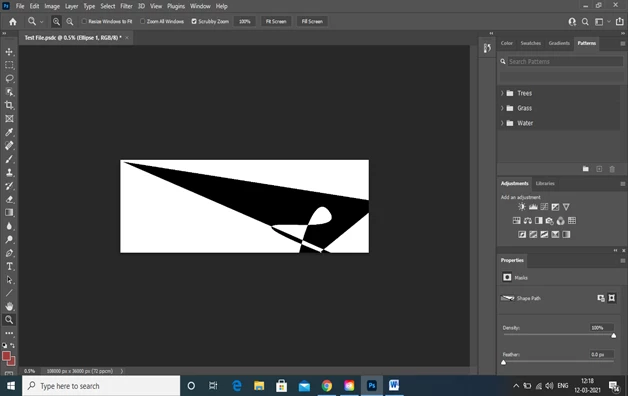
Please find below the  screenshot. I am changing the foreground colour and using the the eyedropper tool but still it does not change its colour and stays as the original black.


Regrads,

KM!

This topic has been closed for replies.

2 replies

lizyb1978
Participating Frequently
March 12, 2021

It sounds like you want to change all of the black to another color. Is that correct?

lizyb1978
Participating Frequently
March 12, 2021

The fourth tool from the top in the left tool bar is the magic want. It selects all of one color. Use that tool and click on any black area. There is also an option at the top, after you pick the magic want, to select continguous. With that checked, the tool will only select black that it is touching. If you un-select Continugous, then it will select the black on the entire document. Once you do that the marching ants wil appear all around the black. Now you can pick any color you want. Once you select the color, change the tool to the paint bucket and then you can click anywhere inside the marching ants and the entire area will change colors. 

One note: before you click to change the color with the paint bucket, you might want to create a new layer by clicking Shift-Command-N (that is for a mac) or in the layers panel you can click the three small lines in the upper right corner and the first option is New Layer. You can name it if you want or just hit Ok and THEN spill the new color with the paint bucket. 


Mylenium
Legend
March 12, 2021

You might want to read up how shape layers actually work or for that matter most parametric layer types and their attributes. Really nothing more to see. Please make use of the online help and start at the begininng.


https://helpx.adobe.com/photoshop/user-guide.html


Mylenium