Participant
March 16, 2021
Question

adjusting a Gray image to a bone white

  • March 16, 2021
  • 4 replies
  • 382 views

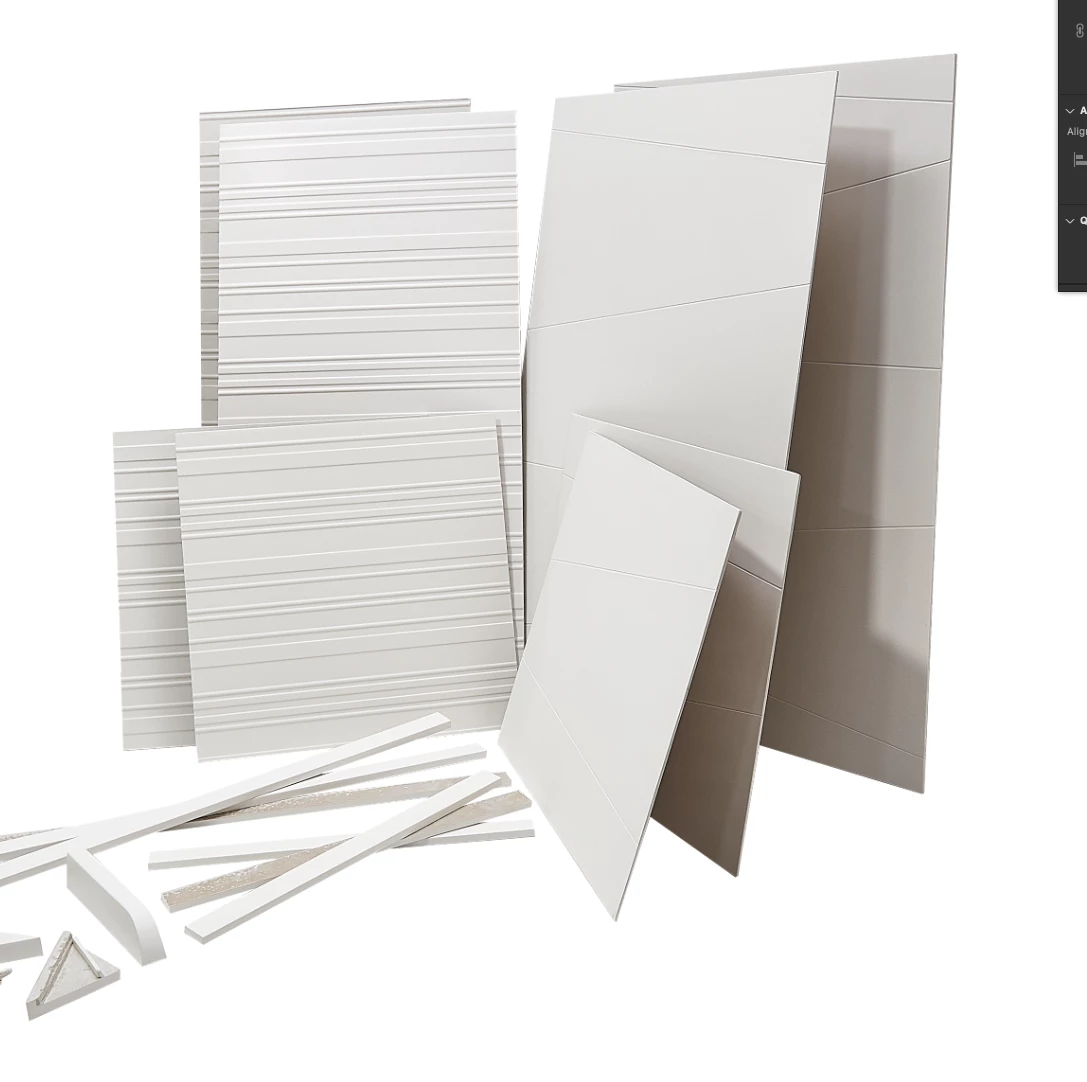
hello does anyone have any suggetions adjusting a Gray image to a bone white? the product is back splash tile its outlines with a white background but it look gray 
This topic has been closed for replies.

4 replies

Norman Sanders
Legend
March 17, 2021

It seems that “Bone White” is a name assigned to many similar colors.  The site shown above displays a hex value that I assume is keyed to sRGB as  #d7d0c0 and comes very close to the pictured sample shown.

This translates to Lab Color : L84 a0 b9

The list to the right of the sample specs CIE L*a*b (rounded) L84 a0 b8

Is that the color you are aiming for?

D Fosse
Community Expert
Community Expert
March 17, 2021

You really, really need to get rid of those shadows.


Participant
March 17, 2021

I agree but the client wants them there I have lighten them up a bit thanks for your help


Legend
March 17, 2021

I did this with an adjustment layer (Hue/Satuation) and a top layer filled with white and set to Soft Light.


Participant
March 17, 2021

thanks for your help I will try that 

D Fosse
Community Expert
Community Expert
March 16, 2021

Lift the white point with Levels or Curves.


But the real problem is that the lighting doesn't match with a pure white background. Most critically, you really need to get rid of that heavy shadow on the right. A white background implies soft and completely diffused light, but that's clearly not the light this was originally shot in.

Participant
March 17, 2021

I agree the lighting is bad but this is how the client wanted the tiles shot it was in a room with no extra lights just over head lights.
