
Known Participant
September 20, 2021
Pergunta

Adjustment Layers not behaving as expected...

  • September 20, 2021
  • 4 respostas
  • 1338 Visualizações

I wanted to be able to adjust color balance of the main subject and background independently.
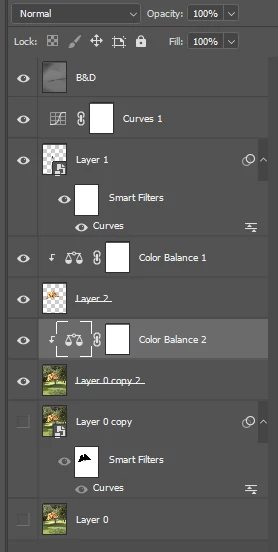
I have the main subject as its own layer with a color balance adjustment layer clipped to it.

Below that I have a color balance adjustment layer clipped to a layer of the full image. My intent is to control color balance only on the background since this layer is below the layer containing the main subject.

After I adjusted the color balance of the background layer and use the eyeball to turn that layer on and off, it affects also the color of the layer above by a small amount.

Is that normal?

v22.5.1

Screen shot of Layers panel attached.
Este tópico foi fechado para respostas.

4 Respostas

Known Participant
September 20, 2021

"...it looks like you also have a Curves layer on top of everything so that will affect all of the layers..."


Would this still apply since I've deleted all layers except Main, Background, and Color Balance 2 and the issue still occurs?


"The upper layer doesn't have any slightly transparent pixels? And the main layer is set to normal blend mode?"


I did not intentionally set anything to create slightly transparent pixels (like Opacity) and Blend Mode is Normal.

Community Expert
September 20, 2021

yes the curves layer will effect ALL layers 


if there are semi-transparent pixels then they could be layering over other pixels and in effect changing them a bit.


It also looks like Main and your background image both have the same yellow item....  instead of spending your day here in the forums, seems like it might just be easiser to take advantage of the Mask that every layer adjustment comes with, and just use a brush and hide or reveal whatever you want or dont want using black and white respectively.


best,

mark

headTrix, Inc. | Adobe Certified Training & Consulting
Community Expert
September 21, 2021

The issue is the same. Adjusting Color Balance 2 affects the color of layer Main.


I thnk the color balance layer might look like it is effecting the Main layer since it seems that the Main layer is a cut out of what is in the background layer, so since it is sitting on TOP, changes to the layers below might effect the way  the Main layer looks since it is sitting on top of it? Really tough to determine without seeing the actual file. It could also have a some see-through pixels or be slightly transparent. 

headTrix, Inc. | Adobe Certified Training & Consulting
Chuck Uebele
Community Expert
Community Expert
September 20, 2021

The upper layer doesn't have any slightly transparent pixels? And the main layer is set to normal blend mode?

Myra Ferguson
Community Expert
Community Expert
September 20, 2021

I agree. We can't see if there's a blend mode applied to Main.

Known Participant
September 20, 2021

"The color balance layer should only effect the Layer ) copy 2."


That's what I thought. (Updated labeled screenshot attached) But when I adjust Color Balance 2, it alters the color balance of layer 'Main' when layer 'Background' is highlighted.


If layer 'Main' is highlighted, changes to Color Balance 1 do not affect layer 'Main.'


The way I'm checking the changes is I zoom to 700%, choose a given pixel, note its RGB values in the Info panel, and use the eyeball to turn Color Balance 2 on and off. For a fair sample I repeat those steps with about four different pixels of varying hues.


What's up with that?


War Unicorn
Community Expert
Community Expert
September 20, 2021

Out of curosity, have you tried copying all these layers into a new document to see if you can repro there as well?

Known Participant
September 20, 2021
quote

Out of curosity, have you tried copying all these layers into a new document to see if you can repro there as well?


By @War Unicorn

I tried that and the issue still occurs in the new document.


I then deleted all except the four layers under discussion and the issue is still present.


I then deleted Color Balance 1, same results.

melissapiccone
Community Expert
Community Expert
September 20, 2021

The color balance layer should only effect the Layer ) copy 2. Name your layers - it will help you explain what you are asking as well as make your life easier. This is the first thing I start repeating to my students NAME YOUR LAYERS!!!

Melissa Piccone | Adobe Trainer | Online Courses Author | Fine Artist