bartonlew
Legend
February 7, 2021
Answered

Adjustments copied onto transparency problem

  • February 7, 2021
  • 1 reply
  • 1211 views

I don’t know how to solve the following problem:

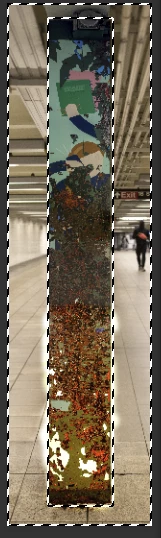
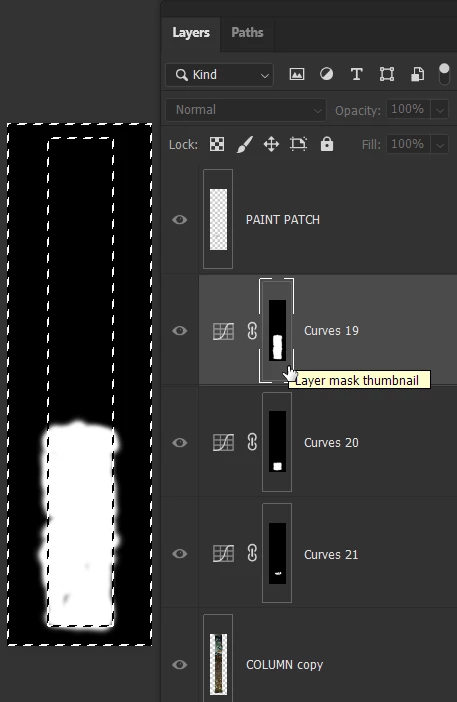
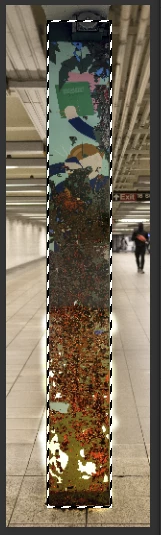
In screenshot 1, I have applied adjustments to the COLUMN copy Layer in Curves 19.  Some of the brush strokes have bled over onto the transparent area outside the column.

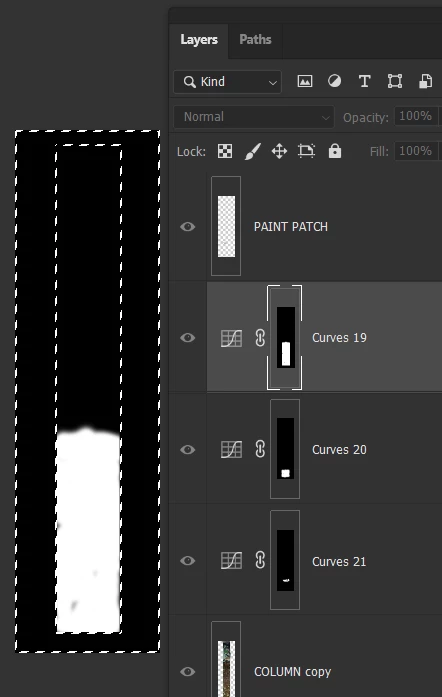
I then selected an area in the column that I copied to a “PAINT PATCH” Layer and moved to the top of the stack (screenshot 2).

The brush strokes I applied in Curves 19 are being reflected in the PAINT PATCH Layer as can be seen in the whitish areas outside the column.  Why is this happening and how can I not have these reflected here?

Thanks,

Barton
This topic has been closed for replies.
Correct answer barbara_a7746676

Thank you so much, Barbara.  That is exactly what I have done - to WeTransfer.  here is the link:

https://we.tl/t-2umxgTXb7O


I deleted some extraneous layers to clean up the document and make what's happening clearer, hopefully.  You'll see the PAINT PATCH at the top which has brought the brush strokes made on the source Layer (COLUMN copy) showing at the outer edges of the column.  I guess when painting white to reveal the adjutsments made to the COLUMN copy Layer, the white filled in the transparency, so the question is - how to hide the white on the transparency?  Thanks for your help if you are able to.

Best,

Barton


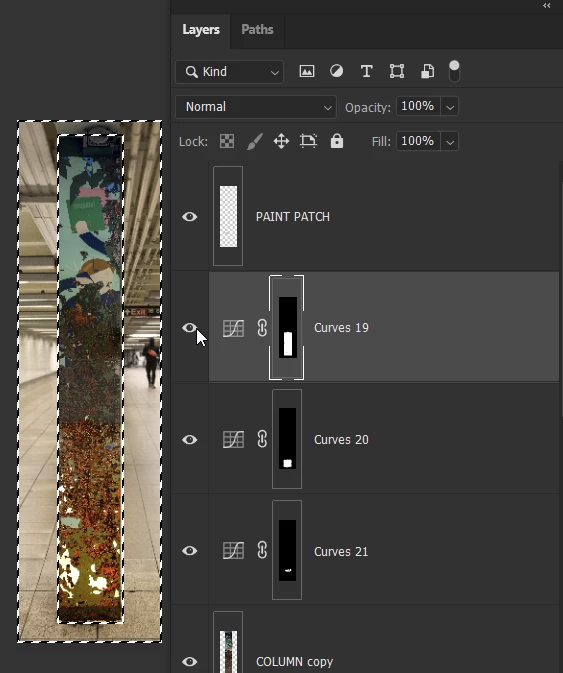
I first made a selection of the area.

Then chose Select > Inverse to select the area outside the selection.

I Alt (Windows) or Option (Mac) clicked on the Curves 19 layer mask to see only the mask.

Then I filled the selected area of the mask with black.

When I click the Eye icon to the left of the Curves 19 layer to make all the layers visible, this is what it looked like:


You can use the same steps to clean up some of the other layer masks that need touchup.

1 reply

barbara_a7746676
Community Expert
Community Expert
February 7, 2021

Check the layer masks. If a layer mask has gray or white in the area, you will need to make those areas black in the mask.

bartonlew
bartonlewAuthor
Legend
February 7, 2021

Thank you, Barbara.  I'm embarassed to say I apparently don't know what I'm doing here.

In screenshot 1, I have selected the paint patch that I want to modify with an adjustment layer.

In screenshot 2, I have copied it to its own layer and moved it to the top of the stack.  I clicked on the mask icon.  I painted the mask black.  But the whitish areas are still showing at the outside edges of the column.  

Is what I need to be doing instead:

1.  adding a mask to the COLUMN copy Layer before making adjustments.  

2.  Making the mask black.

3.  Making adjustments to the column.

4.  Selecting the paint patch on the column.

5.  Copying it to its own layer and moving it to the top of the stack.

6.  Applying a clipped adjustment layer to the paint patch.

In screenshot 3, I have painted with black on the mask but it's also painting over the column.  What am I doing wrong?

Thank you.  

Barton


barbara_a7746676
Community Expert
Community Expert
February 8, 2021

Thank you so much, Barbara.  That is exactly what I have done - to WeTransfer.  here is the link:

https://we.tl/t-2umxgTXb7O


I deleted some extraneous layers to clean up the document and make what's happening clearer, hopefully.  You'll see the PAINT PATCH at the top which has brought the brush strokes made on the source Layer (COLUMN copy) showing at the outer edges of the column.  I guess when painting white to reveal the adjutsments made to the COLUMN copy Layer, the white filled in the transparency, so the question is - how to hide the white on the transparency?  Thanks for your help if you are able to.

Best,

Barton


As suspected, the layer masks are at fault.

I will send detailed instructions this evening.