
Inspiring
October 17, 2018
Answered

Adobe apps gone from registry, cannot associate PSD files to PS.

  • October 17, 2018
  • 2 replies
  • 2779 views

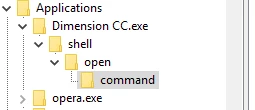
After big Adobe update (yesturday) I cannot associate PSD files to Photoshop (and not only Photoshop). I have lot of Adobe apps (Dimension, after effects, Illustrator, XD, etc.) but since last update i having problems (win 10). I was trying to change something in registry but I didn't find any registry data for PS. There is only Dimension tree (from Adobe). Should I remove All apps and install them again or add some registry data using *.reg files?
This topic has been closed for replies.
Correct answer D Fosse

Several threads on the same issue. The root cause is uninstalling an old version after installing the new. This takes file associations with it, leaving registry keys orphaned.

Here's a selected few from the last 24 hours:

Type of file: Photoshop.Image.19 (.psd) ERROR

Photoshop 2018 can't be set as default "open with" for any file type

Solving files association with the cc2019 update, my solution and it finally worked.

I would first recommend a complete uninstall and reinstall as the least drastic option. Make sure to do it in strict version sequence if you have more than one installed.

Some people seem to have solved the problem by editing the Windows registry. Any registry edits you choose to do are at your own risk. Always back up the registry first.

2 replies

D Fosse
Community Expert
Community Expert
October 23, 2018

This is being investigated by Adobe engineers now. In the meantime, try this: https://helpx.adobe.com/photoshop/kb/file-association-broken-psd-after-photoshop-cc-2015-on-windows.html

D Fosse
Community Expert
D FosseCommunity ExpertCorrect answer
Community Expert
October 17, 2018

Several threads on the same issue. The root cause is uninstalling an old version after installing the new. This takes file associations with it, leaving registry keys orphaned.

Here's a selected few from the last 24 hours:

Type of file: Photoshop.Image.19 (.psd) ERROR

Photoshop 2018 can't be set as default "open with" for any file type

Solving files association with the cc2019 update, my solution and it finally worked.

I would first recommend a complete uninstall and reinstall as the least drastic option. Make sure to do it in strict version sequence if you have more than one installed.

Some people seem to have solved the problem by editing the Windows registry. Any registry edits you choose to do are at your own risk. Always back up the registry first.

BryanPSAuthor
Inspiring
October 18, 2018

OK Thanks. This soluciotn worked for me:

"In the registry, find the address: HKEY_CURRENT_USER\Software\Classes\.psd and change the default value to Photoshop.Image.20"