
Participant
October 24, 2018
Answered

Adobe CC 2019 Photoshop - Vector Smart Objects

  • October 24, 2018
  • 3 replies
  • 5152 views

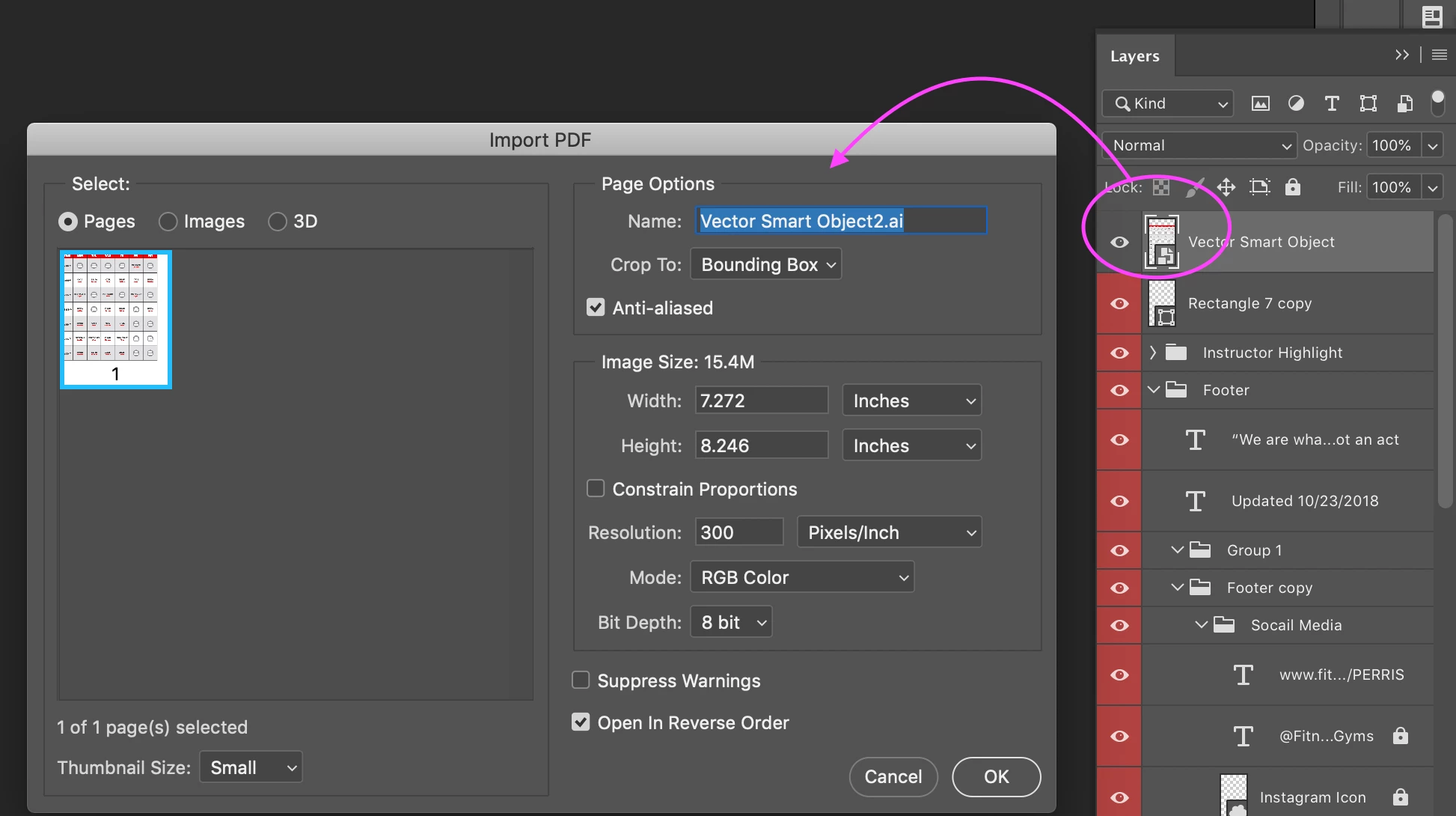
Adobe CC 2019 Photoshop will not open Vector Smart Objects into Adobe Illustrator to edit by double clicking the smart object. Instead, it is opening this dialog window and opening the file as a raster image in a new Photoshop window. Does anyone know how to go back to how it was? Secondly, ever since I updated my Adobe CC to the 2019 version my computer now refuses to associate .ai files with Illustrator but instead automatically opens in Photoshop. 
Correct answer nicoleo19360672

Contacted Adobe Chat Support. The answer is really simple for Mac users. Right-click file > Get Info > Open with > Adobe Illustrator

3 replies

jonathang21794581
Participant
November 6, 2018

This does't really fix the problem. So I don't know why this is the answer. The problem is that its a smart object that needs to be exported from your PS file then reopened in Illustrator then copied and pasted into PS again. This make no sense to me when the 2018 version I would just double click the smart object and it would open in illustrator. This make the work flow a lot slower. Not happy with this at all.  

Participant
November 6, 2018

If you are a Mac user and go to your illustrator file and Right-click file > Get Info > Open with > Adobe Illustrator then hit "Change All" it will open all ai and smart objects in Illustrator.

Participant
November 8, 2018

Originally, I had done that but it didn't work for me when opening smart objects in Photoshop files that were created by someone else (hence my original post). It was right after I updated my Mac to Mojave and everything seemed to have changed for the worse, but now it's working correctly and everything is back to normal. Super weird! But thanks for posting that!

marthas43198889
Participant
October 30, 2018

I try to use Adobe 2018 and now it does the same as the 2019. What I did was export the layer. Layer/Smart Objects/Export Content

at the beginning it show me an error but the file was created so I was able to work with it and relink again without having to go through all my files. But as the post above says it was so much easier double-clinking and being able to do the correction.

nicoleo19360672AuthorCorrect answer
Participant
October 24, 2018

Contacted Adobe Chat Support. The answer is really simple for Mac users. Right-click file > Get Info > Open with > Adobe Illustrator

Coffee Design Ltd
Participant
October 25, 2018

But you cannot do this direct from the Photoshop App.

Meaning you have to leave your workflow, locate the file, open, edit, save, and then head back to Photoshop.

If you can't find the file then you're screwed.

Participant
October 25, 2018

I feel the frustration. It was much easier double-clicking the Vector Smart Object and it automatically opening in Illustrator that way it can be edited and saved and refreshed in Photoshop. Especially at my work where majority of files are done by designers on their own computers remotely. We don't have immediate access to where the original artwork was saved.

The only way I found that works (and it's a couple of steps) is:

Right click your Vector Smart Object > Export Contents

It then wants you to find a location to save the file (in my case it automatically wants it to save as an AI file - which I want). I have been saving to my desktop. Open the file and make your edits - for me nothing was rasterized and everything is still editable. I then just drop in the new artwork into my Photoshop file still as a Vector Smart Object.

At least this way you don't have to back track to where that original smart object was saved - in my case I don't have access to where the original artwork was done, so this is the only solution I found so far.