Participant
September 27, 2017
Answered

Adobe Photoshop CS3- Post install issues

  • September 27, 2017
  • 1 reply
  • 806 views

Hi guys,

I've installed Photoshop CS3 on a users Windows 10 64Bit machine. It's gone on fine- I had to get a special serial number and installer from Adobe support as the activation servers have been taken offline for it, which is fair enough for an old product.

The issue I'm having now with it is that even though it's installed correctly with the serial number provided whenever I launch Photoshop it opens up and a white dialogue pops up with a "Page can't be displayed" error with no exit options in the corner. Photoshop has to be ended in task manager to get rid of it.
I was wondering if anyone has had the same issues or could point me into the right direction with this.

Cheers

    This topic has been closed for replies.
    Correct answer Jeff Arola

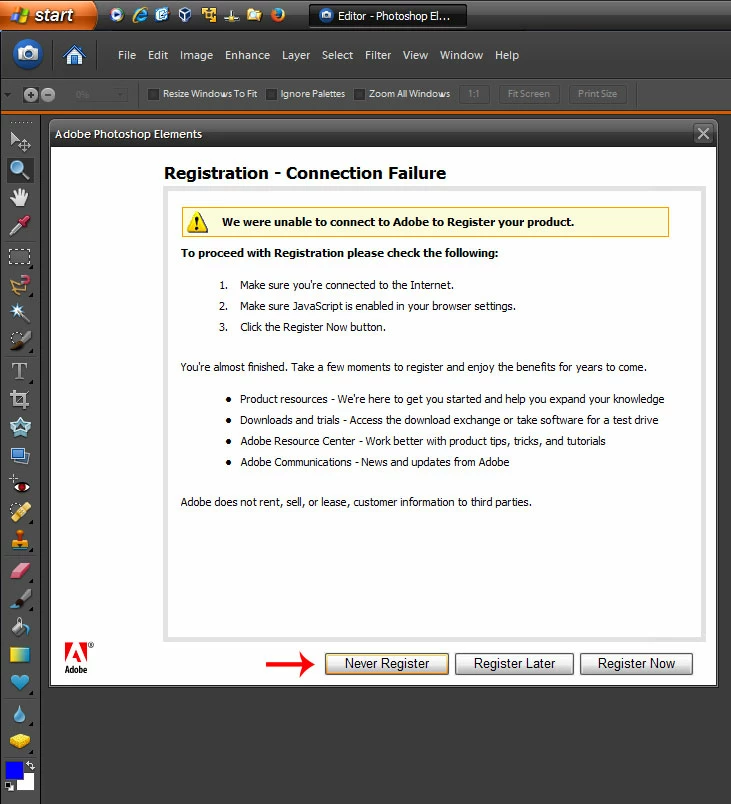
    That looks like the registration screen.

    You can get rid of it by:

    1. turn off your internet connection

    2. start photoshop cs3 as an administrator

        Right click on the photoshop cs3 shortcut and click on Run As Administrator

    3. You should now get the whole registration screen.

        Click on Never Register

    You only need to run cs3 as an administrator once to make the Never Register stick and then start cs3 as normal

    afterwards.

    1 reply

    @mj
    Community Expert
    Community Expert
    September 27, 2017

    Wow! I don't think I'd find my CS3 installers if you offered me money

    I suspect it's the welcome screen that is going nowehere.

    Try getting past it by creating a new document with the keyboard shortcut (Ctrl+N)

    HTH

    Participant
    September 27, 2017

    Hi Master,

    Thanks for the quick reply! Yeah I know it's old school but use what you know huh

    CTRL + N didn't do anything in the window. None of of the menus are responsive in Photoshop while this white box is on. I've attached a snippet here

    Installed GIMP as a temporary solution

    Jeff Arola
    Community Expert
    Jeff ArolaCommunity ExpertCorrect answer
    Community Expert
    September 27, 2017

    That looks like the registration screen.

    You can get rid of it by:

    1. turn off your internet connection

    2. start photoshop cs3 as an administrator

        Right click on the photoshop cs3 shortcut and click on Run As Administrator

    3. You should now get the whole registration screen.

        Click on Never Register

    You only need to run cs3 as an administrator once to make the Never Register stick and then start cs3 as normal

    afterwards.