
Participant
November 4, 2016
Answered

Adobe "Spaces Helper process", how disable it?

  • November 4, 2016
  • 7 replies
  • 43236 views

Why we have those 3 process runing now in PS CC 2017? I would like to not have those 3 process runing while using PS, in a previous version of PS i never saw those runing:
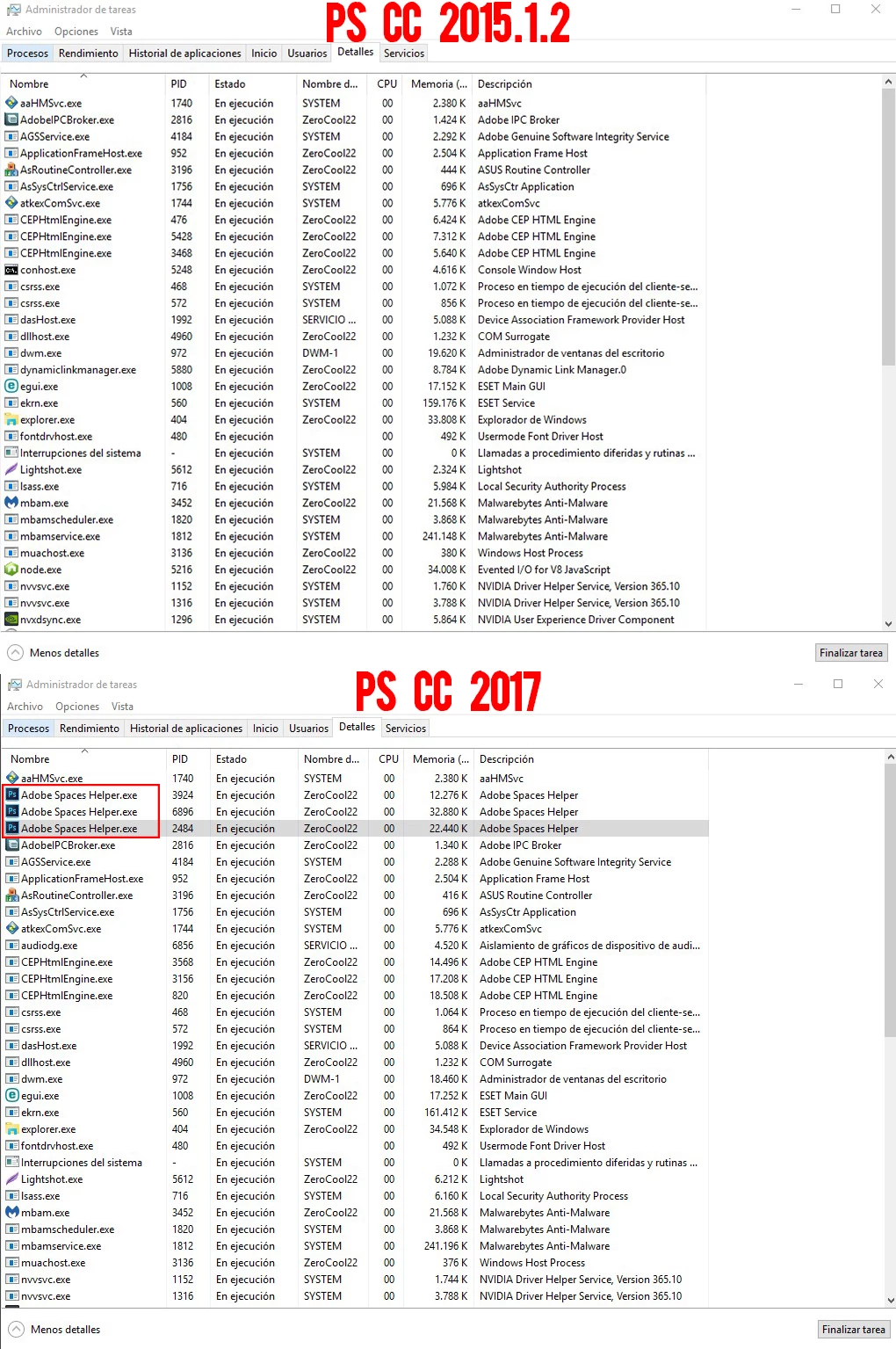
Some idea how to Disable those 3 process?

PD: I tried to search for the service to Disable it but with no luck.

This topic has been closed for replies.
Correct answer Jeff Arola

See if going to Edit>Preferences>General, unchecking Show Messages and restarting photoshop makes any difference.

7 replies

July 10, 2021

I have CC 2018 (19.0) and i don't see "show messages" in preferences>general.

April_W
Participating Frequently
February 28, 2018

It's back with CC 2018, and there's no option to uncheck "Show Messages". Any other suggestions to remedy this? Thanks...

Participant
December 17, 2019

If you could not find the "Show Messages", I may have found it in CC 2019 under Preferences>Tools> uncheck Show Rich Tooltips.  Goodluck!

Edit: I found that this still causes it to open. Next I disallowed it at the Regedit level and it still opened. Alas, I located the .exe file here: 
C:\Program Files\Adobe\Adobe Photoshop 2020\Required\Plug-ins\Spaces\Adobe Spaces Helper.exe
then I simply cut and pasted it to a backup folder located somewhere else.  It is no longer running constantly. I hope it helps.  

Participating Frequently
November 23, 2017

Arm yourselves with these two little apps:

Process Blocker:

https://www.processblocker.com/

Autoruns:

https://docs.microsoft.com/en-us/sysinternals/downloads/autoruns

These two tools eliminate all of Adobes uninvited process intrusions, you can prevent most from running with Autoruns, and block any you can't with Process Blocker.

Kill the problem at source

Known Participant
October 22, 2017

I had this fixed in CC/PS 2017 by disabling the messages.  Worked perfect until the new update CC 2018.  
I decided to try the fix that was old in this thread C:\Program Files\Adobe\Adobe Photoshop CC 2018\Required\Plug-ins\Spaces

I renamed the files and it's not loading and taking up CPU space

gibsonion
Known Participant
September 15, 2017

Photoshop CC 2017 Windows 7, Show messages is unchecked and greyed out, this is the default setting and currently cannot be changed, and has never been changed to my knowledge, but multiple Adobe Spaces Helper.exe processes are visible in the task manager. Is it possible there is another use for these processes?

sombified
Participant
October 6, 2017

I am also on Windows 7 and this process was hanging my launch of Photoshop. I ended up renaming Adobe Spaces Helper.exe to another filename so it wasn't called on. Now my Photoshop starts up fine. Obviously not an ideal fix, but worked for me in a pinch.

Participating Frequently
January 14, 2017

I can't uncheck Show Messages. Anyone know why?

JJMack
Community Expert
Community Expert
November 4, 2016

Adobe would need to answer you question as the what there there for.  You could try ending those three processes and see if Photoshop CC 2017 still functions. Photoshop cc2017 may however required them to be running  like the three CEPHtmlEngines.exe process.  Whe you close down Photoshop CC 2017 they also close down.

JJMack
Participant
November 4, 2016

I can't end any of those 3, they back instantly.

And yes if i close PS, the processes end.

LOCATION: C:\Program Files\Adobe\Adobe Photoshop CC 2017\Required\Plug-Ins\Spaces

premsakc68093179
Participant
May 9, 2017

See if going to Edit>Preferences>General, unchecking Show Messages and restarting photoshop makes any difference.


no different