Participant
July 29, 2020
Answered

Advanced bevel and emboss replication effort

  • July 29, 2020
  • 5 replies
  • 3097 views

Hello all,


I am trying to replicate the image below with bevel and emboss in photoshop, however I cannot manage to get the colours to stretch around the edges like what has been achieved below. With bevel and emboss, it simply takes the image and bevels what it sees, flat. Is there an option to 'mix up' the colours within the bevel itself like in the example below? Do I need to explore the 3D route within photoshop perhaps?


Thank you for your help in advance.


Kind regards,

Ben
This topic has been closed for replies.
Correct answer mglush

Hi!


I wanted to add one other item that you might want to play with along with Bojan's really helpful adivce--and that is the use of contours.


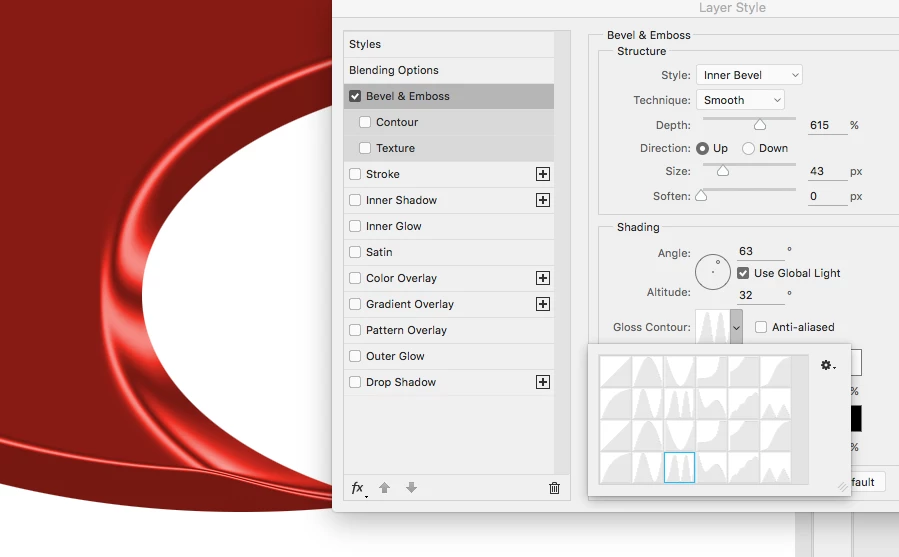
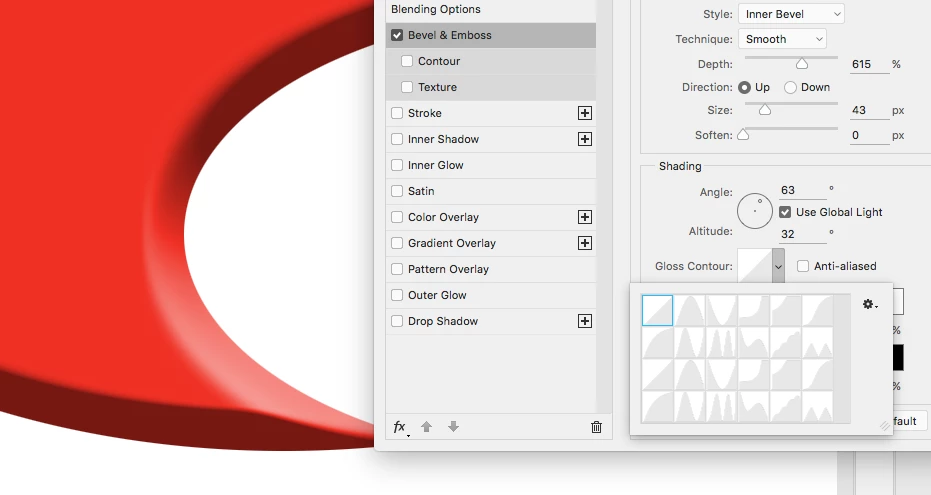
Contours can be found as a separate item with Bevel and Emboss or you can find it just below Altitude in the main body of the Bevel Styles window. The following example is a straight contour. The image below that is the double ring.  (sorry that the contours themselves are hard to see). But the only difference is the countour I chose. Play with then to see what you can create!


Michelle


5 replies

Participant
July 30, 2020

This worked absolutely perfectly Bojan, thank you very much.


Initial playing around has got the below result, not sure if you can zoom on that but its exactly what I'm after 🙂


Thank you all for your help here!!!

JJMack
Community Expert
Community Expert
July 29, 2020

You need to explore custom shape and layer style more. You can add many style effects an multiple of some effects like strokes and overlays and use different contours.

JJMack
mglush
Community Expert
mglushCommunity ExpertCorrect answer
Community Expert
July 29, 2020

Hi!


I wanted to add one other item that you might want to play with along with Bojan's really helpful adivce--and that is the use of contours.


Contours can be found as a separate item with Bevel and Emboss or you can find it just below Altitude in the main body of the Bevel Styles window. The following example is a straight contour. The image below that is the double ring.  (sorry that the contours themselves are hard to see). But the only difference is the countour I chose. Play with then to see what you can create!


Michelle


Participant
July 30, 2020

Thank you Mglush, 


I had found this via a video on youtube and in conjuntion with Bojan's 'stroke' advice it got to the result needed. The gradiant colours in the stroke fill I lifted with eyedropper from the main image within the letters and played around with the mix and angle. If I get any better results I will be sure to post here.


Thanks again all for your help.

Kind regards, 

Ben

mglush
Community Expert
Community Expert
July 30, 2020

Glad you found what you're looking for!

Michelle

Bojan Živković11378569
Community Expert
Community Expert
July 29, 2020

As already mentioned you may need to use some effects multiple times or even to use multiple layers for the final effect. When it comes to stroke emboss how I call outside stroke with effect, without much investigation I think here is applied Bevel > Style > Stroke Emboss.


Before that add Stroke effect > Fill Type > Gradient and make it bold, something like 15 px or more.

Mylenium
Legend
July 29, 2020

Nothing to it at first glance, to be honest. You are probably simply overlooking the fact that the style may use multiple layers with different settings and blending options. It's all an illusion and once you throw blending modes like color burn, overlay and such in the mix a lot of what seems difficult to achive just by tweaking color gradients almost magically happens automatically.


Mylenium