
jimmyd29144119
Inspiring
January 12, 2019
Answered

Alignment Lines (?) Suddenly Showing Around Text

  • January 12, 2019
  • 3 replies
  • 1177 views

I'm using Photoshop cc 2018. All of the sudden my projects are showing these alignment lines at the top or bottom of my text. Even when I render the file to a JPG or PNG they still show. Look closely at the image. It's kinda hard to see them but there's a line under all the red text, at the top of the white text in the center and even a line through the center of Lordsburg. Any ideas?
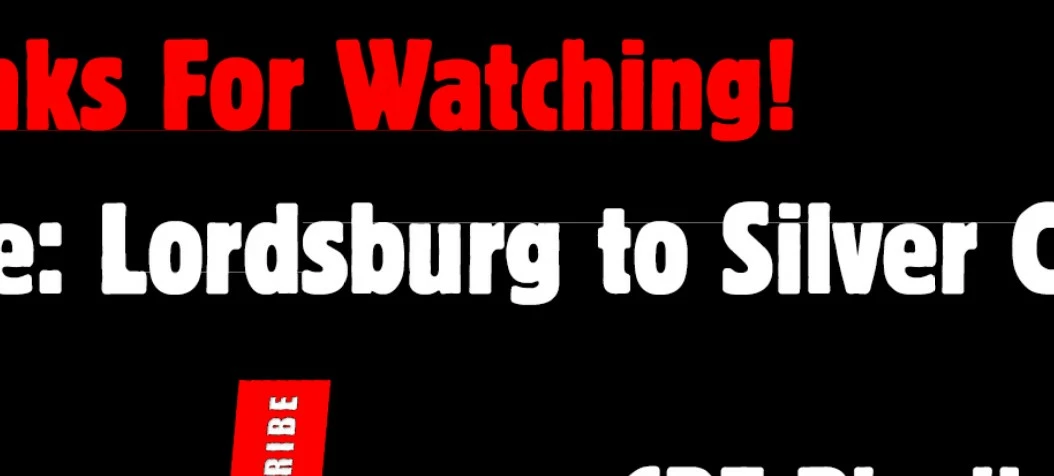

    This topic has been closed for replies.
    Correct answer jimmyd29144119

    I got it!! The font was set to "crisp", when I changed it to none it went away:

    That's the thing about working with Photoshop (or anything adobe)... all these keyboard shortcuts... I always end up hitting some key inadvertently and unknowingly change something. You have to be super careful about what you touch. Thanks for your help!

    3 replies

    jimmyd29144119
    jimmyd29144119AuthorCorrect answer
    Inspiring
    January 12, 2019

    I got it!! The font was set to "crisp", when I changed it to none it went away:

    That's the thing about working with Photoshop (or anything adobe)... all these keyboard shortcuts... I always end up hitting some key inadvertently and unknowingly change something. You have to be super careful about what you touch. Thanks for your help!

    Trevor.Dennis
    Community Expert
    Community Expert
    January 12, 2019

    jimmyd29144119 

    Blimey Jimmy.   I'm sure you  know that setting aa to None turns  off  aliasing completely, leaving a jagged edge?

    jimmyd29144119
    Inspiring
    January 12, 2019

    I told you I'm an amateur! Honestly, I didn't even notice, but now that you bring it to my attention, I see it. I tried all the other font settings and the only one that causes the issue is the Crisp setting. That's also the one that looks best to me. Being that it's an end screen though, I don't think it's going to matter too much for me in my case. I've just added this end screen to my video and rendered it, doesn't really seem to stand out to me and I doubt others will notice. Most people don't even make it to the end screen anyway. But I do appreciate the info on the none setting, I'll keep that in mind for the future.

    jimmyd29144119
    Inspiring
    January 12, 2019

    Yes I am on Windows 10. I went into the preferences and changed my cache level from 4 to 6. I do not seem to have the option for Legacy Composting though as you have, see screenshot below:

    When I searched for Boulder-Cd in my fonts folder, I cannot find it by searching for it or manually. I downloaded a new copy of the font and when I tried to drag it into the fonts folder, it asks me if I want to overwrite it. So it's there, but hidden or something. I reinstalled the font and still having the same issue with the lines. Man this is a strange one!

    Trevor.Dennis
    Community Expert
    Community Expert
    January 12, 2019

    jimmyd29144119  wrote

    Yes I am on Windows 10. I went into the preferences and changed my cache level from 4 to 6. I do not seem to have the option for Legacy Composting though as you have, see screenshot below:

    Legacy Compositing came as an option with CC2019, but if you are using CC2018, it is not relevant because it still uses the old process.

    Cache  levels are only a problem when set to 1.  In fact the is a message warning against using a value of 1

    What it can do  is mess up the display causing a grainy pixelated effect.  We tend to get a few posts in an average year where this is the problem.  I didn't think it relevant in your case, because the issue remained after saving.

    Trevor.Dennis
    Community Expert
    Community Expert
    January 12, 2019

    Subtle, but definitely there, and wrong

    Can you paste a screen shot of your entire workspace showing the layers panel.

    Leave it at full res.  BTW  You only need to copy to clipboard, and paste here with Ctrl V

    jimmyd29144119
    Inspiring
    January 12, 2019

    Hey Trevor, thanks for the reply. Here's a full res screenshot(it resizes down to a smaller size when I paste it here, hopefully it's right):

    Trevor.Dennis
    Community Expert
    Community Expert
    January 12, 2019

    I was expecting to see a layer mask or two, the edges of which corresponded to the line positions, but that has not happened.  I'm guessing you are making titles for a video?

    Have you turned off layers one at a time to  see which layer is the problem?

    My guess is that it will be the arrow-youtube Smart Object layer, as we are are not able to see its content.

    Turn the other layers off to isolate the problem to that layer, and if  is the culprit, double click to open in a new window

    Give the SO window a temporary black layer at the bottom of the stack, and I suspect the artefacts will align with the edge of a mask.