Participating Frequently
September 9, 2020
Answered

annoying circle

  • September 9, 2020
  • 3 replies
  • 4875 views

Hi

I have an annoying circle that appears when i want to choose an optional tool from a tool tab, one can get use this but it's a different thing when the same circle appears when using the Pen Tool to create a path, once you have set your anchor points and then use the Convert Point Tool to start pulling on the anchor points handles this circle appears here and there, sometime it will prevent you fron pulling the anchor point handles, sometime that circle will stay visible even if you have moved to another anchor point, it's horrible

break's your workflo  ect... dont have this problem with the mouse. I thought there was something wrong with my old Wacon Intuos CTH-680 so i bought a new Wacom Intuos Pro , same thing.

Can someone help me in getting rid of these circles.

Thank You

Marcel 
This topic has been closed for replies.
Correct answer JJMack

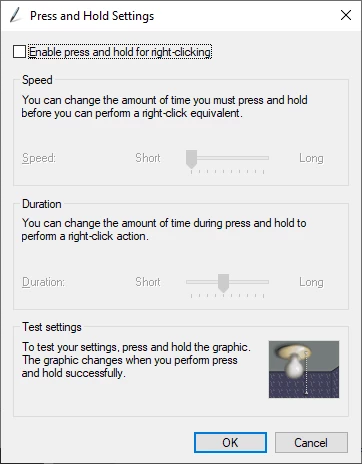
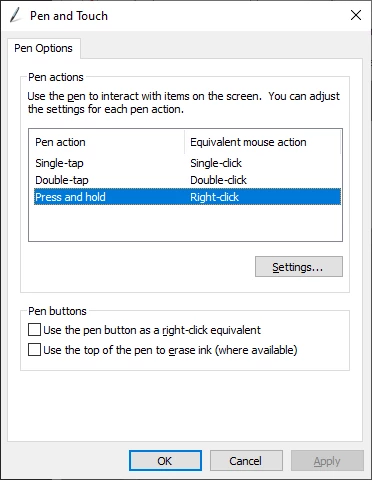
Without question on windows you need to disable Windows Pen and touch Press and hold Right click that even noted on Adobe's web site.

3 replies

Participant
June 19, 2023

these anwers are all no longer complete/correct. as of today june 19 2023, windows 11 is only part of the problem. sure, go ahead, change the "Pen and Windows Ink settings (uncheck show visual effects), do the settings the experts recommend below... but the real trick now is to also make sure Wacom driver is uptodate (I say uninstall and reinstall most current driver)

then open the Wacom app: the secret is hidden under "Mapping": at the top choose "Photoshop" as the app. at the bottom left, uncheck "Use Windows Ink" they're stinkers, it's hidden deep in your computer now, but it's doable

https://www.learnphotographyskills.com/how-to-disable-press-hold-to-right-click-on-windows-11/

Conrad_C
Community Expert
Community Expert
September 9, 2020

Your post does not show a picture of the circle or mention whether you are using Mac or Windows, so I have to guess: If the circle is white and you are using Windows, the link below might explain what is going on and how to turn it off. It would also explain why it did not go away when you change tablets, and why it goes away when you use a mouse: The circle is a feature of Windows (not Wacom or Adobe) that appears only when using a device that can use pen/touch input.


https://machollywood.com/blogs/news/remove-windows-pen-touch-circle-features

JJMack
Community Expert
JJMackCommunity ExpertCorrect answer
Community Expert
September 9, 2020

Without question on windows you need to disable Windows Pen and touch Press and hold Right click that even noted on Adobe's web site.

JJMack
Participating Frequently
September 11, 2020

Hi JJMack

I have done now exacly wath you suggest, went to Control Panel > All Control Panel items: there are 45 items here but no Pen and Touch, also went to Devices Specifications: at the bottom of the list, Pen and Touch:it says: no pen or touch input is availeble for this display.

Would you have other suggestions, thanks very much for your input

Marcel


Hi JJMack

I must have opened up the Control panel 5 or 6 time this morning and found no Pen and Touch items then i send you a respond saying that, after i went back to try and find something so i open again the control panel and now the Pen and Touch item shows up !!! so i did wath you suggest and BANG the CIRCLE is gone, you where absolutly right so Thank You/Thank You/Thank You, it makes my day.

Marcel

JJMack
Community Expert
Community Expert
September 9, 2020

Are you using INK or WinTab with your Wacom and Photoshop?


I have to admit with the Pen tool I use my mouse for I find it easier and more precise then my Wacom pen. I also have to be very careful with the pen for I find its harder to lay out corner points the slightly slip add handles to the control point. It easy to do a click with a still mouse than touching the surface of the tablet at the point I want without any pen movement. I use WinTab not INK it good the see that its fixed in 21.2.3.

JJMack