
Known Participant
February 28, 2023
Answered

Apply Image in LAB Mode Funky Result

  • February 28, 2023
  • 4 replies
  • 5614 views

Hi, so I'm learning LAB mode and I'm trying to separate a red dress from a green background (I'm aware that in this case there are easier methods, but I'm trying to learn the mechanics of LAB). So, I create a blank layer and to Image>Apple Image>Background>Channel A. Instead of getting a greyscale image of that channel, I'm getting something in orange-green. 


What am I doing wrong?


Before doing the procedure:
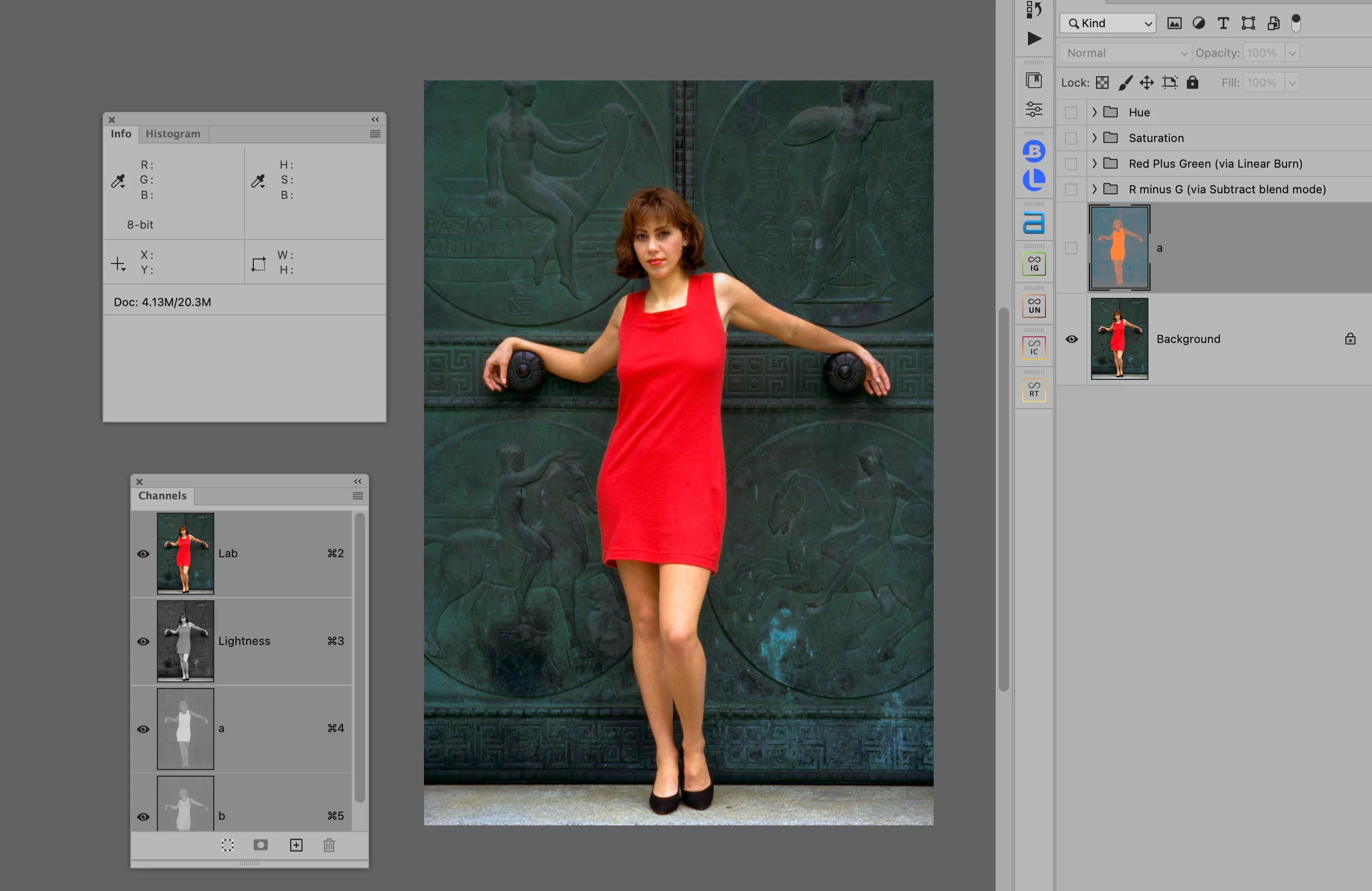
 

After attempting the procedure:
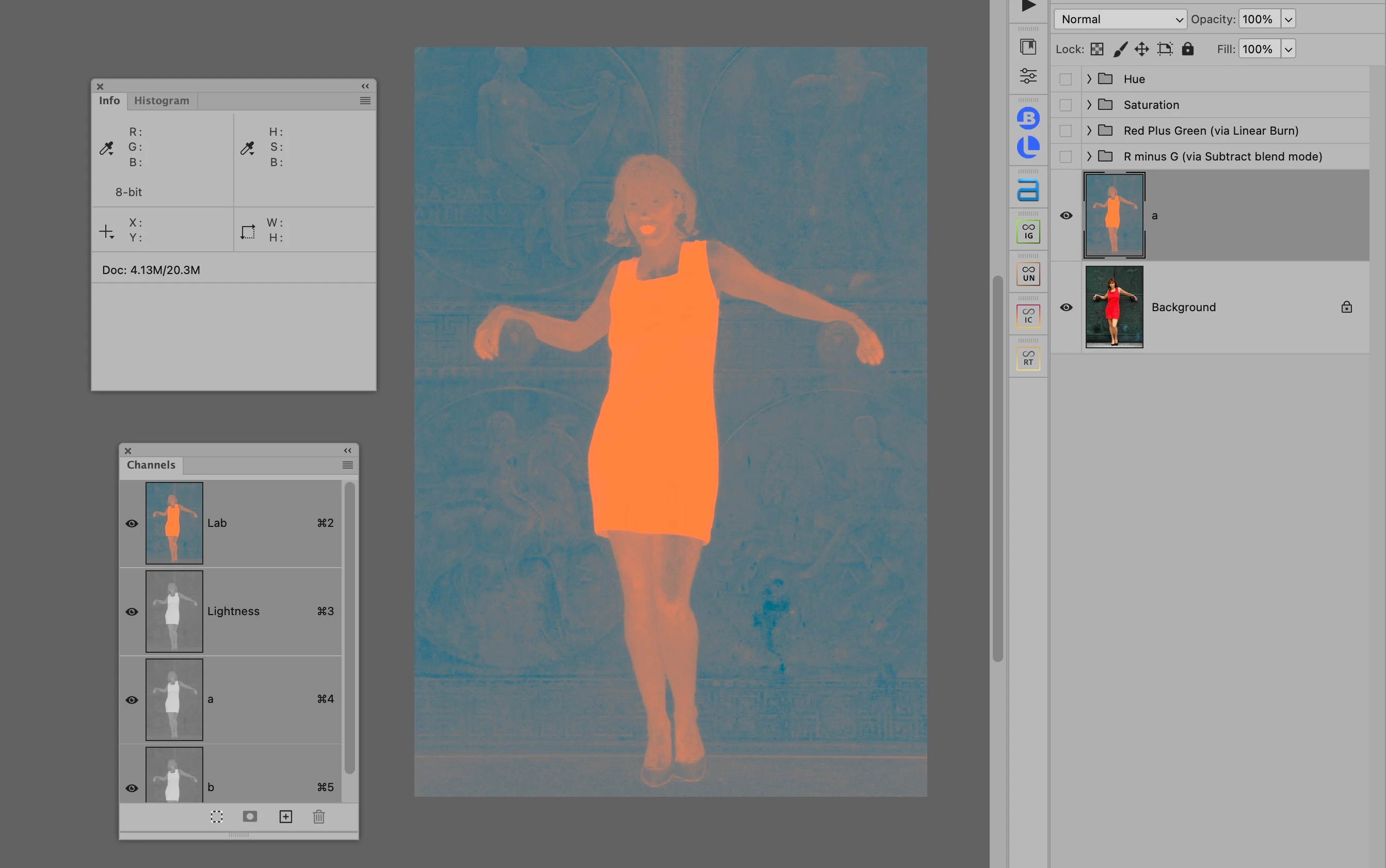


Thanks, 

Daniel

This topic has been closed for replies.
Correct answer c.pfaffenbichler

The target in that screenshot is the RGB image, not the Lab image. 

4 replies

TheDigitalDog
Inspiring
February 28, 2023
quote

Hi, so I'm learning LAB mode and I'm trying to separate a red dress from a green background (I'm aware that in this case there are easier methods, but I'm trying to learn the mechanics of LAB).


By @McCurrySteve

For what end results? 

As outlined correctly, there's a potential for image damage in this process. The original image data you're working with generally comes from what, in what color space and bit depth? 

Lab as a color model for image correction has been largely oversold (we can go there). 

It's a great device-independent color model for some uses (outside image correction). The true mechanics of Lab. 

Author “Color Management for Photographers" & "Photoshop CC Color Management/pluralsight"
Known Participant
February 28, 2023

Oh, this section of the course was just showing the various ways that the same mask could be created: hue mask, saturation mask, various forms of channel mixing, etc...and Lab was one of the illustrations. Basically a duplicate of the image was created and converted into LAB mode to extract "a" channel mask (which was to be used in the RGB original).


The instructor just wanted to show that you need to analyze the image to determine which kind of mask will get you the results you are looking for most efficiently.


I'm not a Lab acolyte. I'm just an amateur photograph who likes to learn about how to develop images.


I don't really work with jpegs, so a lot of the color balance stuff can be done mostly in Camera Raw and some fine-tuning is done in PS. I use PS because I find PS to be more precise than ACR or LR. And the creative possibilities are richer in PS, as well.


From my first few forays into Lab mode, it seems like a very efficient way to fine tune colors without having to do a lot of work not affect the neutral colors.


I'd be happy if you'd enlighen me as to why Lab is oversold? 

TheDigitalDog
Inspiring
March 1, 2023

Thanks for that jargon filled copy and paste job. I see that you have some sort of agenda Mr. Author of Color Management....

I was doing a very specific task that involved extracting a mask from a duplicate image converted into Lab, in order to extract the "a" channel to mask out a certain color in my original image, which is in RGB. 

I'm learning different masking techniques.


I don't see what that has to do with Lab Mode vs Raw Converters, which seems to be your agenda in this forum (in addition to letting us know about your course of pluralsight).


quote


I don't see what that has to do with Lab Mode vs Raw Converters, which seems to be your agenda in this forum 


By @McCurrySteve

Bruce address this before raw converters were widely available (long before Adobe Camera Raw):


For archival work, you will always want to preserve the original capture

data, along with the best definition you can muster of the space of the
device that did the capturing. Saving the data as Lab will inevitably
degrade it with any capture device that is currently available.”
Author “Color Management for Photographers" & "Photoshop CC Color Management/pluralsight"
NB, colourmanagement
Community Expert
Community Expert
February 28, 2023

@McCurrySteve My 10C is that there's a potential for image damage in this process -

When converting an image into Lab it's going into a very large colour space, so that means the number of values available to define, say, areas of gradation are reduced significantly because the Lab colourspace is not entirely populated.


You can see this by looking at the histograms.


A "normal" RGB image may well completely populate the histogram, thus using all of the 256 values per channel to define the colour and tone in the image.

That same image moved to Lab, because Lab as very big colourspace, will populate a smaller amount of the histogram in the a and b channels (defining colour) - of course the L channel is still "full, it's still full range lightness .


Here's an RGB image  (you can download it here to test this - get the Adobe RGB testimage: https://www.colourmanagement.net/index.php/downloads_listing/ :


here's it's histogram


I then converted to Lab, here are the 2 relevant histograms:


As you can see the RGB data which was previously spread over the entire 256 levels (in 8 bit) is now taking up quite a bit less of the potential values across the coloiurspace.

Converting back to RGB doesn’t fix this. Yes, the data spreads to fill the RGB colourpsce - but adjacent pixels which differed may now be the same - this may cause posterisation (sometimes called contouring) in gradations.


It's definitely worth testing whether this is affecting your post processing image quality. There has to be a REALLY good reason to use Lab for image editing. 


I hope this helps
neil barstow, colourmanagement net - adobe forum volunteer - co-author: 'getting colour right'
google me "neil barstow colourmanagement" for lots of free articles on colour management


Known Participant
February 28, 2023

Neil, thank you for such a detail response. So, I first start learning about Lab as part of a comprehensive photoshop course. The Lab section showed the rudiments of how to use it. Putting a control point in the center of the a and b channel before making adjustments. The idea that you can separate tonal contrast from color correction/modification. How you can create "color contrast." The idea that you can modifiy the colors in an image without affecting neutral tones. It seemed to me like a great tool to use when you want to fine tune the colors.


The course uses jpegs for illustrative purposes, but for my workflow I work with RAW images and then send them to PS, usually, in Prophoto RGB. 


I imagine that a raw file would not result in noticeable posterization? 


Also, I do realize that a lot of what can be done in LAB mode can be done in RGB mode. It just seems to quick and efficient.


I'd be glad if you could enlighten me further.

TheDigitalDog
Inspiring
February 28, 2023

What can Lab provide that you currently cannot do with the raw in a good raw converter? 

Author “Color Management for Photographers" & "Photoshop CC Color Management/pluralsight"
c.pfaffenbichler
Community Expert
Community Expert
February 28, 2023

Putting the same content in all three Channels of an Lab Image will result in something like that because you have identical content for Luminance, Red-Green, Blue-Yellow. 

Known Participant
February 28, 2023

Thanks for replying. Here's a screenshot from a tutorial I'm following, and it seems that he's doing the exact same thing but achieving the desired result. 


c.pfaffenbichler
Community Expert
c.pfaffenbichlerCommunity ExpertCorrect answer
Community Expert
February 28, 2023

The target in that screenshot is the RGB image, not the Lab image. 

Known Participant
February 28, 2023

Here's the Apply Image dialogue box with the settings I'm using: