


- Home
- Photoshop ecosystem
- Discussions
- Re: Applying feather has no effect
- Re: Applying feather has no effect

Copy link to clipboard
Copied
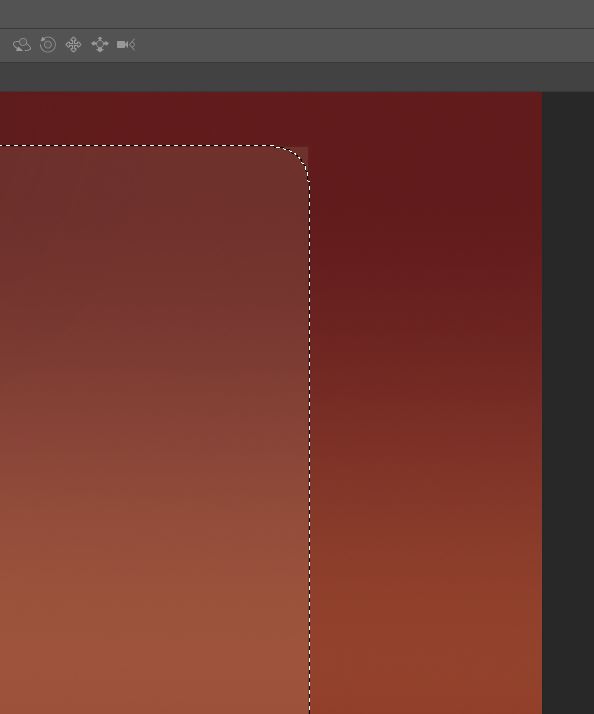
i applied feather to a rectangle in photoshop but it's not showing any effect....


 1 Correct answer
If you want to make a feathered selection; first define the feathered amount in the options bar on the top of the screen.
Then draw your selection and then you can fill it with white.
I'm really not a big fan of this method because it's destructive. The better way is:
• Make a background
• Draw a shape layer (tools below beside the arrow pointer); check it in the options bar if it is defined as a shape.
• After you draw your shape. Go to properties and find here feather.
This is totally non-destructi
...

Explore related tutorials & articles
 10
Replies
10
10
Replies
10



Copy link to clipboard
Copied
Can you please explain the exact steps you have taken up to your screenshot. On its own it is hard to tell what problem you are facing.
Dave
Copy link to clipboard
Copied
1.first i drew a rectangle using the rectangle tool 2.filled it with white color
3.reduced the opacity
4.selected the rectangle using clt+click on the layer 5.shift+f6 and entered a value
Copy link to clipboard
Copied
OK so what that does is feathers the selection not the image - i.e.it makes the selection itself have a soft border.
You now need to do something with that selection for example use it to copy, or fill it etc
Copy link to clipboard
Copied
Hello,
The filter has absolutely no effect on a selected area. A selection is a closed area that is previously defined by a feather. On the other hand, the feathering that will work on your artwork is 'Feathered selection' and then fill with the gradient.
Or you put that gradient on a layer and Gaussian blur that layer.
Good luck.
Patrick
Copy link to clipboard
Copied
If you want to make a feathered selection; first define the feathered amount in the options bar on the top of the screen.
Then draw your selection and then you can fill it with white.
I'm really not a big fan of this method because it's destructive. The better way is:
• Make a background
• Draw a shape layer (tools below beside the arrow pointer); check it in the options bar if it is defined as a shape.
• After you draw your shape. Go to properties and find here feather.
This is totally non-destructive if you save it as a PSD for a working file. Save a copy as PNG or JPG for other uses.
Best way ever!!! Tell it to everybody.
Good luck.
Patrick

Copy link to clipboard
Copied
I just had this same problem and then realized it was because the image I had selected was in "Indexed" color mode. I had to change it to somethine else for the feather function to work.

Copy link to clipboard
Copied
A useful trick for assessing feather is to hit the Q key to go into Quickmask.


Copy link to clipboard
Copied
And you can feather it even more (but not less) by applying a Gaussian Blur to the Quick Mask.
Copy link to clipboard
Copied
We can't square off the rounded corners, but we can harden up the outline with curves or levels.
The left square is a selection feathered by 5 pixels and Quickmask turned on. The centre square is still in Quickmask but with the levels adjustment below applied. The right hand square is after Quickmask was turned off and the selection filled with black

I can still remember the revellation it was to me when I realized that we can do most of the things in Quickmask that we can do to raster layers. You can see that most of the filters are still available in the screenshot below. I have already applied Distort > Wind to the Quuickmask selection.

We don't tend to make use of this because we can do exactly the same thing with layer masks. I sometimes wonder how many people are aware that layer masks and selections can be manipulated in the same way that raster layers can? It's a useful tool because it maintains the holy grail that is non-destructive editing.
Copy link to clipboard
Copied
I frequently use Curves on Quick Masks to make selections feathered only inside or outside the marching ants.


Find more inspiration, events, and resources on the new Adobe Community
Explore Now
 AdChoices