bartonlew
Legend
December 18, 2018
Answered

Applying HSL Adjustments to a Selection

  • December 18, 2018
  • 4 replies
  • 6276 views

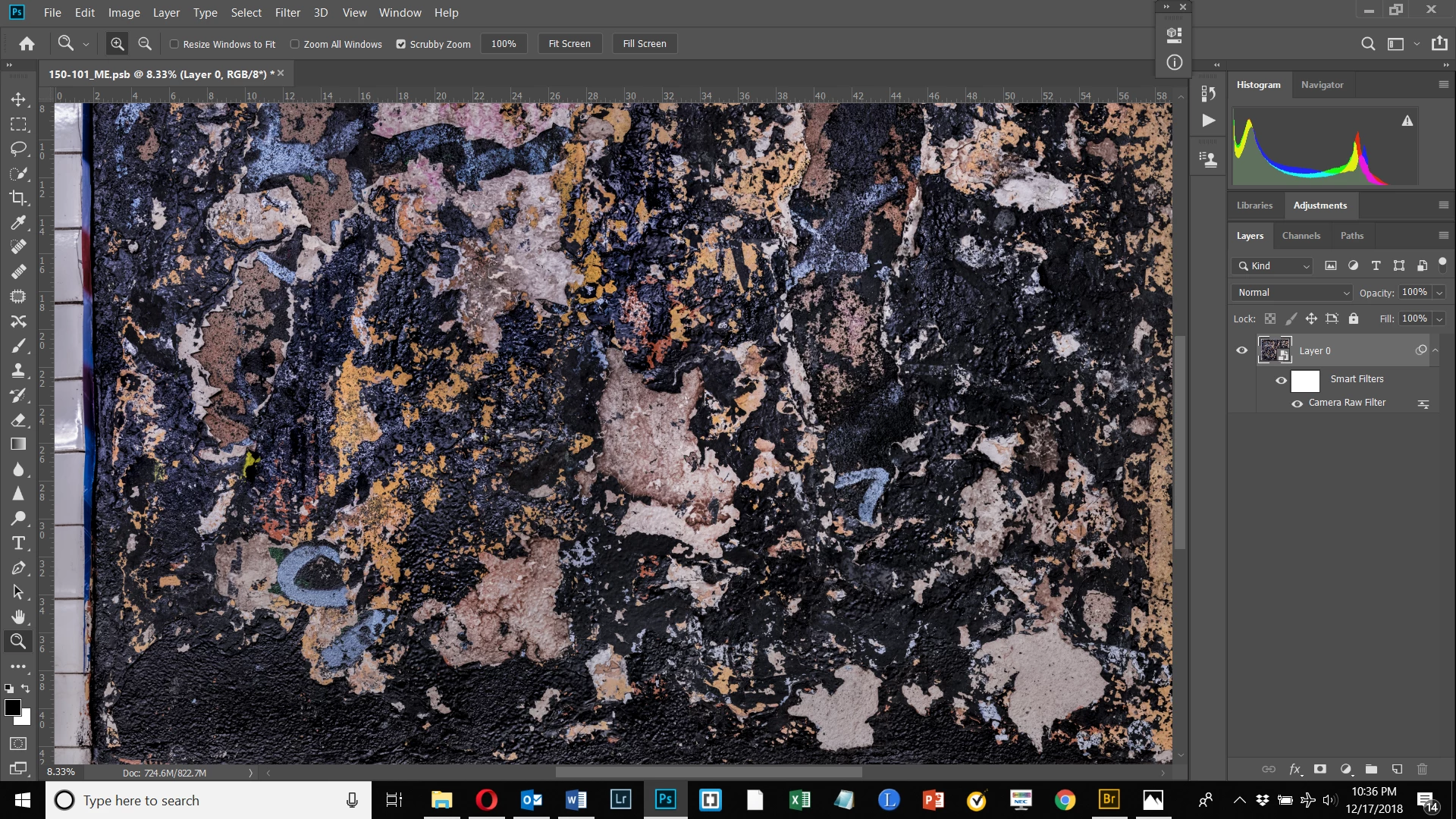
In this image, I don't like how the black background has a bluish cast beginning about 20% from the bottom of the image on the left.  By taking blue down in the Saturation tab in HSL Adjustments, I can get rid of the blue there but it does it for the entire image.  Can I make a Selection and make the adjustment for the Selection only?  I don't see a way to affect individual colors using Adjustment Layers, nor a way to apply the HSL Adjustment to a Selection,  Any suggestions would be appreciated.  Thank you.
This topic has been closed for replies.
Correct answer D Fosse

As you describe it, your questions have simple straightforward solutions. Unless I misunderstand what you want?

Can I make a Selection and make the adjustment for the Selection only?

Of course you can - that's what masked adjustment layers are for. Click he mask icon with an active selection to create the mask, then your adjustment affects only the selected area.

I don't see a way to affect individual colors using Adjustment Layers

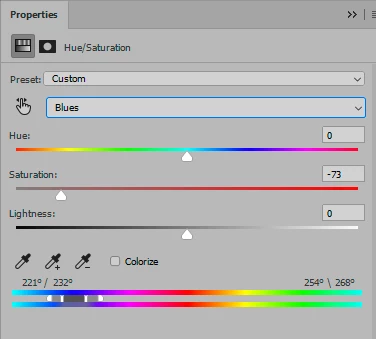
With, say, a Hue/Sat layer, use the split sliders at the bottom to set the range:

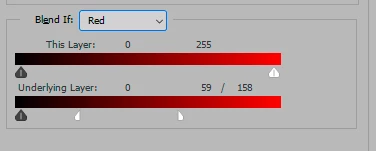
Then use Blend If to set the tonal range affected. You can do this per channel if you want:

4 replies

Participating Frequently
December 19, 2018

Try "Selective Color" in Layer Adjustments.

bartonlew
bartonlewAuthor
Legend
December 20, 2018

Where is this panel exactly?  I could not find it.  Thank you.

Chuck Uebele
Community Expert
Community Expert
December 19, 2018

Have you tried using color range to select the bluish colors? Also you could try making a copy of the file, converting it to L*A*B, and creating a channel/mask of the B channel, then use apply image to transfer it to your original file to a layer mask.

bartonlew
bartonlewAuthor
Legend
December 20, 2018

Thanks, Chuck.  It seems there is more than one way to skin this cat.  I used D Fosse's suggestion of creating a layer from a selection and using a Hue/Saturation Adjustment Layer to get rid of the blue.  I did not know about Color Range and so watched a video about that at PHLEARN, nor L*A*B which I found a thread on here What does the Lab color values in Photoshop mean?  Learn something new every day in PS.

Trevor.Dennis
Community Expert
Community Expert
December 19, 2018

You've got to love the Camera RAW filter.  It is a one stop shop for so many things, and has been my go to solution ever since it became available as a filter.

So I have the HSL sliders selected, and I've reduced saturation and lightness for the blues.  If you are not sure which slider to use, move it all the way to the right to super saturate it, and test you have the right one.

bartonlew
bartonlewAuthor
Legend
December 19, 2018

Yes, this is what I had said I had done in my initial post, as well.  But the problem was that I wanted to target only the blues in the mid to upper left of the image, not the whole image.

D Fosse
Community Expert
Community Expert
December 19, 2018

bartonlew  wrote

I wanted to target only the blues in the mid to upper left of the image, not the whole image.

OK, so then it's nothing more complicated than a masked adjustment layer. This is one of Photoshop's most basic functions.

Bojan Živković11378569
Community Expert
Community Expert
December 18, 2018

You can apply adjustment only to selected pixels. Create selection then apply adjustment using Layer > New Adjustment Layer > choose. If you have selection active that will force Photoshop to create layer mask using selection, otherwise you can paint on layer mask at any time or use gradient to limit adjustment only to a specific portion of image.

bartonlew
bartonlewAuthor
Legend
December 19, 2018

Thanks Bojan.  I am trying to target one color only - blue - in my selection, and I don't believe you have that kind of control using Adjustment Layers.  So what I did instead was make a selection, copy it to a new layer, make the layer a smart object, and apply Camera Raw as a filter.  Then I can target blue from HSL Adjustments>Saturation.  This working okay though creating a rather large file.  If someone has a better suggestion, I'm open to it.

D Fosse
Community Expert
D FosseCommunity ExpertCorrect answer
Community Expert
December 19, 2018

As you describe it, your questions have simple straightforward solutions. Unless I misunderstand what you want?

Can I make a Selection and make the adjustment for the Selection only?

Of course you can - that's what masked adjustment layers are for. Click he mask icon with an active selection to create the mask, then your adjustment affects only the selected area.

I don't see a way to affect individual colors using Adjustment Layers

With, say, a Hue/Sat layer, use the split sliders at the bottom to set the range:

Then use Blend If to set the tonal range affected. You can do this per channel if you want: