
Known Participant
August 17, 2023
Question

Are crisp shaped shapes still possible?

  • August 17, 2023
  • 4 replies
  • 2887 views

Hello, I believe ever since switching over to the cloud version of photoshop I've never been able to get shapes to have crisp edges anymore. They all have a 1pixel blurry edge around all 4 sides. 

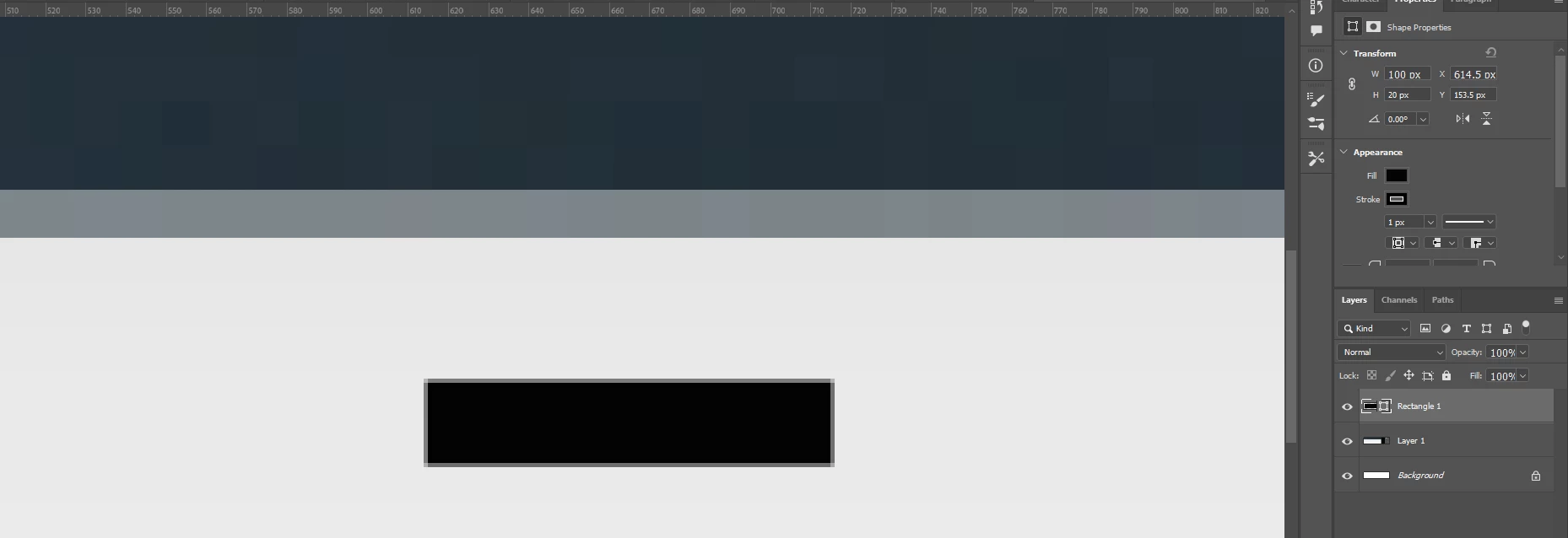
Even if I left-click the canvas and create a shape with dimensions like 100x20, all 4 edges have a blurry "un-crisp" edge


This kind of defeats the purpose of using a shape/vector. The only way to get a crisp edge now out of the shapes tool is to create the shape then transform it. The transforming snaps it back into crispyness. 


Is there a "legacy shapes" option? Or some setting in photoshop to make shapes be crisp as they should?


Im attaching a screenshot to illustrate this. The black box was created with dimensions 100x20 and it still ends up looking pixelated. 
This topic has been closed for replies.

4 replies

Community Expert
August 18, 2023

There's a setting in Preferences - not sure if this helps you, but here it is:
Preferences > Tools > Snap Vector Tools and Transforms to Pixel Grid

D Fosse
Community Expert
Community Expert
August 18, 2023

Indeed, and this should always be on in Photoshop. That should help avoid basic misunderstandings about how raster<>vector applications actually work (as Dave and Jane explained very well).

Known Participant
August 17, 2023

Just take this screenshot as an example that something is seriously wrong with photoshop.

Select Shapes tool > Left click canvas > Assign 100 x 20 px size > and since photoshop loves to auto-add a 1px border that I never asked for, this is how it appears. The 1px border just exagerates how bad and ugly the edges of a shape are.


It's weird. I was trying to test if this only when i click to create, or always drag and drop create.

In one document it happens every time, 0.5 pixel position, every time, no matter where I click, no matter if i click to create or drag and drop. In a different document, repeating the steps actually gives me a perfect whole number every time no matter what?

Now I'm confused why one document only deals in .5 pixels and the other only works in whole numbers when creating shapes


Edit: oops forgot screenshot


davescm
Community Expert
Community Expert
August 17, 2023

Photoshop does not add a border that was not asked for, it adds a stroke based on the settings in the option bar.


If you ask for that stroke to be align centred in stroke options (for stroke options click on the reveal arrow next to the line in the options bar) then it tries to place a 0.5 pixel stroke at each side of your vector path and, as half pixels do not exist, it uses semi transparent pixels.


However, if you choose Align inside or Align outside then you get a perfect 1 pixel solid stroke either inside or outside of your vector path.

Alternatively, you can leave Align centred and click 'Align Edges' in the option bar. That will move the edges to the nearest full pixel.


There is no bug here to fix


Dave


jane-e
Community Expert
Community Expert
August 17, 2023

@Callingoutn3rds 

What is your Zoom level? Does the shape look okay at 100% zoom?


Jane

Known Participant
August 17, 2023

@jane-e  I can see it on every zoom level, though its less noticable zoomed out


But @Kenneth Kawamoto you are actually 100% right! Whole pixel position looks like it DOES fix the blurry edge. Never noticed that before! Makes sense why [Ctrl + Transform and nudge it once] fixes this also, since transform only works with whole numbers (that's something i miss about old photoshop)


I will jsut say adjusting the horizontal position to a whole number only fixes left/right, I have to adjust the Y number as well to get 4 clean edges. I think at that point the quicker way is still to [Ctrl + T and nudge transform by 1px], which is still kind of annoying to deal with. 

It's worth mentioning that a Rasterized layer has no problem with 0.5 pixel positions. It scoots into position just fine with no loss of quality to the edges. Where as a Shape, basically a "vector" element (supposedly held in the highest regard), cannot handle 0.5 pixel positions. That seems backwards at the very least. 

There. has. to. be. a. better. way. 

davescm
Community Expert
Community Expert
August 17, 2023

Photoshop always works in pixels. Vector layers (shapes) are converted to document pixels for display and composting. Each pixel has a single value - there are no half pixels. If a vector shape is positioned, or sized, to require a partial pixel then Photoshop uses semi- transparent edges to simulate that 'half' position. 

All looks normal in that screenshot. You can make this less obvious by using more pixels in the document but that will depend on the output needs.


If you require, sharpness regardless of size or zoom level then don't use a pixel editor, use a vector application such as Illustrator.


Dave


Community Expert
August 17, 2023

If you place your rectangle to a whole pixel position rather than half pixel would it work?