
Participating Frequently
September 8, 2022
Answered

Artboard not displaying correctly

  • September 8, 2022
  • 2 replies
  • 586 views

Hello,


I'm looking for an explanation as to why my artboards always end up looking like in the picture attached when their background is set to transparent.
The edges are also glitchy when I zoom in or out, or move layers.
This is an absolute nightmare, I've tried everything: going back to previous versions, it works for a while, then it turns like this.
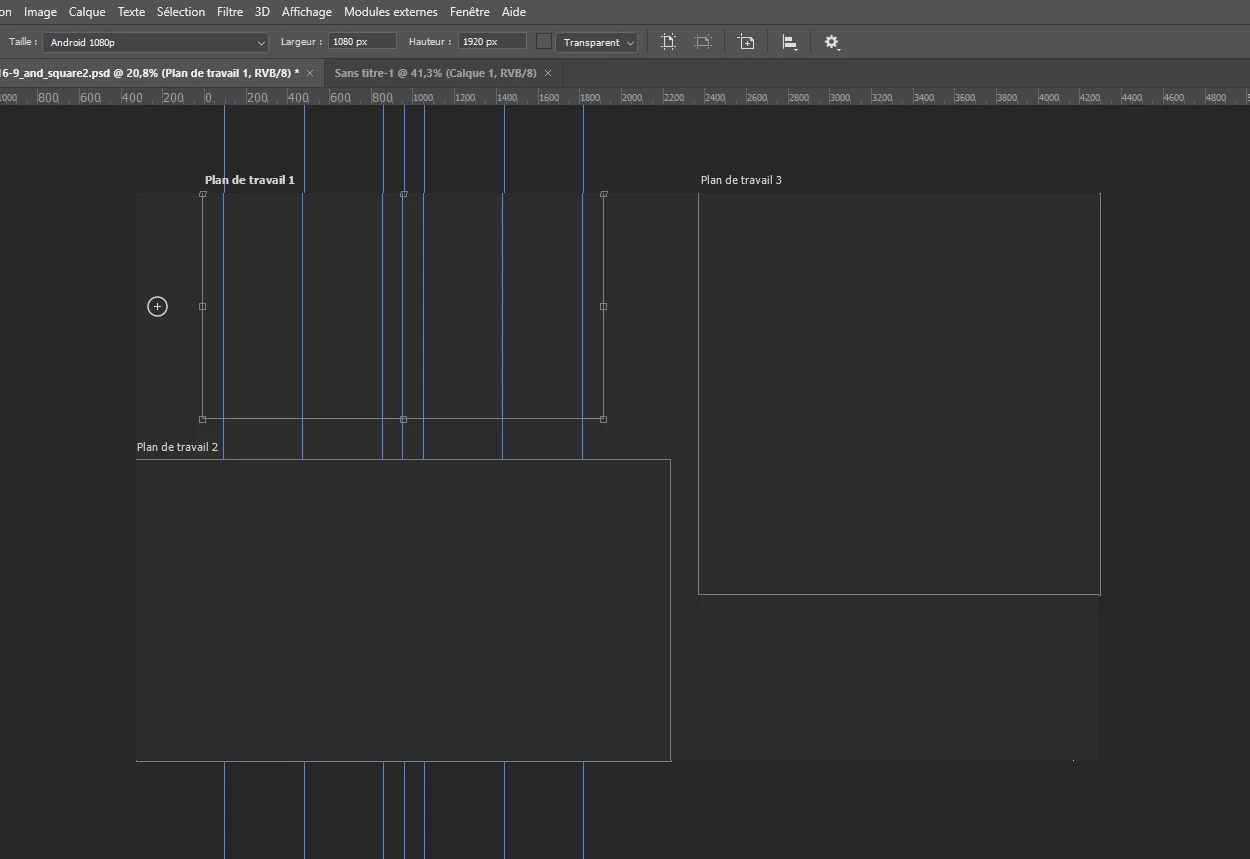


Has anyone got any idea what is going on please ?

This topic has been closed for replies.
Correct answer CShubert

Hi @LGDLEARNING sorry to hear this. A couple things to try...


Go to Preferences > Technology Previews... and check "Disable Native Canvas" - then restart Photoshop. Does the problem still occur? 


Let's make sure we're in a default state and there are no stale settings somewhere: 

Restore your preferences using this manual method:  

https://helpx.adobe.com/photoshop/using/preferences.html#Manually 

Does it work correctly? 

If that doesn't solve it, you can quit Photoshop and put the Settings folder back. 


It may help if we could see your Photoshop System Info. Launch Photoshop, and select Help >System Info...and copy/paste the text in a reply.  


Thank you,


2 replies

Participating Frequently
September 9, 2022

Hi @CShubert 

Thank you for your answer! The first solution didn't work, but the second did. I'll let you know if the problem comes back again. Thank you

CShubert
Community Manager
CShubertCommunity ManagerCorrect answer
Community Manager
September 8, 2022

Hi @LGDLEARNING sorry to hear this. A couple things to try...


Go to Preferences > Technology Previews... and check "Disable Native Canvas" - then restart Photoshop. Does the problem still occur? 


Let's make sure we're in a default state and there are no stale settings somewhere: 

Restore your preferences using this manual method:  

https://helpx.adobe.com/photoshop/using/preferences.html#Manually 

Does it work correctly? 

If that doesn't solve it, you can quit Photoshop and put the Settings folder back. 


It may help if we could see your Photoshop System Info. Launch Photoshop, and select Help >System Info...and copy/paste the text in a reply.  


Thank you,


Participating Frequently
November 29, 2022

Please, is there any one who has an answer to this problem please ?