
Inspiring
April 10, 2022
Question

Artboard size (weird) and how to rotate a single artboard?

  • April 10, 2022
  • 4 replies
  • 998 views

I'm not sure what's happening and I find this very weird.

Why is it that when I have an artboard it says I have a certain size, but then when I go to Image Size, it shows me something different?
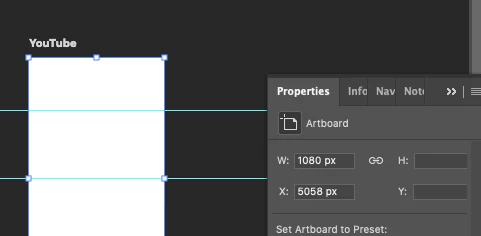
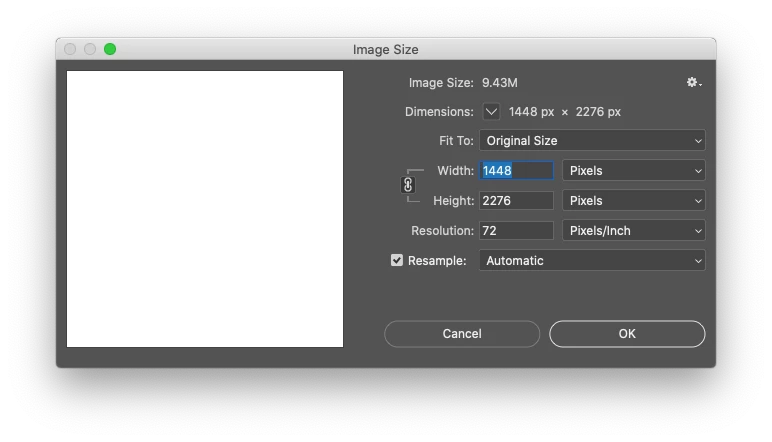
 

Also, if I have 2 or more artboards, how can I just rotate one of them? Rotating the canvas rotates all artboards.

This topic has been closed for replies.

4 replies

Inspiring
April 21, 2022

@J453Yes, that was the issue. Thank you so much for the tip 🙂

Legend
April 21, 2022

Curious. I can't repro. If you tickle the panel - making its size slightly larger, does those edit fields light up?

Inspiring
April 11, 2022

Thank you @J453 for the workaround. That's a good option.

I didn't know that artboards were kind of cut-outs of the larger image. Good to know.

Just a quick question: any specific reason why the artboard information only shows me the Width and the X position?


Legend
April 10, 2022

Artboards in Photoshop all share a single document - which is the size you see in Image Size - and each artboard is a kind of cut-out of the larger image size.


Workaround:


You can rotate the view/aspect of an individual artboards by 90 degrees using the Aspect Ratio buttons on the Artboard tool's Options bar: 

You can use the transform tool to rotate the layers/content in the artboard around the center point: