Participating Frequently
March 24, 2023
Answered

Auto Align Troubles with PNG

  • March 24, 2023
  • 2 replies
  • 1114 views

Hi all. I am having a very hard time getting the align function to work. I am trying to align to the center of 125 .png images of products. It is a single layer (the product) on a transparent png canvas. When I align using the  center vertical and center hortizontal settings, the object is moved (or sometimes not moved at all) to a place in the canvas which is visibly not the center. I need all 125 images to be centered within the cavnas so that they match each other and live on the same plane. The canvas is all the same size 2048 pixels on the long edge, with a 4:3 crop. Helppppppppp! Does anyone have any advice on what I may be missing? 

This topic has been closed for replies.
Correct answer jane-e
quote

It might be faster for me to move them by hand at this point. Do you know if there is a guide function that can create set rulers across many canvases? In other words, if I set rulers on one image, can I open another image with those same set rulers?


By @kaitME


You still haven't filled in details, so I'm still taking a best guess. I just tested this:


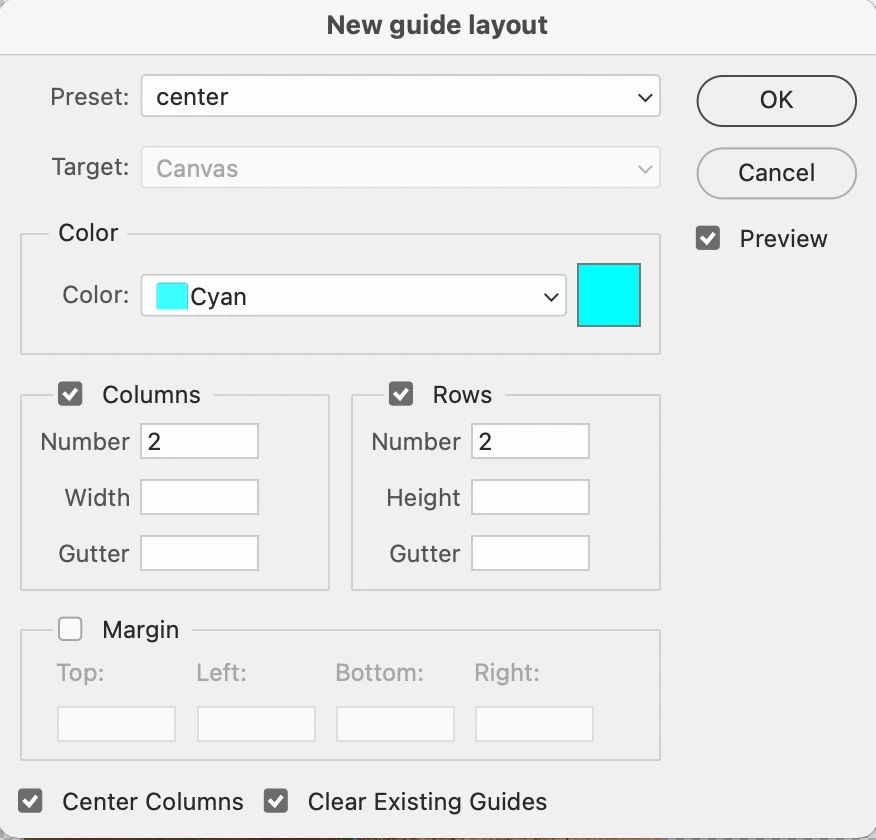
View menu > New Guide Layout > 2 columns, 2 rows

Save Preset


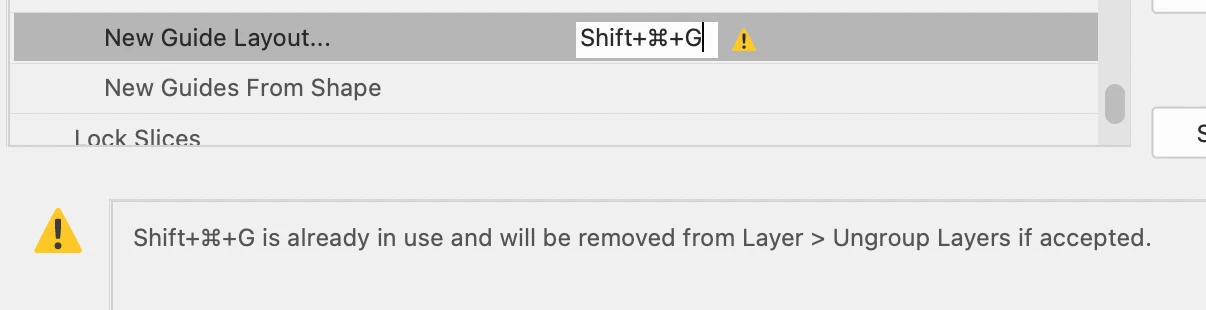
Edit > Keyboard Shortcuts > Assign shortcut to new Guide Layout (from View menu)

You can remove it later if you reuse another one.


I opened three documents with three sizes and opened New Guide Layout. The guides were centered on all. One was a transparent PNG.


PS has a Snap so if you get approximately close to center, it will snap to center. You have to pay a little attention, but you will see the image snap into place. And yes, it worked with the transparent PNG.


Let me know if this helps.


Jane


2 replies

Legend
March 24, 2023

Make sure that your backgrounds are actually transparent, with no stray pixels. This is the most likely cause of images alinging off-center.

kaitMEAuthor
Participating Frequently
March 24, 2023

Thanks! Good advice - how do I ensure that they are actually transparent and that there are no 'stray pixels'? Are you saying it is possible to center align a png file withuot having to transfer it to a psd? 

Legend
March 24, 2023

Try this- add a Levels adjustment layer above your content, then drag the black slider all the way to the right. If there are any stray pixels, they should show up.

Remember that format only matters when you save a file to disk. When its opened, its pixels in memory. You aren't "transferring" anything, but PSD files support all of Photoshop's many features while PNG only supports a limited subset. If you want to save a file and it uses features (like layers) that PNG doesn't support, you can't save it as a PNG.

jane-e
Community Expert
Community Expert
March 24, 2023

@kaitME 

PNG does not support layers. To align to the center, you need to multiple select the layers first, which you cannot do in a PNG with one layer.

https://helpx.adobe.com/photoshop/using/aligning-layers.html


If I understand correctly, you would need to:

  • save in a format that supports transparency and layers: tiff or psd
  • select each product and move it to its own layer

Tip: Do this on a copy of your PNG to preserve the original.


If I am misunderstanding, please show a screenshot.


Jane


kaitMEAuthor
Participating Frequently
March 24, 2023

Hi Jane - thanks so much for your quick response. I work mostly in Lightroom, so there are lots of little photoshop rules I'm unaware of, I guess this is one of them! What you are saying makes sense, I just wish I had known before I changed these all to PNGs. 


It might be faster for me to move them by hand at this point. Do you know if there is a guide function that can create set rulers across many canvases? In other words, if I set rulers on one image, can I open another image with those same set rulers?

jane-e
Community Expert
Community Expert
March 24, 2023

Hi @kaitME 


I was picturing one PNG with all the products. Are they all in separate files? If you want to align the centers of them to each other, they need to be layers in one file (TIFF or PSD). JPEG does not support transparency or layers and PNG does not support layers.


Again, I am not positive I am following you, so please correct me if I'm off base. If they are all separate images and you want to combine them into one document, try File > Scripts > Load Files into Stack.


Jane