Participant
April 3, 2017
Answered

Auto-Blend Layers Button Greyed Out

  • April 3, 2017
  • 2 replies
  • 10317 views

Hello all,

Today I have been working on a project in which I need to use the auto-blend function. The issue that I am currently facing with this is that the button to do this is greyed out. I have both layers selected, everything is rasterized, I have cleared and expanded my selection although still the button is greyed out. I have even decided to delete the settings file to make sure there were no corrupt sectors but still as I say, the button is completely greyed out.

Thanks in advance for any advice,

Alex
This topic has been closed for replies.
Correct answer

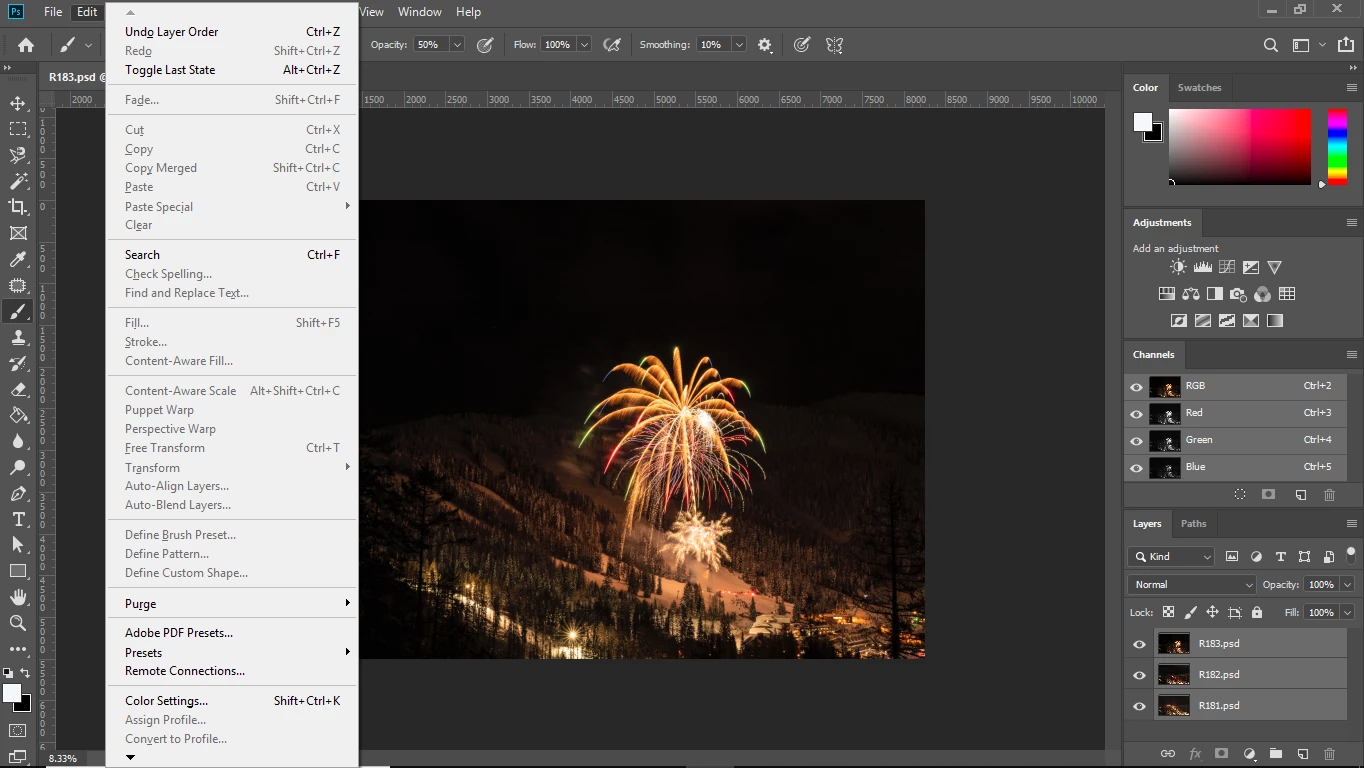
I hope this is what you are looking for.


Hi

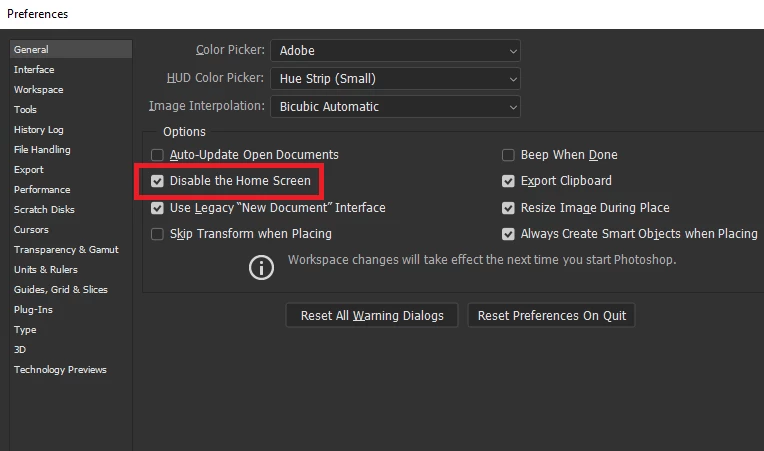
There is a known issue with opening images from Lightroom, work around is to open Photoshop first and then Lightroom or disable the home screen in preferences

2 replies

JRfromPTC
Inspiring
April 4, 2017

ITVAlexV,

Make sure that you have an RGB image. Auto-Blend does not work in CMYK.

Participant
January 5, 2019

I have three images I want to auto blend in photoshop. Here is what I've done.

1) From light room opened each image and saved them as 8 bit RGB psd file.

2) From lightroom selected the three images and selected edit in photoshop as layers. Photoshop opens and has the three images as layers.

3) I then arranged the layers in the order I wanted (top, middle and bottom)

4) I then selected all the layers (They show as light grey)

5) Selected edit and the auto align, auto blend and a few others are greyed out.

c.pfaffenbichler
Community Expert
Community Expert
January 6, 2019

Could you please post a screenshot taken at View > 100% with the pertinent Panels (Layers, Channels, Options Bar, …) visible?

c.pfaffenbichler
Community Expert
Community Expert
April 3, 2017

Could you please post a screenshot with the pertinent Panels (Layers, Channels, Options Bar, …) visible?

What are the image’s Color Mode and bit depth?