
Participant
September 8, 2016
Answered

AutoRecover Folder and Files Don't Exist

  • September 8, 2016
  • 7 replies
  • 33690 views

Hey there! I'm an advanced photoshop user and having a lot of trouble with autorecover in CC. I have my file handling preferences set to auto save every 10 minutes. I was recently working on a file, it crashed and when I went to search for the AutoRecover folder in application support on my mac, the folder was entirely missing. I did a search of my computer and found no such folder. Where are my autorecover files saving if at all. I haven't been able to find any.

Thanks,

Ben
This topic has been closed for replies.
Correct answer Barb Binder

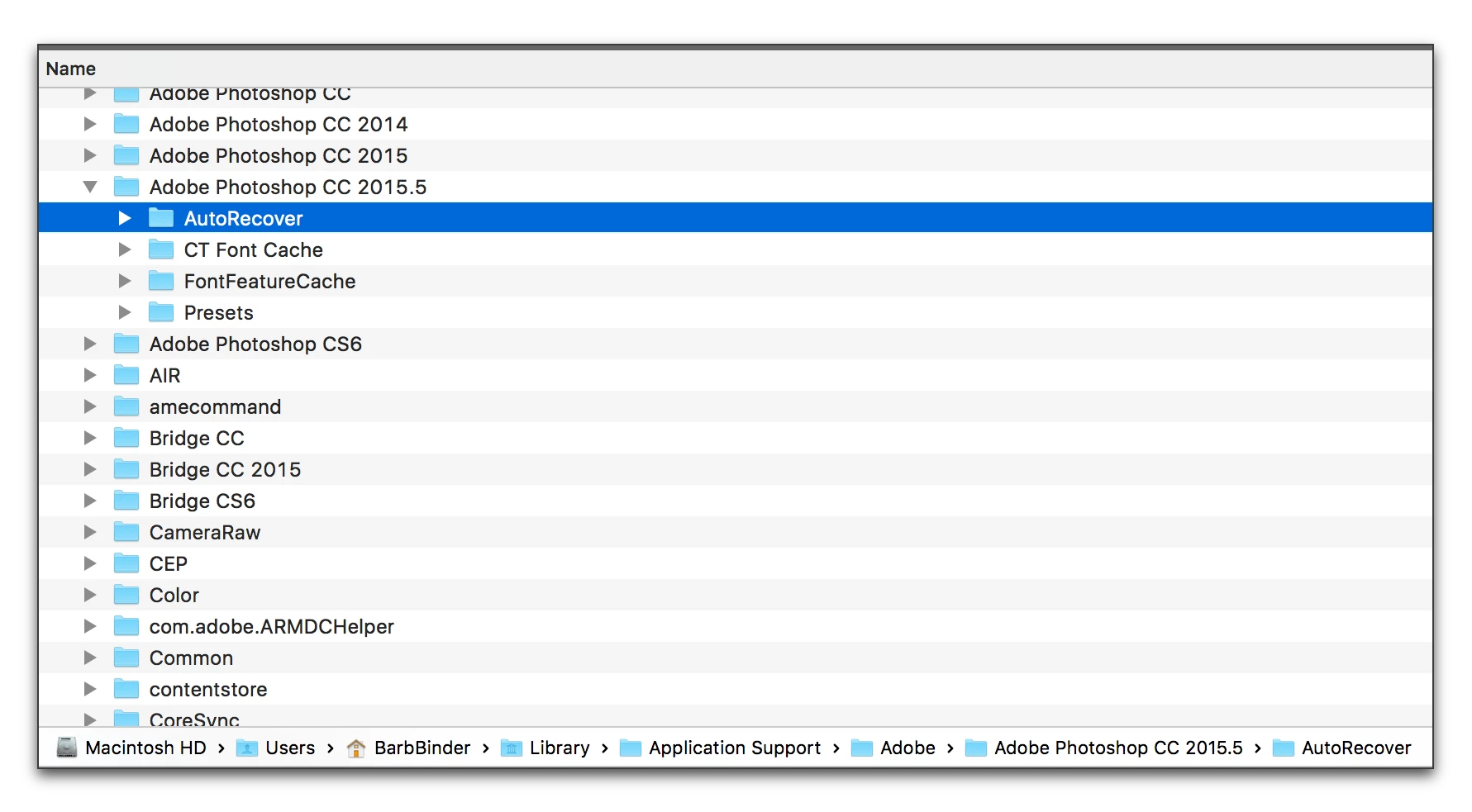
Modern Macs hide the Library folder.

  • Open Finder
  • Open the Go menu
  • Press and hold Alt/Opt to see, and then click on Library.
  • From there you can see the path on the bottom of the screen shot:
    Application Support > Adobe > Adobe Photoshop CC 2015 > AutoRecover

7 replies

Stephen Marsh
Community Expert
Community Expert
December 6, 2023

My understanding is that although one can find that folder, it's a fruitless search and hope. If Photoshop doesn't automatically open the auto-recover file, then it pointless trying to do this manually as the file doesn't exist.


Also note that the file has to be manually saved at least once for auto save/recover to be applied.

Participating Frequently
December 6, 2023

I've been having this same issue. Everytime photoshop crashes mid work it usually automatically will load the recovered file next start up, but sometimes it does not. Everytime this happens I search adobe community for answers. The answer is always the same find the "autorecovered" folder. Except everytime I search for the folder it does not exist on my computer... Clearly photoshop is saving recorverd files somewhere, but I have searched and searched. Please help!


Also I bought a mac mini with the m1 proccessor and 1TB hardrive to avoid slow workflow and crashes and yet EVERY SINGLE USE IT CRASHES!!!! I pay way to much money every month to lose hours of my life for no reason Adobe!!!

D Fosse
Community Expert
Community Expert
December 6, 2023

Yes, Stephen is right.


There is no reason to ever look for this folder. There won't be anything in it, if the recovered file doesn't open automatically. Save the file once, and note the time intervals you set in Preferences.


The crashing is usually in the GPU driver, so that's something you need to post in an Apple forum.

ItsSupercar
Participant
April 1, 2017

I have experienced this exact same issue in Photoshop CC 2017 on PC. The program is set to save recovery information as often as possible, but as far as I can tell the setting does nothing. It's never once done me any good in a crash. There's no AutoRecover folder within Users, and the PSAutoRecover folder on the scratch disk is empty. I'm at my wit's end.

Seth.Hicks
Participant
August 8, 2017

I may have a solution which works for some of you.

I've had the same problem for well over a year. I always set my PS to auto-save every 5 minutes, but no files are ever recovered after a crash and there isn't even an AutoRecover folder available.

After about an hour on Adobe's support chat, I tested a theory on a hunch. My boot drive is a lower-capacity SSD, so I've been assigning my scratch disk to a larger secondary drive to avoid space issues. I reset my scratch disk to my C: drive and auto-save works again!

I tested this a number of ways:

Scratch Disk Setup 1 (primary drive only)

  1. C: ACTIVE
  2. D: INACTIVE
    SUCCESS

Scratch Disk Setup 2 (secondary drive only)

  1. D: ACTIVE
  2. C: INACTIVE
    FAILURE

Scratch Disk Setup 3 (primary drive: scratch 1, secondary drive: scratch 2)

  1. C: ACTIVE
  2. D: ACTIVE
    SUCCESS

Scratch Disk Setup 4 (secondary drive: scratch 1, primary drive: scratch 2)

  1. D: ACTIVE
  2. C: ACTIVE
    FAILURE

I mentioned this experiment to my Adobe Chat CSR and after a 2 minute pause, he came back to inform me that a senior level technician verified that the auto-save function will only work on your primary drive.

In conclusion, if you are using a secondary drive for your scratch disk, make sure you also have your primary drive active and in the first priority spot. I'll be curious to see if this resolves the problem for anyone else.

Participant
November 29, 2016

I've had the same issue and I've still not seen any help from Adobe.

Participant
December 16, 2016

Mine is the same I did the update to 2015.5 and my autorecover folder is still empty and the programme keeps crashing which it has never done before

bend11Author
Participant
September 9, 2016

Also worth noting I get scratch disk errors quite a bit when I only have a few files open. My scartchdisks for photoshop are being split between my comp and a 128 g transcend flash card for extra space. Is there any way that that is affecting it negatively. Should I just use my hard drive by itself?

c.pfaffenbichler
Community Expert
Community Expert
September 9, 2016

Maybe check out what Adobe has to say on that account:

Optimize performance Photoshop CC

c.pfaffenbichler
Community Expert
Community Expert
September 8, 2016

Have you checked your Scratch Disk/s?

Barb Binder
Community Expert
Barb BinderCommunity ExpertCorrect answer
Community Expert
September 8, 2016

Modern Macs hide the Library folder.

  • Open Finder
  • Open the Go menu
  • Press and hold Alt/Opt to see, and then click on Library.
  • From there you can see the path on the bottom of the screen shot:
    Application Support > Adobe > Adobe Photoshop CC 2015 > AutoRecover

~Barb at Rocky Mountain Training
bend11Author
Participant
September 8, 2016

Unfortunately, the folder was empty, perhaps because I restarted my computer. The folder is now ther, but unfortunately my file appears to be lost

c.pfaffenbichler
Community Expert
Community Expert
September 8, 2016

Have you checked your Scratch Disk/s?