
Participant
October 10, 2018
Question

Background

  • October 10, 2018
  • 3 replies
  • 340 views

I'm Beginner and I'm from Viet Nam.

I have some problem and hope that some one could help me.
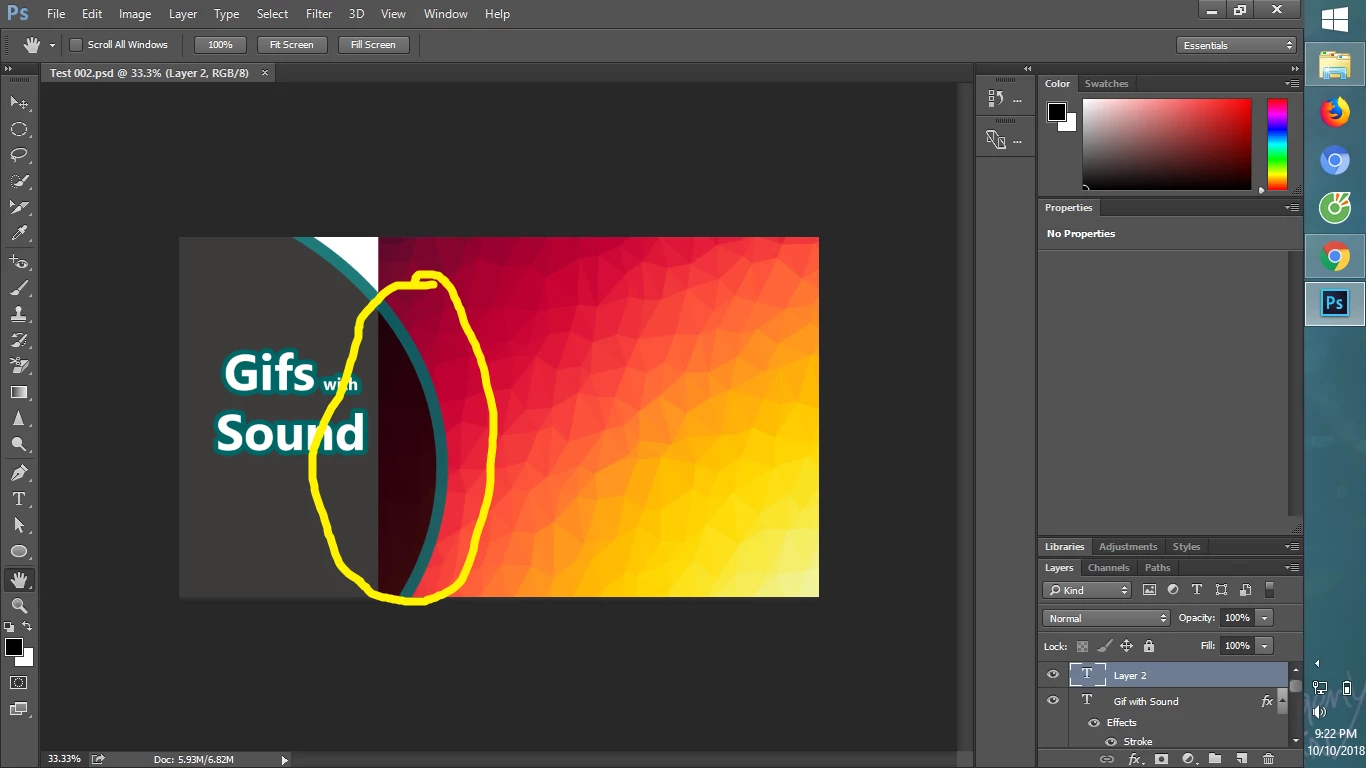
How can I set the full background without affecting the ellipse like this?

and how can i change the color of the text?

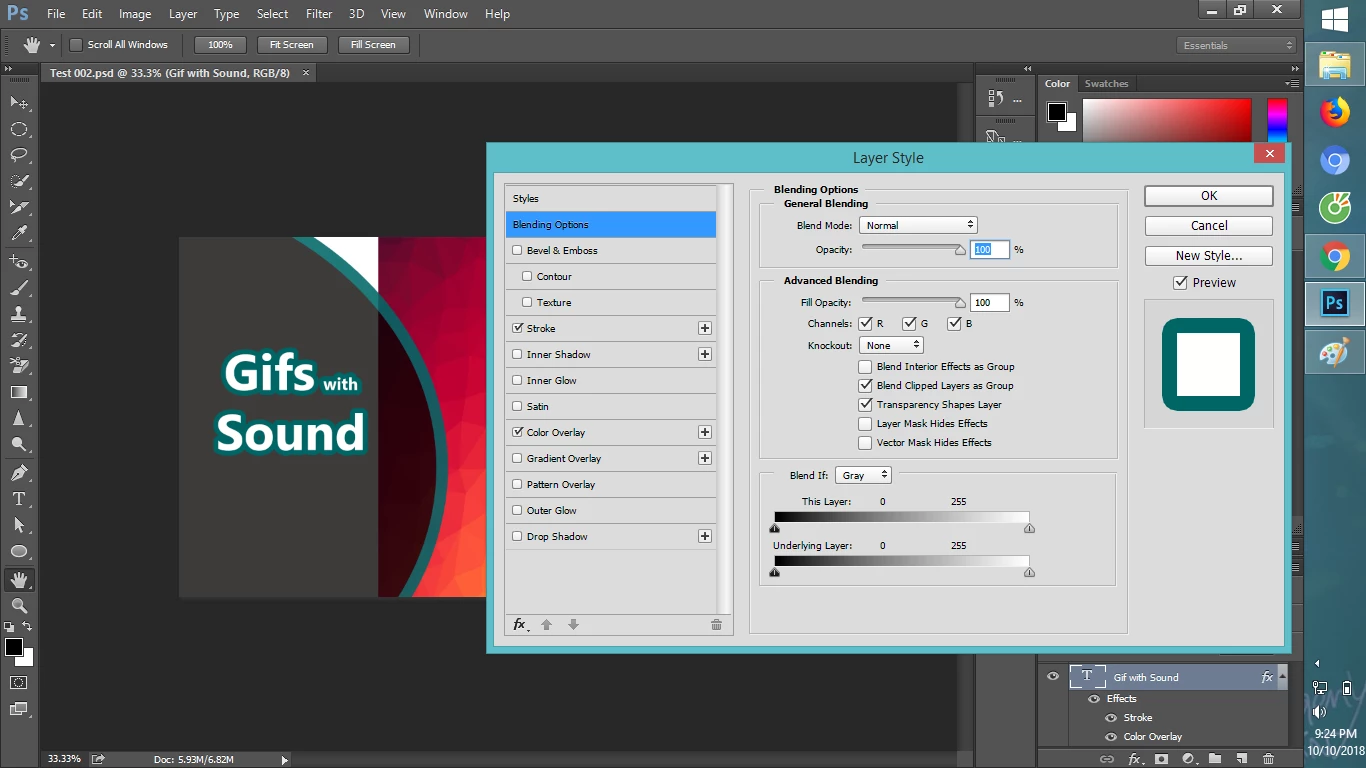
This is what I use: Text
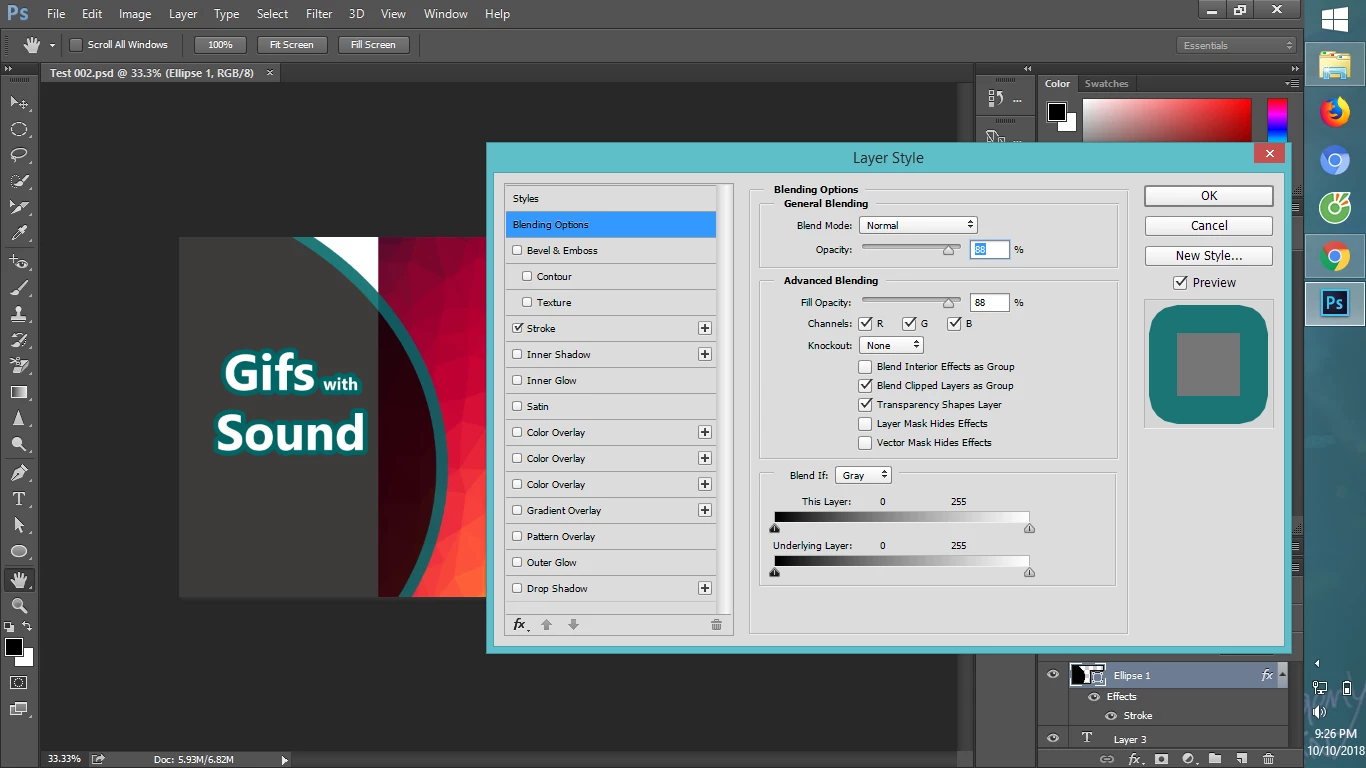
and Ellipse
Thank you very much!

    This topic has been closed for replies.

    3 replies

    Muqqarib Hassan
    Inspiring
    October 10, 2018

    Hi, For the 2nd Question As Davescm told you make sure you have the Blend Mode is in normal mode and both option Opacity and Fill opacity 100% then it will set your background perfect as you wanted.

    Thanks.

    davescm
    Community Expert
    Community Expert
    October 10, 2018

    Hi

    The background is showing through because you have the opacity and fill set to 88% (your fourth screenshot). Turn them both to 100% if you don't want the background to show through.

    For the text colour - click on the color overlay setting in the third screenshot. Or, you could uncheck overlay and set the text colour directly in the options bar for the text tool.

    Dave

    Participant
    October 11, 2018

    Thanks for your comment.

    It has helped me a lot.

    JJMack
    Community Expert
    Community Expert
    October 10, 2018

    Layer styles can be added to text layer and some effects can change the text color you seen by overlaying the text color.  However,  you do not need to change text color that way. You can double click in the layer palette on the text layers Large T thumbnail to open the text layer in Edit edit mode and change the text color using the tool option bar color UI.

    Layer styles on text layers normally add more effects then just color overlay.

    JJMack
    Muqqarib Hassan
    Inspiring
    October 10, 2018

    Hi, there is alot of option to change the colors of the text. here are fews

    First all if you want to change the color of the text then select a type tool by pressing the T and then type your text. After that select all the text that you type or press the Ctrl+A to select the all type and then click on the upper side Color rectangle icon and then change your color according to your desire and hitt okay.

    Or 2nd method is type your text and then select a move tool by pressing V shortcut key from your keyboard and then go to window and select character panel and then you can see there too a color icon and change the color from there too. Also you can customize your text too from the character panel.

    like i showed you in screenshot.

    This is the Character panel.

    3rd option is :-

    Type your text and right click on that layer and Select the Blending option and then choose the Color option and change your color from there.

    Participant
    October 11, 2018

    Thank you so much.