
nells8486913
Participating Frequently
September 4, 2023
Question

Banding / blotchy in the darks and shaddows - help please!

  • September 4, 2023
  • 1 reply
  • 836 views

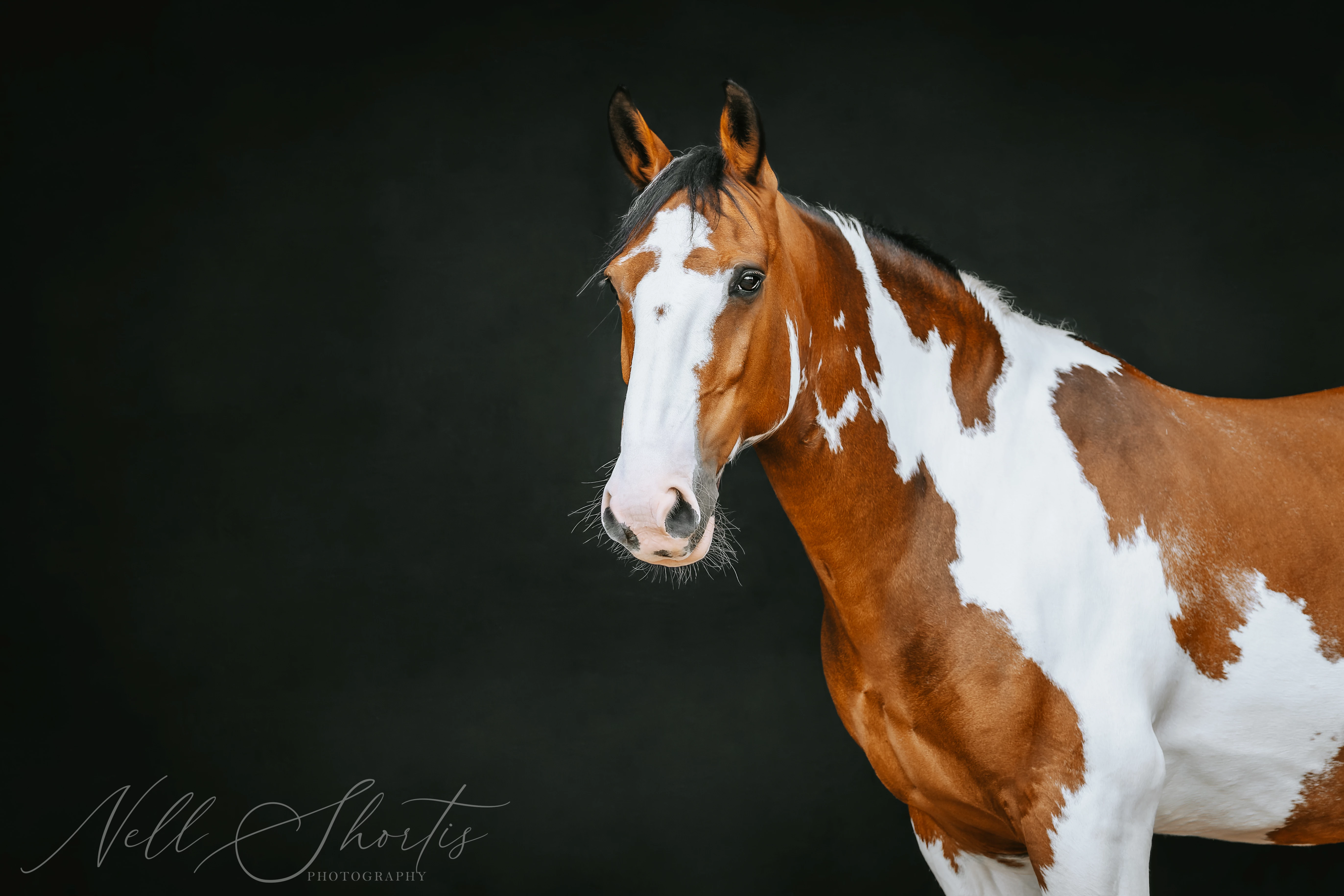
I'm an equine photographer and do a lot of photos of portraits of horses on black backgrounds. To make the photos more interesting I like to give a backgrounds some lighter areas but I have an issue with the darks and lights on the background looking blotchy or sometimes have banding. I have a decent understanding of photoshop but certainly not an expert. However I have a feeling this might be a workflow issue.

I've posted the final image which hopefully you can see the issue.

My workflow for this image is:

- Clean up the background using a combination of spot heal, clone and healing brush

- Camera raw filter as a smart object to make adjustments to colours, lights, darks etc

- Then add some minor adjustments using curves etc.


On a good screen the image doesn't look too bad but my printer man tells me the patchy background will be very noticeable when printed. Am I getting this issue because I use camera raw filter? Does this somehow reduce the quality? My starting point is a raw image. 

Thank you to anyone that can offer some help as this is driving me mad!

(I've made the image a bit brighter that it should be just so it's easier to see the issue)
 

This topic has been closed for replies.

1 reply

D Fosse
Community Expert
Community Expert
September 4, 2023

Three things to note here:

  • If you open in 8 bit depth, there are only 256 discrete steps from black to white (per channel). In other words, there is real banding in the image data, and as you work it accumulates. Work in 16 bit depth (32768 steps per channel). If you need to output an 8 bit file, convert as the very last step.
  • Even if your image is 16 bit, your display path is still 8 bit! That means you will see banding on screen even when there is none in the data. This can get more pronounced with a bad monitor profile, calibration tables in the video card, an inferior display panel (laptops!) etc. The cure for that is a 10 bit capable monitor (expensive).
  • Jpeg compression exaggerates banding, because it compresses the color component much more aggressively than the luminance component. This frequently causes color banding.
nells8486913
Participating Frequently
September 4, 2023

Thank you for you comments D Fosse that's really helpful. I've just both my lightroom and photoshop settings and they are both set to 16 bit.

Short of buying an expensive monitor I suppose it would be helpful to do some test prints to see what they look like or look on my printer chap's monitor as I know he has an all singing one!

Can I ask about using the camera raw filter after bringing into photoshop after doing my clean up - would this cause any issues? I know most people use camera raw in lightroom first before bringing into photoshop but I prefer to clean up getting rid of disctractions etc first.

NB, colourmanagement
Community Expert
Community Expert
September 6, 2023

Thank you so much for explaining this. I had a feeling this was the case, I was just hoping it wasn't! It's all good though, it means I need to stop getting by and start improving my photoshop skills now I have the basics 🙂


@nells8486913  If issues are appearing after you do a late step of lightening the image background etc.

then I'd do that lightening step first and alter / retouch / clone afterwards, that way you can see what you're doing better


I hope this helps
neil barstow, colourmanagement net - adobe forum volunteer - co-author: 'getting colour right'
google me "neil barstow colourmanagement" for lots of free articles on colour management