
Participant
January 19, 2022
Question

Batch convert color profile

  • January 19, 2022
  • 4 replies
  • 5238 views

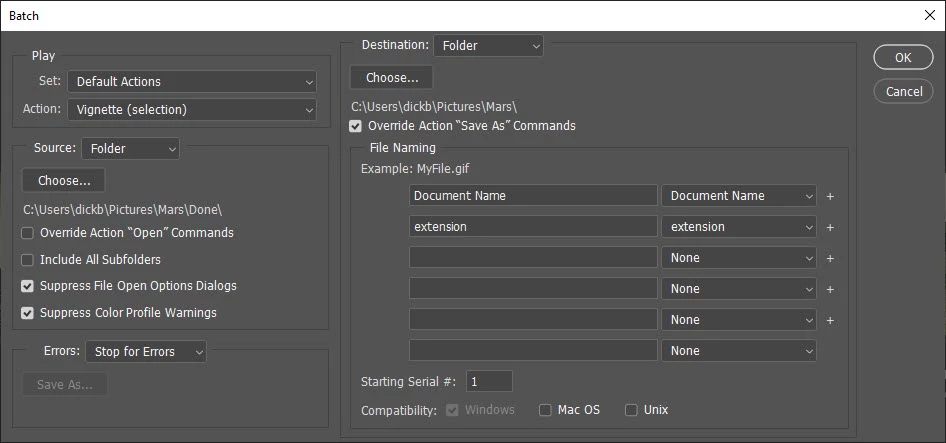
I am trying to batch process some image files, JPEG's, that have a sRGB color profile. These are scanned black-and-white negatives and I would like to change the color profile to grayscale. I have enclosed the drop-down from "file>automatic>batch". I am currently using Photoshop 2022 on the Windows machine using win10.
I have tried this several times in the finished product is still sRGB! Any ideas. Thank you, Dick Burkhartzmeyer


This topic has been closed for replies.

4 replies

rob day
Community Expert
Community Expert
January 22, 2022

Hi @DickBurke5105 , a case where you would need the conversion to profiled grayscale would be when the output is to an offset press and you want the images to print as black only—not 4-color. Is the final output going to be to the black plate of an offset press?

Bojan Živković11378569
Community Expert
Community Expert
January 22, 2022

Regarding your Batch attempt: Take a look at Play section in the top right corner: Set and Action. As already mentioned above, you must record your own action, put it in some action set and use that action during batch process.


Another spot is Override Action "Save As" Commands on the right side. If you have this checked you must have Save step in your action recorded, otherwise it won't work.

Stephen Marsh
Community Expert
Community Expert
January 22, 2022

As @D Fosse mentioned, the Batch command is for running actions, more on Batch in this link:


https://helpx.adobe.com/photoshop/using/processing-batch-files.html


You don't change the profile as such, you change the document mode from RGB (which has an sRGB profile "label") to Grayscale mode via a conversion, the grayscale profile is automatically assigned as a "label" representing what happened during the conversion.


You have JPEG files, which are using 3 channels rather than 1 channel, so their file size will be larger. That being said, you will need to factor in file size savings by changing them to grayscale vs. how grayscale data may be handled by various software that uses these files.


You may just be best leaving things as they are unless the grayscale conversion offers major benefits in the overall workflow.

D Fosse
Community Expert
Community Expert
January 19, 2022

You have to create an action that converts first. Batch is for running actions.


I'd advise against it unless you've considered all the implications, though. The tone curve is determined by the grayscale profile you choose, which would be fine if other applications supported color management for grayscale. But they don't, I can't think of a single application outside Photoshop with grayscale color management support.


The net result is that grayscale is very unpredictable outside Photoshop. At the very least, you should carefully consider which grayscale profile you want to convert to, because it needs to match the intended output.