Exit
  • Global community
    • Language:
      • Deutsch
      • English
      • Español
      • Français
      • Português
  • 日本語コミュニティ
  • 한국 커뮤니티
1

Batch edit nested smart objects....any ideas?

Community Beginner ,
Oct 17, 2023 Oct 17, 2023

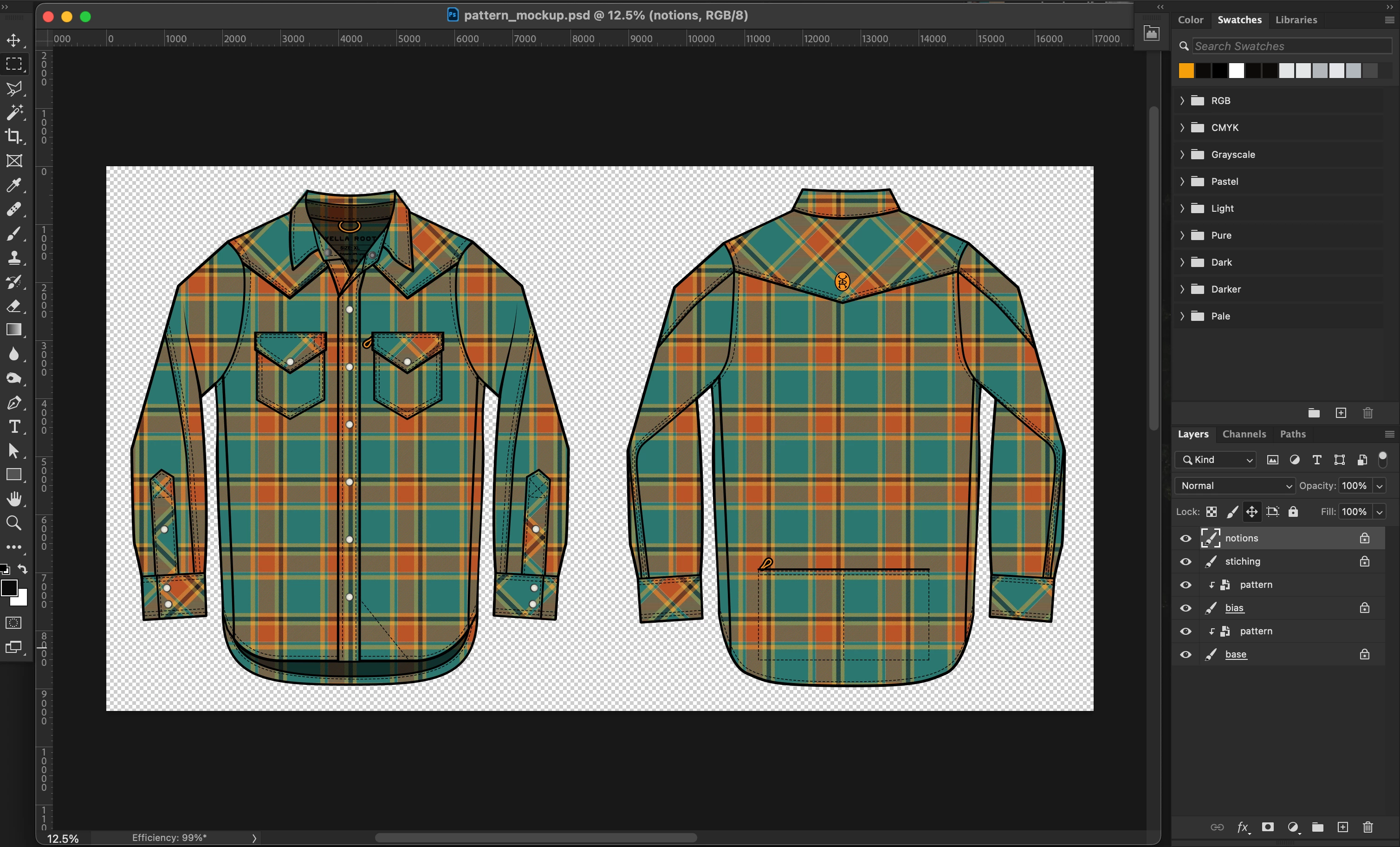
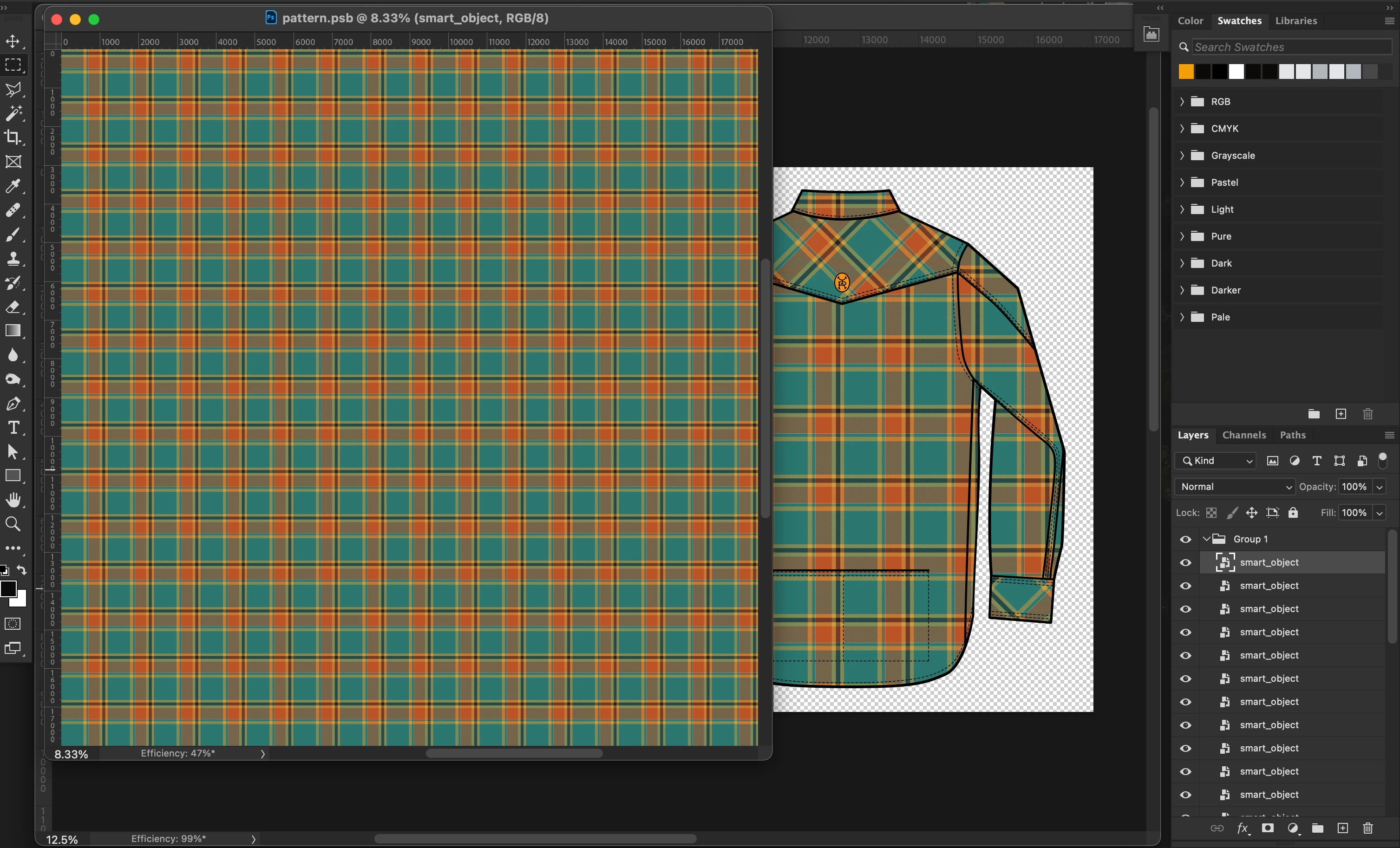
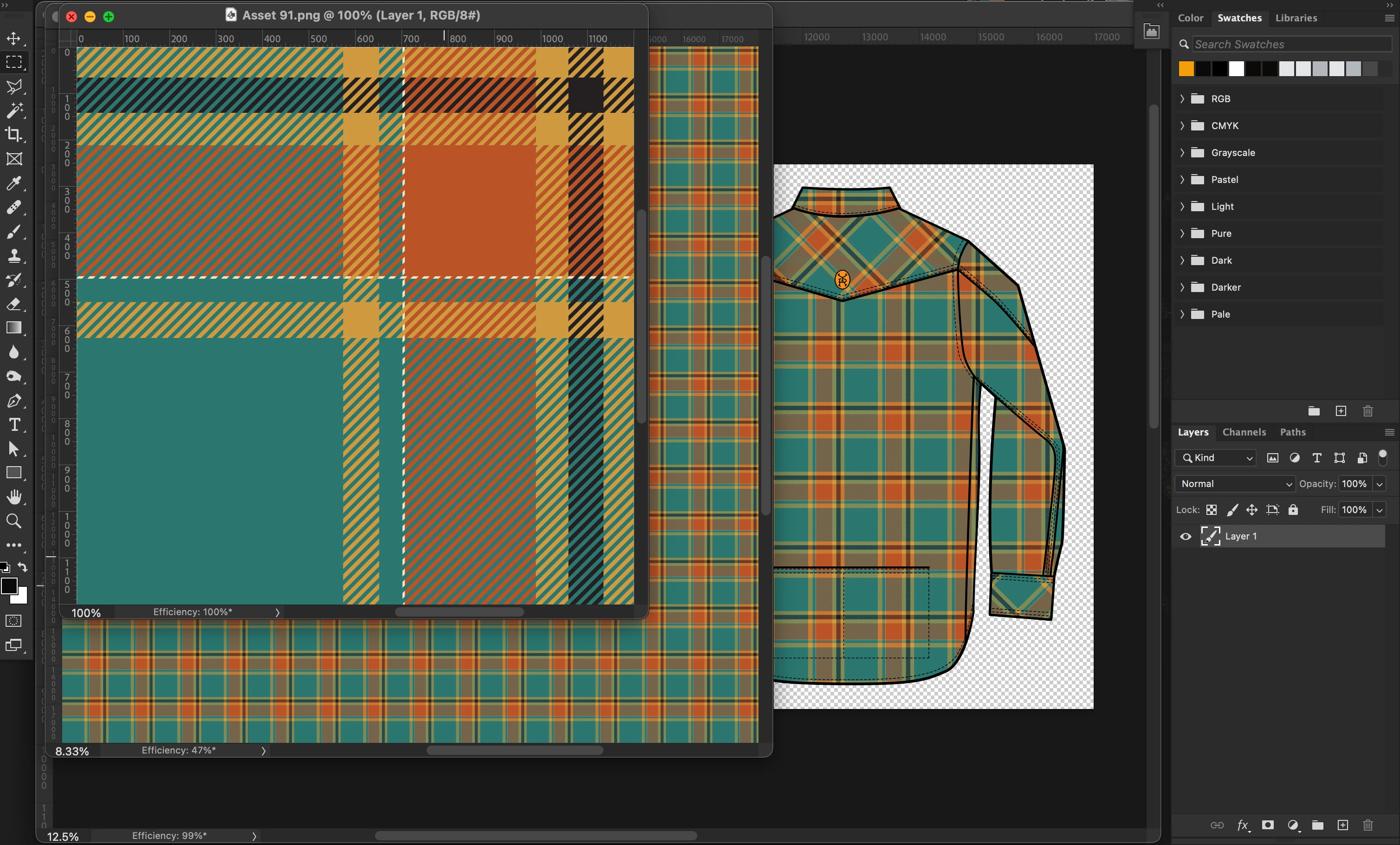
I've created a mockup of a shirt with a pattern on it (image 1). The pattern is a large smart object (image 2), that is made up of multiple small smart objects (image 3), which are tiled.


I'm trying to batch replace the image in the small tiled smart objects, which would in turn update the larger smart object...and then export the updated mockup as a JPG into a done folder. As part of the batch, would like to repeat the process for all small images in a source folder.


I've seen a couple threads where folks have done with smart objects but I have not found anything with nested smart objects.


Has anyone tried doing this before? I really appreciate any help anyone can offer. Thanks!


Related threads:


image1.png


image2.png


image3.png


TOPICS
macOS
171
Translate
Report
Community guidelines
Be kind and respectful, give credit to the original source of content, and search for duplicates before posting. Learn more
community guidelines
Adobe
Community Expert ,
Oct 17, 2023 Oct 17, 2023
LATEST

Without much brainstorming what exactly you need I have mapped this to another situation we have solved. If you have multiple pattern images in the folder and want to use them with the same template, here is the process how to record action. You will batch process pattern images, or folder of images:

You will need PSD template open in Photoshop, only that file should be open before running batch script. When recording you can use any template that has same structure in the Layers panel and the same naming conventions.


  • First step in action for batch process is to select all (batch script will open one by one pattern images)
  • Second step is to copy pattern.
  • Select previous document.is third step. That is PSD template open in Ps before running batch process as suggested above.
  • Select and edit layer actually Smart Object that needs pattern replacement is the next step in action.
  • Paste pattern and eventually select bottom layer with previous pattern and delete it.
  • Save changes what will return you to document with PSD template.
  • Select All
  • Copy Merged
  • Select next document, that is pattern image open in batch process that is still waiting.
  • Paste copied content
  • Reveal All using Image Reveal All.


Above are action steps, use Image Processor Pro, for example and save using its interface in desired format anywhere you want. Test couple of times before actually running batch, I have done similar thing long time ago, writing from my memory which is not so good.

Translate
Report
Community guidelines
Be kind and respectful, give credit to the original source of content, and search for duplicates before posting. Learn more
community guidelines