
Known Participant
July 10, 2019
Answered

batch resize from 3:4 to 4:4 without cropping or distorting

  • July 10, 2019
  • 2 replies
  • 9484 views

I have over 1000 web images I need to resize. They are all on figures on a white background. The need to be reduced and resized to 2000x2000 pixels at 300 dpi for Amazon and Walmart. I can't figure out how to do this, I know I tested it before and it worked, but now it won't adjust the ratio correctly using a image processor script... please help.
This topic has been closed for replies.
Correct answer JJMack

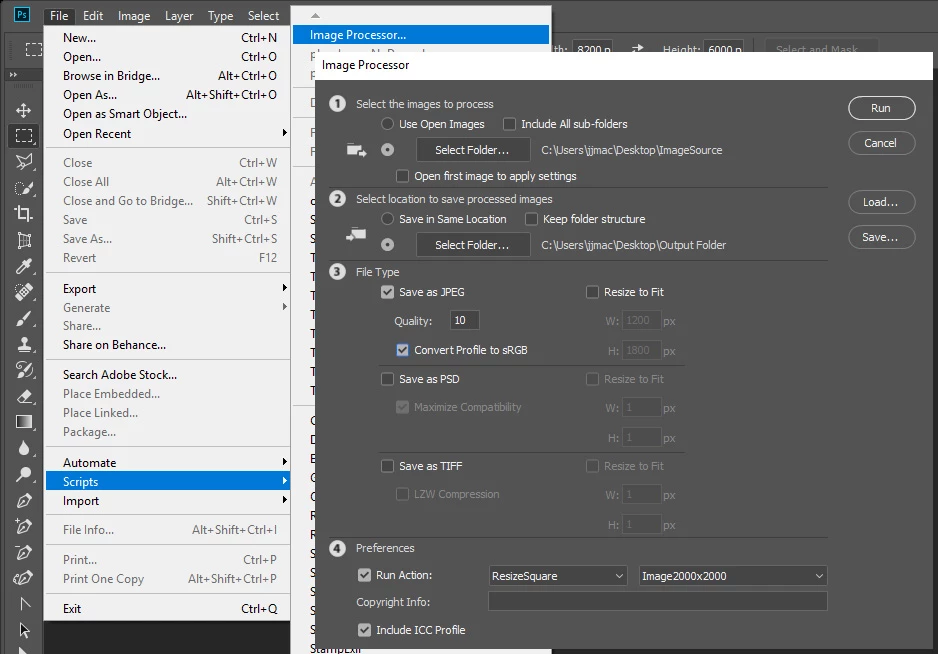
The action I posted should resize all your images 2000x2000at300dpi without cropping image content  batch it using the image processor. You can download the action here http://www.mouseprints.net/old/dpr/ResizeSquare.atn

set up the image processor this way:

2 replies

vikashk503
Participating Frequently
July 10, 2019

Hi,

I would suggest you to create an action and then try. I too process multiple images and I find Action within Photoshop as the best, efficient way to do. Here are the steps :

1. From the top Menus in Photoshop, click on windows and select Actions. This will open Action Panel.

2. Before you begin , lets put all your images in one folder. Now copy the folder and put it on desktop or your desired drive. This way you are working with back up not with originals.

3.From the Fly out menu of Action Panel, select New Actions. Type a name and click on record button.

4. open the image in Photoshop from that back up folder.

5.go to image menu and click on resize and type the desired resolution .

6. Go to file click on save as. press ok to the prompts and then it would ask for a location to save. Create a new folder and save it there.

7. go to file and click on close and file will be closed.

8. go back to action menu and stop the action.

9. go to the back up folder and move that image which had just processed out of there to somewhere else because once you run the action it may create duplicate.

10. go to file menu in Photoshop, automate, batch.

11. your action will be selected by default if not choose it. check the box to override save as and avoid open command.

12. select the destination folder as  the new folder you had created earlier.

13. click on run

Thats it. Please let me know for problems. I think it should do it.

sj1122Author
Known Participant
July 10, 2019

Thanks,

I did this it worked on about 75% of the images, and the rest didn’t crop right so I have to go back and redo those. But for the most part this did help! I’m going to try pulling those out and re-running the action just on those and see if I can automate instead of hand cropping.

cheers.

sue

D Fosse
Community Expert
Community Expert
July 29, 2019

JJ,

I can’t figure out how you set up your kind of photo action? I need to write 3 more and the way you did it with parameters as it worked like a charm. Any chance you can take me through what you did? Or if you are simply too busy write 3 more for me? I can only figure out how to send one sample... so I can't show the full figure I started with...or the crops I need for the other products....

1. Crop for Chef Coats, starting with the 2000x2000 file you helped me create I need to “zoom in" on just the coat, recropping and keeping the 2000x2000 with 300 dpi intact.

2. Crop for Chef pants, same as above.

3. Crop for Chef hats/scarves, this might have a resolution issue so I’m not going to try to get too tight.

Thank you!!! I am totally in the weeds on this so your help is really appreciated! I've got about 900 of these that need to be done for tomorrow…:(

sample images to follow:

THANK YOU!


To be clear: you can't crop and still have the same pixel dimensions. Cropping by definition means throwing away edge pixels, so you have less than you started with. You can resample the pixel content up to the new dimensions, but that just means inventing pixels from nothing. You will never get the same quality and resampling up is always last resort if you're prepared to pay the price.

The image is just pixels. Throw some of them away, and they're gone.

If you need to resample, start with a bigger image and go down.

Just not sure if you understand this.

JJMack
Community Expert
Community Expert
July 10, 2019

You do it with a simple action.  Image that doe not have a 1:1 aspect ratio will be resized to fit your 2000x2000 canvas and then have canvas add toe make the image square with boarders add by the added canvas.

Step 1 Menu File>Automate>Fit Image...

In the fit image dialog  enter 2000 for width and height.

Step 2 menu Image>Canvas Size....

in the canvas size dialog you want to record 2000 width and height  but that will not record that way if you record that after the fit image step for one side will be 2000 so Photoshop will not record a change for that side. So you need to stop recording. change the document size so both side are less than 2000 then press record an record the Canvas size step 2000 width and height.  You can then batch the action with Batch or Image processor. Also add a Image Size uncheck resample and set 300dpi if you actually need the print resolution to be 300dpi. Resolution is meaning less on the web. 2000px by 2000px is a large image in a normals web page. It will not fit on many  displays

JJMack