
Batch Saving/Exporting as .HEIC after editing .HEIC in Photoshop
Hello everyone,
I need help with editing/saving .HEIC files in Photoshop on macOS.
As you may know, it's possible to open and edit .HEIC images, but there's no way to save or export them back as .HEIC using Photoshop
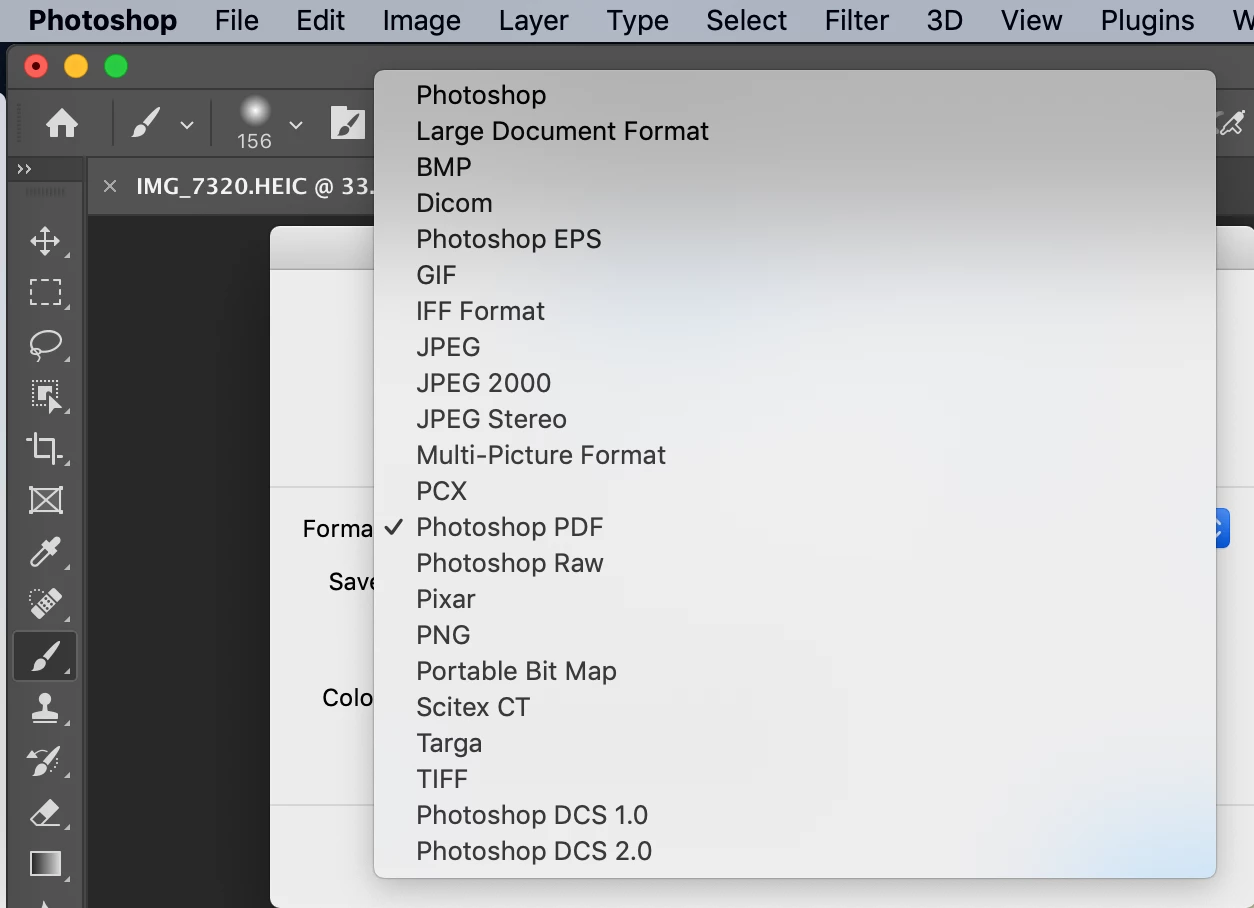
I'm doing a very specific task where I need to blur some parts of .HEIC images and save a copy of the same quality/size & preserve EXIF metadata in .HEIC. Any other output format won't be accepted!
So after making the initial edits my only option (I suppose) is to save the file as highest possible quality .JPEG (since .PNG doesn't include EXIF data). File size usually increases 3-4 times, but I suppose it's because of a different compression method or something:

What are my options from there?
I know I can just open that .jpg in Preview App and export it as .HEIC:
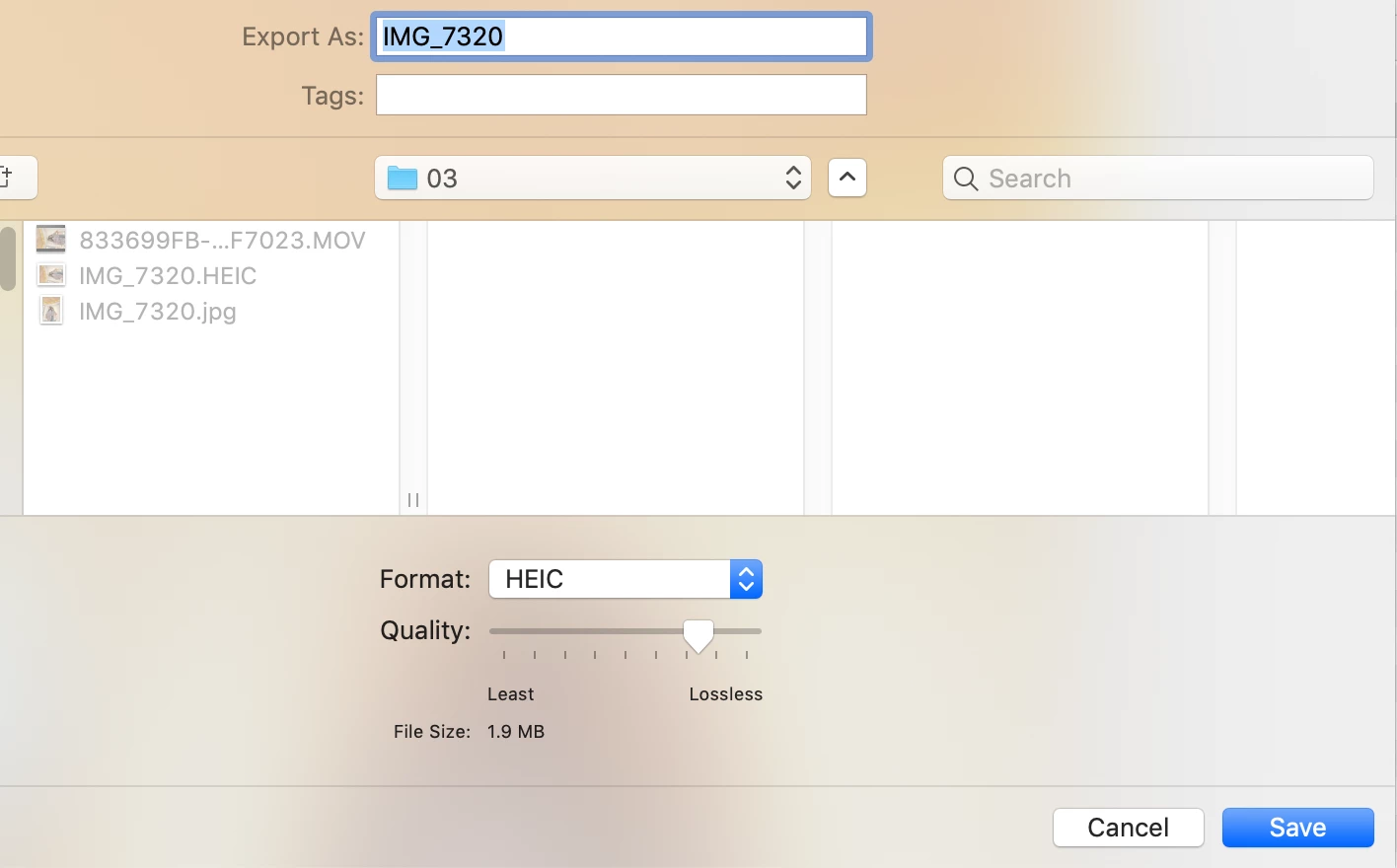
And it basically becomes the same as an original .HEIC (more or less same size, visual quality, preserved EXIF), but it takes really long time.
Especially because I need to manually choose the location of each file every single time I Export using Preview App. And I have thousands of those files!
I didn't find any app, script, or tool that can help automate/batch this process. All the software available works only one way - ".HEIC to .JPG", but I'm looking for ".JPG to .HEIC". There is one paid app in the App Store, but it doesn't save an EXIF data (is it even possible at this point?)
I know that macOS has Automator utility that can help "Change an image file type", but there's no .HEIC in it:
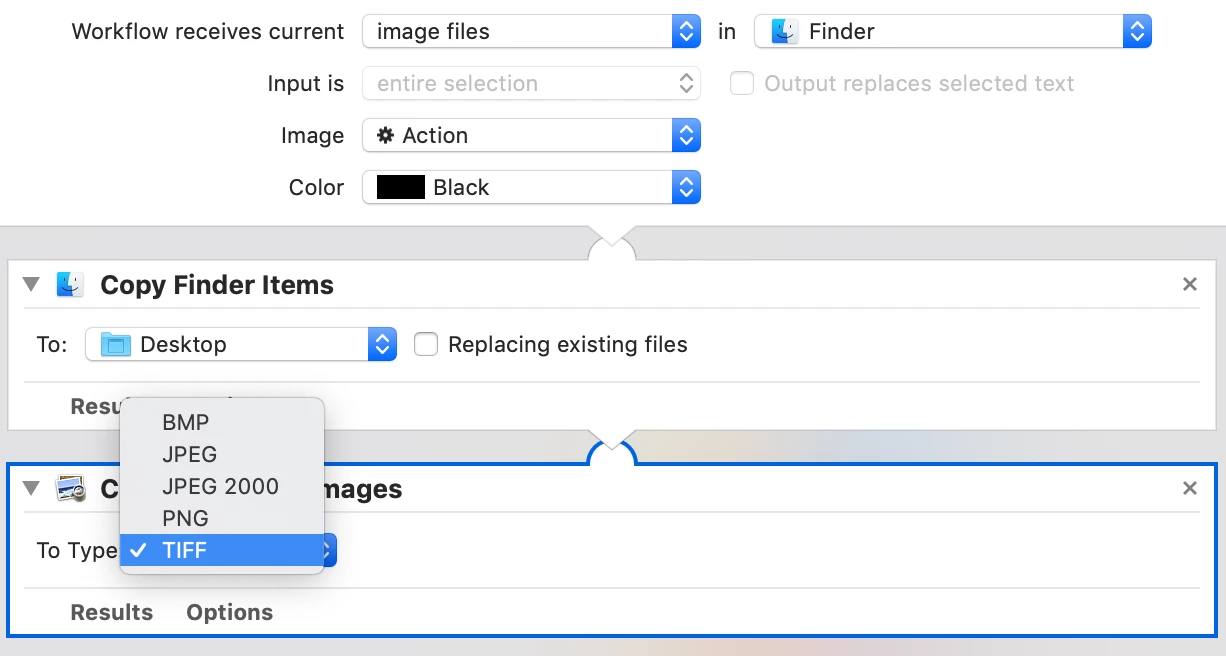
So are some sort of Online converters my only option at this point? I still will have to manually upload photo by photo there, then download it all and manually sort it by folders. Or is there any other solution here?
I was shocked that there was no way to export .HEIC directly from Photoshop in 2022, even on macOS... Maybe there's some sort of script for Photoshop that can do it? Oh... dreams...
 AdChoices