
Known Participant
July 27, 2020
Answered

Beginner composite vector mask/layer mask help needed

  • July 27, 2020
  • 3 replies
  • 932 views

I've cut out 3 elements using pen tool and created vector masks.  

I now want to use a layer mask to paint in black or white to show through layers underneath - but it won't let me do it.

I've tried to rasterize each layer but it still doesn't work.  

What am I doing wrong?


This topic has been closed for replies.
Correct answer JJMack

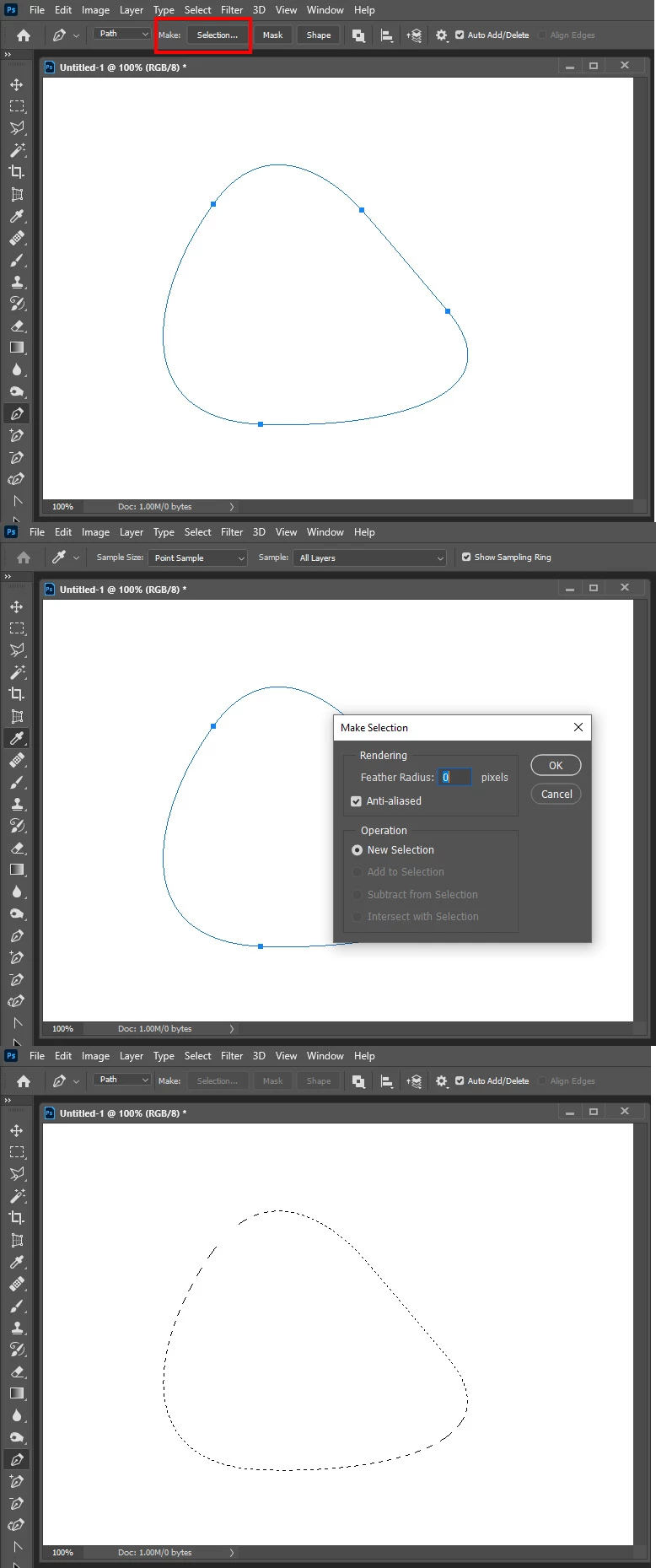
PS  I used the pen tool for the first time, usually use selection tool.  Is there a way with pen to create a selection rather than vector?


The Path can be converted to a selection.
3 replies

mglush
Community Expert
Community Expert
July 27, 2020

Hi!


If you have a Vector mask associated with a layer, you can Command-click on the mask icon in the Layers panel to create a selection, Once you have an active selection, go to the Select menu and choose Save Selection. Do that for all three of your masks. If you are aboe, click on each Vector mask one at a time, and in the Path's panel, click on the active path, and choose Save path. This should allow you to save your path for a later time and then go back and delete the vector mask from the layer.


Once you delete the Vector mask, with the Layer selected, go to the Select menu and load the selection you saved and click on the Layer mask icon at the bottom of the Layers panel.


Let us know if that works!

Michelle

Known Participant
July 28, 2020

Hi mglush,  I've also attached screenshot of my layers (probably looks a mess but I am a beginner,lol).  Just trying your solution....

Known Participant
July 28, 2020

...not sure what I've done with the dragon layer.  When I double click on it I get the blending options panel so I think I've rasterized it?  There is no save option in Paths for this but has worked with the boy.

JJMack
Community Expert
Community Expert
July 27, 2020

If you add both  a raster layer mask and a vector layers mask to a layer only the areas that are visible in both mask will be visible in the layer . The intersection of the two selections.... It like masking a shape... If you want a layer mask to apply to more then a single layer you need to duplicate the layer mask for each layer or group the layers and mask the group.  Masks hide pixels.  You hide upper layer pixels to show lower layer pixels in the hidden areas of upper layers


JJMack
Known Participant
July 28, 2020

Thanks JJMack.  I was using the pen tool for the first time to make the selection in cutting out, I've used the selection tool before and had no problems.


I tought the pen tool was better for selecting?  


You've helped me understand vector masks a bit more.  I'm going to try mglush's idea below first....here goes.

JonathanArias
Legend
July 27, 2020

can you show screenshots of what you have going in your layers?

Known Participant
July 28, 2020

Thanks - I've poped in a screenshot.  Really basic I know but I just want to reveal and hide bits of each layer.

Known Participant
July 28, 2020