
Exit
  • Global community
    • Language:
      • Deutsch
      • English
      • Español
      • Français
      • Português
  • 日本語コミュニティ
  • 한국 커뮤니티
0

best solution to remove blurred text

Enthusiast ,
Nov 02, 2025 Nov 02, 2025

Hello,

I send you a JPG file where you can see that the text is blurred.

What is the best solution in order to remove this blurred text ?

TOPICS
Windows
288
Translate
Report
Community guidelines
Be kind and respectful, give credit to the original source of content, and search for duplicates before posting. Learn more
community guidelines

correct answers 1 Correct answer

Community Expert , Nov 02, 2025 Nov 02, 2025

Is that the only available image of that book? Are you the owner of the original file which is probably a much higher resolution scan, or even a vector PDF with real type? Those would all be much better than this low resolution image.


If you must work with the low quality of the image you attached, there are many options, but none of them as good as having access to a much higher resolution original.


Photoshop now has almost too many upscale/sharpening options to count, definitely more than

...
Translate
Adobe
Community Expert ,
Nov 02, 2025 Nov 02, 2025

First of all, resave as PSD or TIFF. Jpeg compression turns text to mush before you know it.


In this case I would probably go to the Sharpening section in the Camera Raw Filter. Make sure to try the effects of all the sliders, not just the main amount slider.

Translate
Report
Community guidelines
Be kind and respectful, give credit to the original source of content, and search for duplicates before posting. Learn more
community guidelines
Community Expert ,
Nov 02, 2025 Nov 02, 2025

I wonder if Acrobat OCR would read that text?  If it can, then you'd end up with fully sharp and scalable text that you'd even be able to edit. @jane-e what do you think?

Translate
Report
Community guidelines
Be kind and respectful, give credit to the original source of content, and search for duplicates before posting. Learn more
community guidelines
Community Expert ,
Nov 02, 2025 Nov 02, 2025

Yes, it probably can. OCR has been around forever, even without AI.


I assumed it was desirable to retain the original formatting/text flow/layout, but maybe not.

Translate
Report
Community guidelines
Be kind and respectful, give credit to the original source of content, and search for duplicates before posting. Learn more
community guidelines
Enthusiast ,
Nov 02, 2025 Nov 02, 2025

@D Fosse 

About Acrobat OCR, what do you mean by "it was desirable to retain the original formatting/text flow/layout" ?

Translate
Report
Community guidelines
Be kind and respectful, give credit to the original source of content, and search for duplicates before posting. Learn more
community guidelines
Community Expert ,
Nov 02, 2025 Nov 02, 2025

Do you want the page to look exactly like it does now? Or is it OK to get a raw text file?

Translate
Report
Community guidelines
Be kind and respectful, give credit to the original source of content, and search for duplicates before posting. Learn more
community guidelines
Enthusiast ,
Nov 02, 2025 Nov 02, 2025

My goal is to preserve the page like it does now (no raw text file).

Translate
Report
Community guidelines
Be kind and respectful, give credit to the original source of content, and search for duplicates before posting. Learn more
community guidelines
Community Expert ,
Nov 02, 2025 Nov 02, 2025

OK, then OCR is not an option. Then you can try to sharpen with Camera Raw as I suggested above (and avoid jpeg).

Translate
Report
Community guidelines
Be kind and respectful, give credit to the original source of content, and search for duplicates before posting. Learn more
community guidelines
Community Expert ,
Nov 02, 2025 Nov 02, 2025
LATEST

Is that the only available image of that book? Are you the owner of the original file which is probably a much higher resolution scan, or even a vector PDF with real type? Those would all be much better than this low resolution image.


If you must work with the low quality of the image you attached, there are many options, but none of them as good as having access to a much higher resolution original.


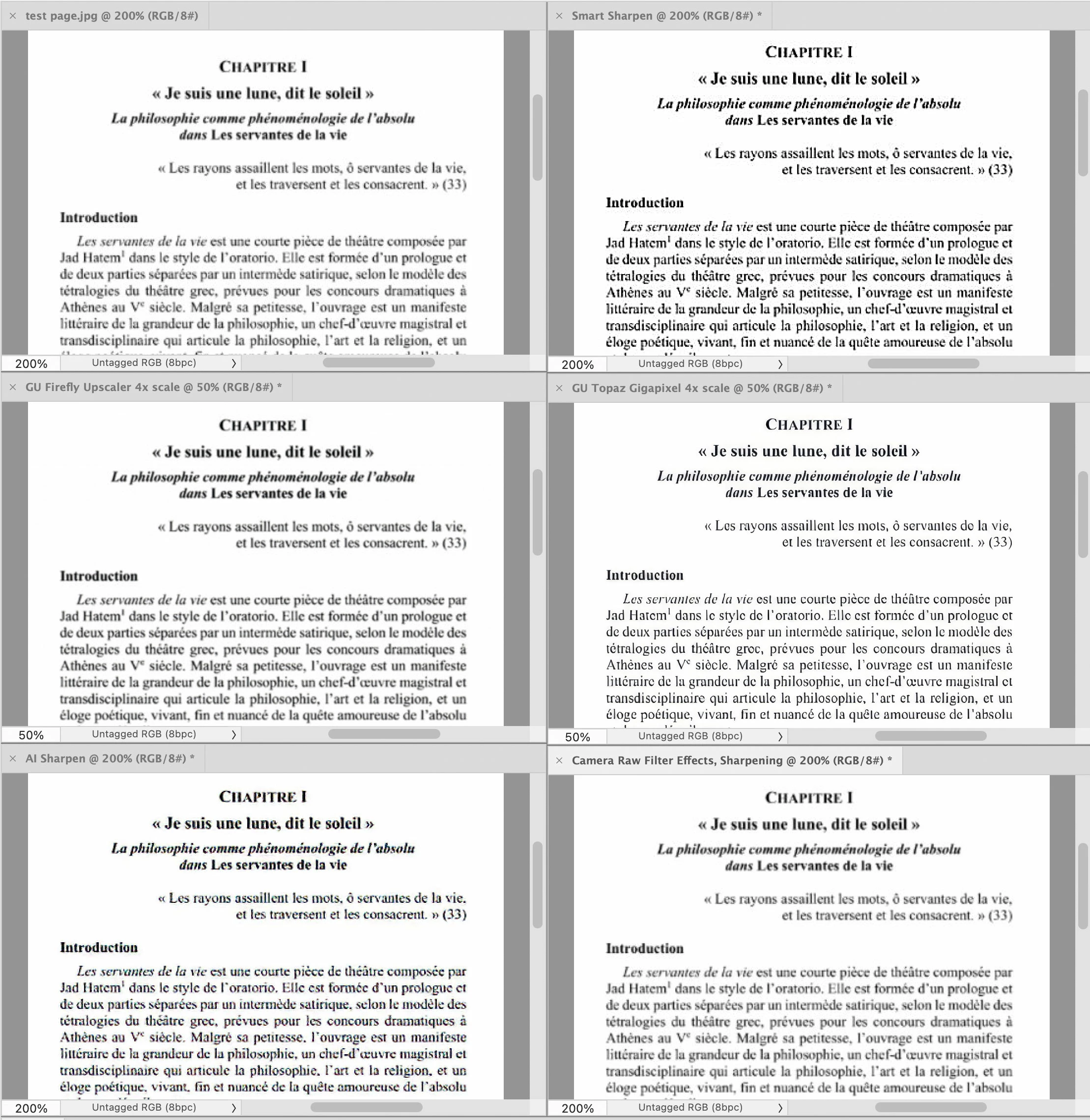
Photoshop now has almost too many upscale/sharpening options to count, definitely more than any beginner can keep track of. I tried your image with six of the latest range of options in Photoshop 2026. You can run your own tests and decide which one you think is best. 


This is what the filename means in each document tab in the picture below, including which Photoshop 2026 feature was used:


testpage.jpg – This is the un-edited book page image that you uploaded.


Smart Sharpen – Processed using Filter > Sharpen > Smart Sharpen.


GU Firefly Upscaler 4x scale — Processed using Image > Generative Upscale, Adobe Firefly model, Scale 4x.


GU Topaz Gigalpixel 4x scale — Processed using Image > Generative Upscale, Topaz Gigapixel model, Scale 4x. This model may have some understanding of type, because it does so much better than the others. Most upscale methods are optimized for images, not type.


AI Sharpen — Processed used Filter > AI Sharpen.


Camera Raw Filter Effects, Sharpening — Processed using Filter > Camera Raw Filter, using the Detail panel Sharpening options and the Effects panel Clarity/Texture options a little. That seemed to make it a little heavier, so the image was also slightly lightened.


Again, there are now so many ways to do this in Photoshop and Camera Raw that I didn’t even try them all. I didn’t try Filter > Sharpen > Unsharp Mask because it is so basic and old, and I didn’t try the traditional Image > Image Size options for Resample (such as the Preserve Details options) because I assumed the new generative AI upscaling options might be better. But feel free to try them all, and inspect them magnified.
 

Photoshop-upscale-and-sharpen-options-pierret18811376.jpg

Translate
Report
Community guidelines
Be kind and respectful, give credit to the original source of content, and search for duplicates before posting. Learn more
community guidelines