
Participant
February 10, 2018
Answered

Best way to combine layers (beside each other, not merging)

  • February 10, 2018
  • 2 replies
  • 343 views

Hi there !

I'm very new to Photoshop, a few hours of practising so far, this software is awesome

Well I'm exercising on simple projects, and I have a trouble doing that : put 2 different layers of the same size (size of my workspace) on the same layer, just one beside the other.

I know how to merge them as I've followed the tutorials, but this is not the goal here.

An image is often more explicit :
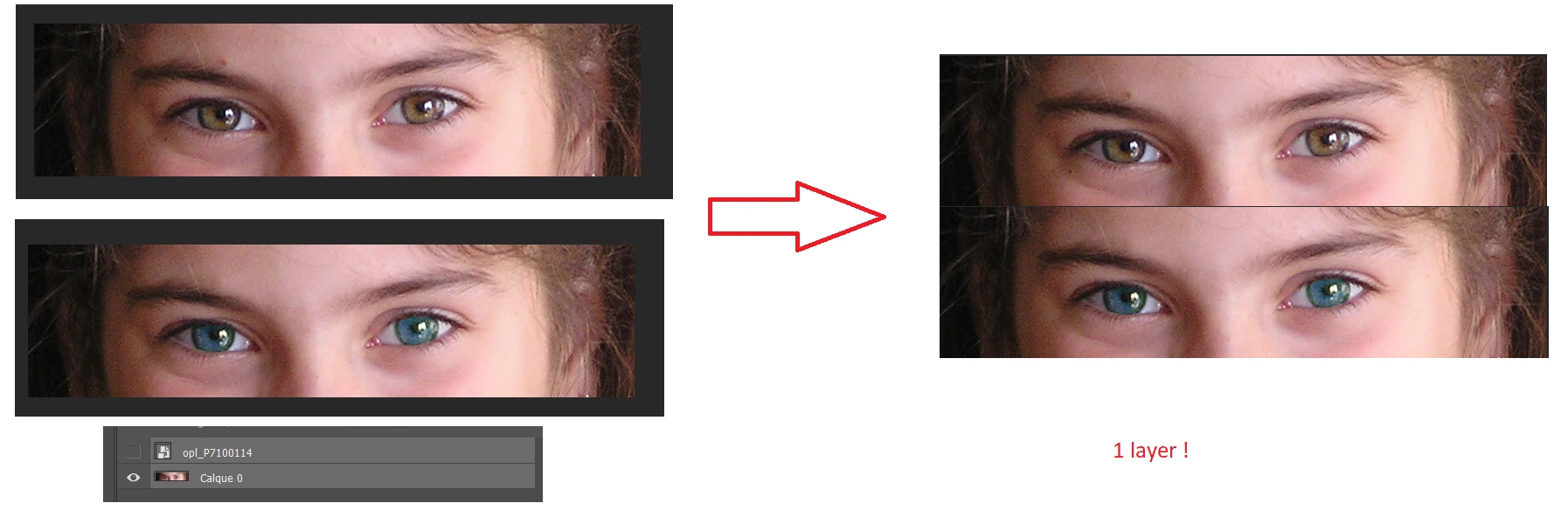
Thanks !
    This topic has been closed for replies.
    Correct answer davescm

    Hi

    You will need to increase the size of your canvas so that both images will fit side by side (use menu Image >Canvas Size)

    Then position each layer so you can see both.

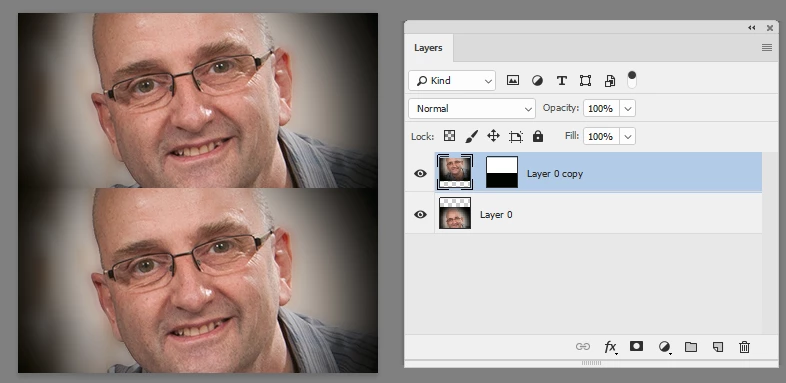
    If the top layer does not have transparency - select the wanted part with the rectangular marquee tool - and go menu Layer>Layer Mask >Reveal Selection).

    That will add a mask to the upper layer allowing the lower layer to show through ( layer mask shows the layer where the mask is white and shows the layer(s) below where the mask is black)

    Dave

    2 replies

    davescm
    Community Expert
    davescmCommunity ExpertCorrect answer
    Community Expert
    February 10, 2018

    Hi

    You will need to increase the size of your canvas so that both images will fit side by side (use menu Image >Canvas Size)

    Then position each layer so you can see both.

    If the top layer does not have transparency - select the wanted part with the rectangular marquee tool - and go menu Layer>Layer Mask >Reveal Selection).

    That will add a mask to the upper layer allowing the lower layer to show through ( layer mask shows the layer where the mask is white and shows the layer(s) below where the mask is black)

    Dave

    AdriankaAuthor
    Participant
    February 10, 2018

    Thank you Dave ! So I understand that I always have to use layer masks in order to do things like that ?

    c.pfaffenbichler
    Community Expert
    Community Expert
    February 10, 2018

    You could also delete the excess data but that is often a bad idea.

    c.pfaffenbichler
    Community Expert
    Community Expert
    February 10, 2018

    I am afraid I don’t understand the problem.

    Are the two images two Layers in the same file already or do you need to place them yet?

    Do you need to duplicate the image Layer (cmd-J) first and apply the color correction to it or …?