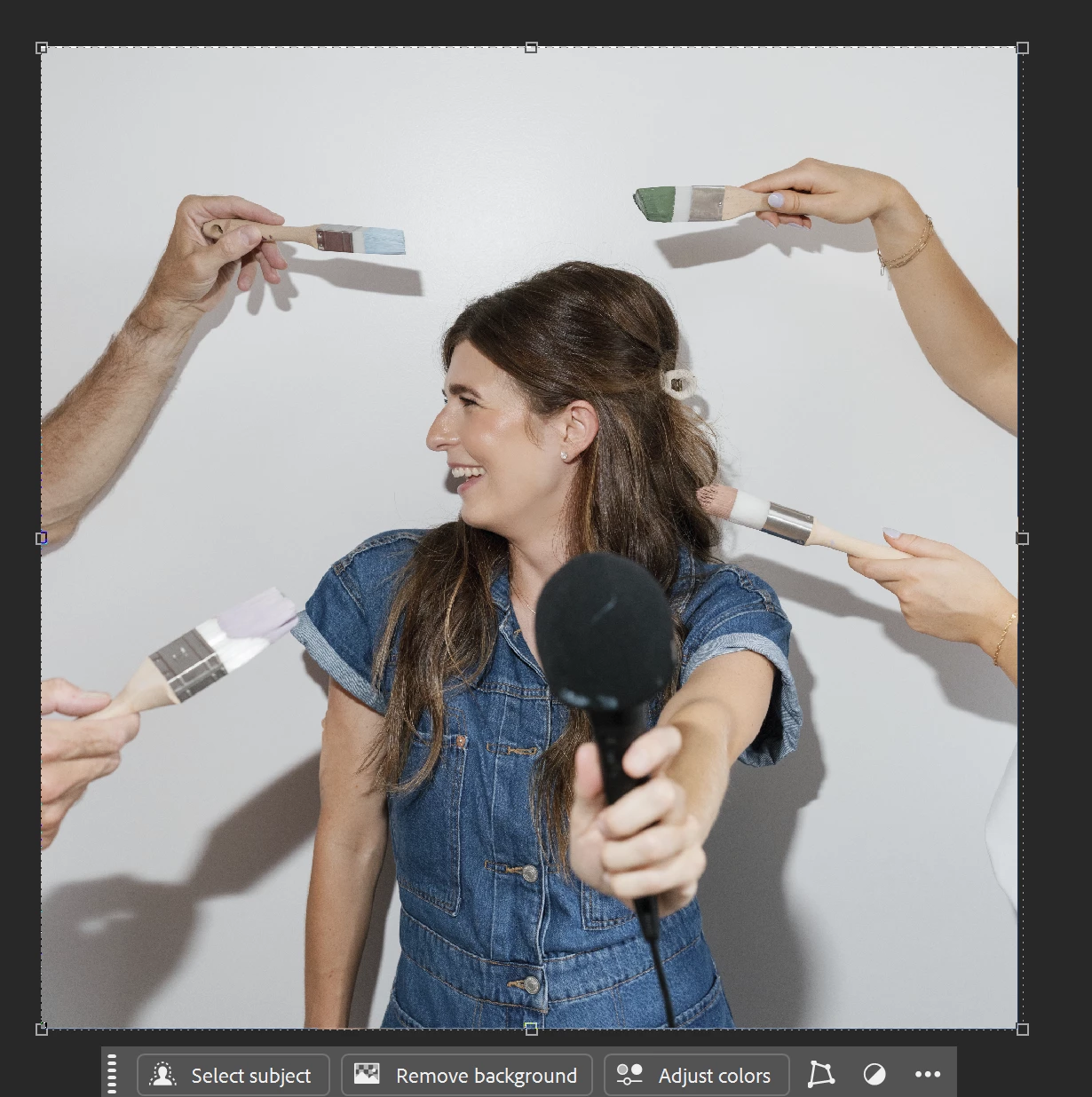
There are no options for Remove Background, so you need to go old school.
After using Remove Background, Ctrl click the layer mask to select it, and fill a new layer with black.
Shift click the layer mask to disable it, and so you can see the shadows.
Slect each shadow, and Shift Ctrl J to move it to its own layer.
You'll then need to to use Free Transform to align with the original shadows.
You will need to use the brush tool to complete missing areas, but no need to be precise.
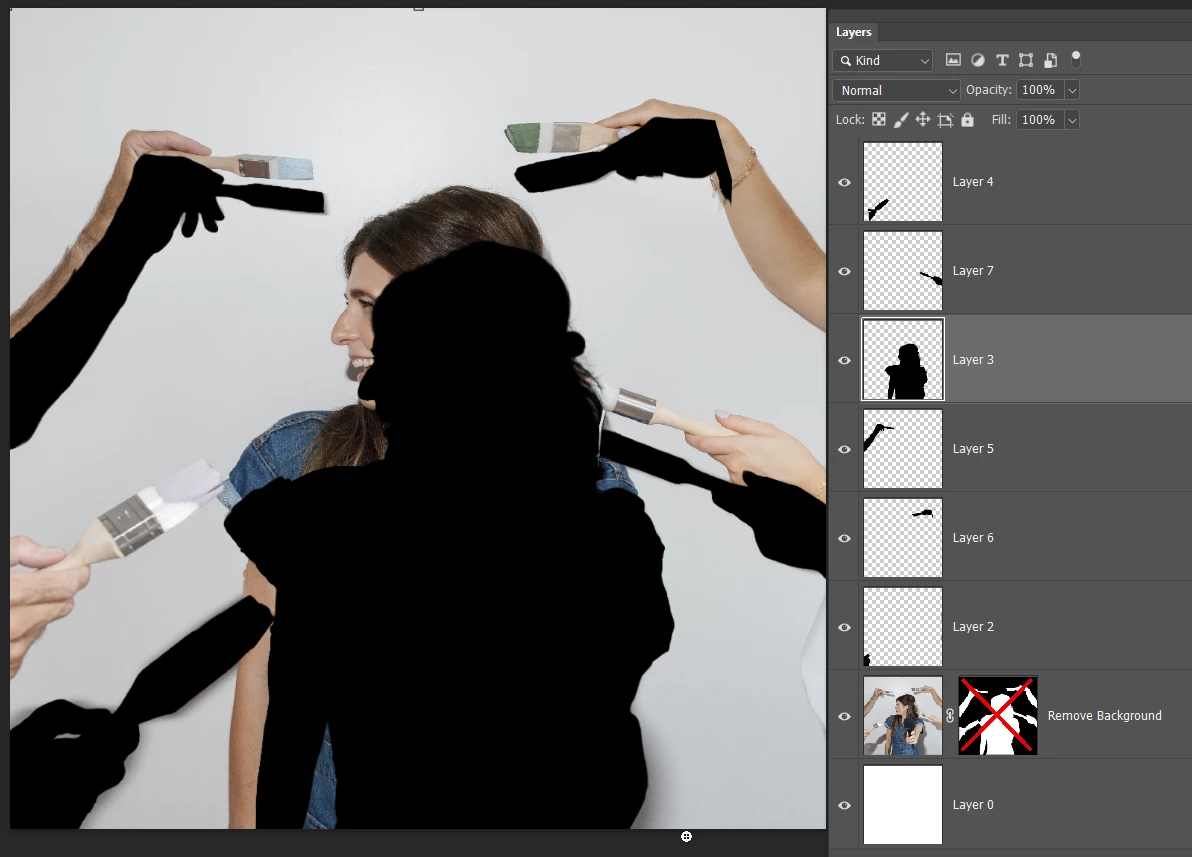
Some areas are more blurred than others, so after making the initial blur, select the more blurred are and feather the selection (Shift F6) and apply more blur.
Adjust the shadow layer opacity.
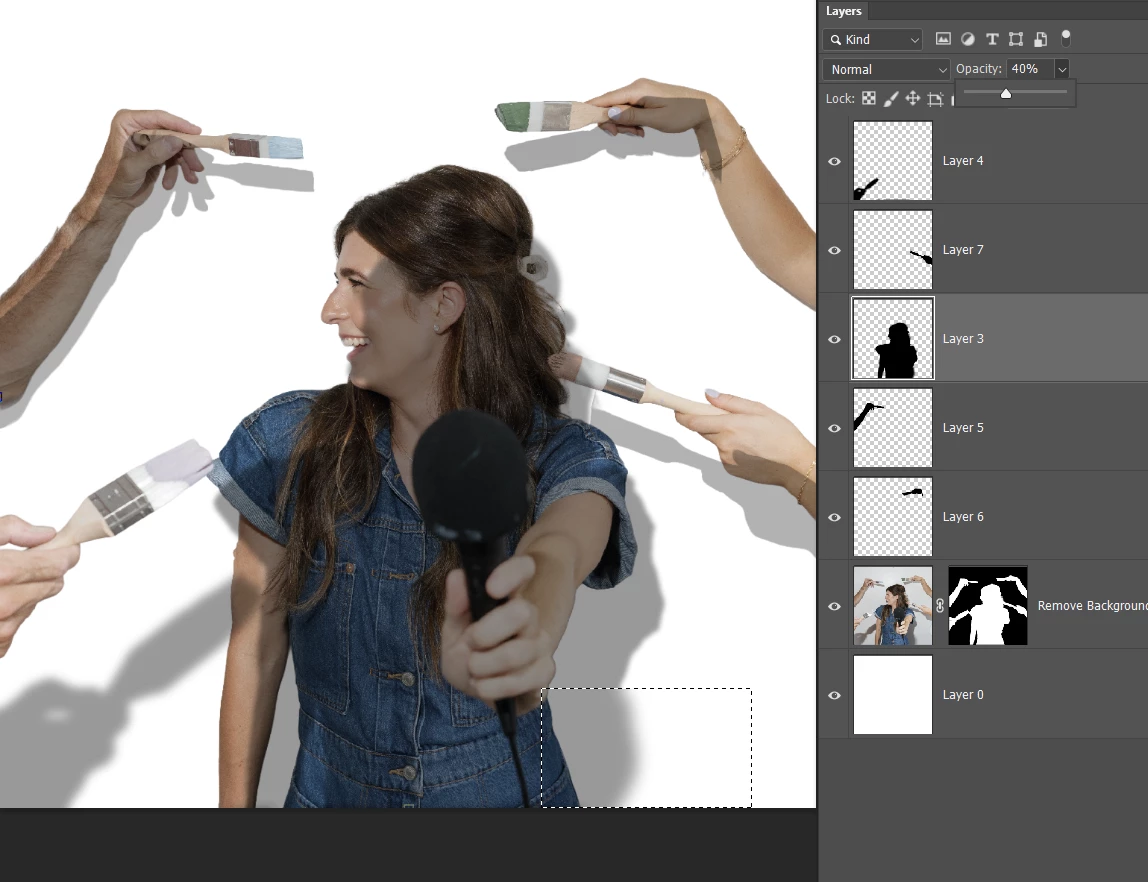
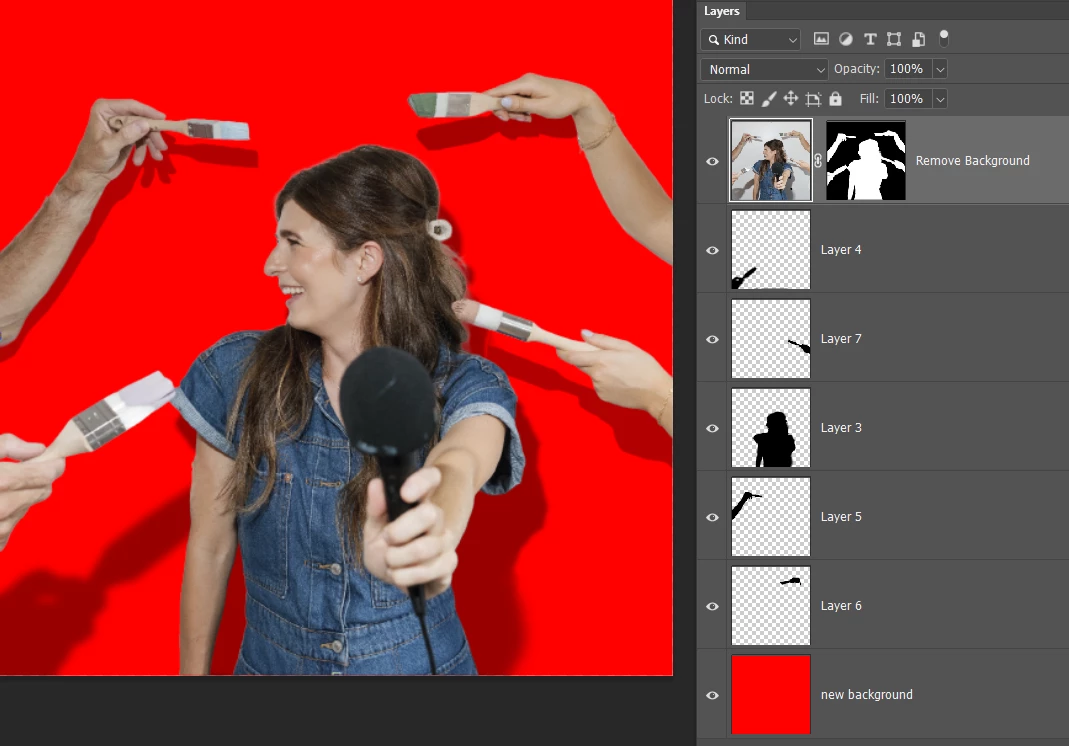
Re-enable the layer mask, and move to the top of the stack.
Note this only works if the subject is the same distance from the new background of course.

 AdChoices