

Serene_observer5E99
Inspiring
December 13, 2023
Answered

Best way to extract items from artboard?

  • December 13, 2023
  • 6 replies
  • 4288 views

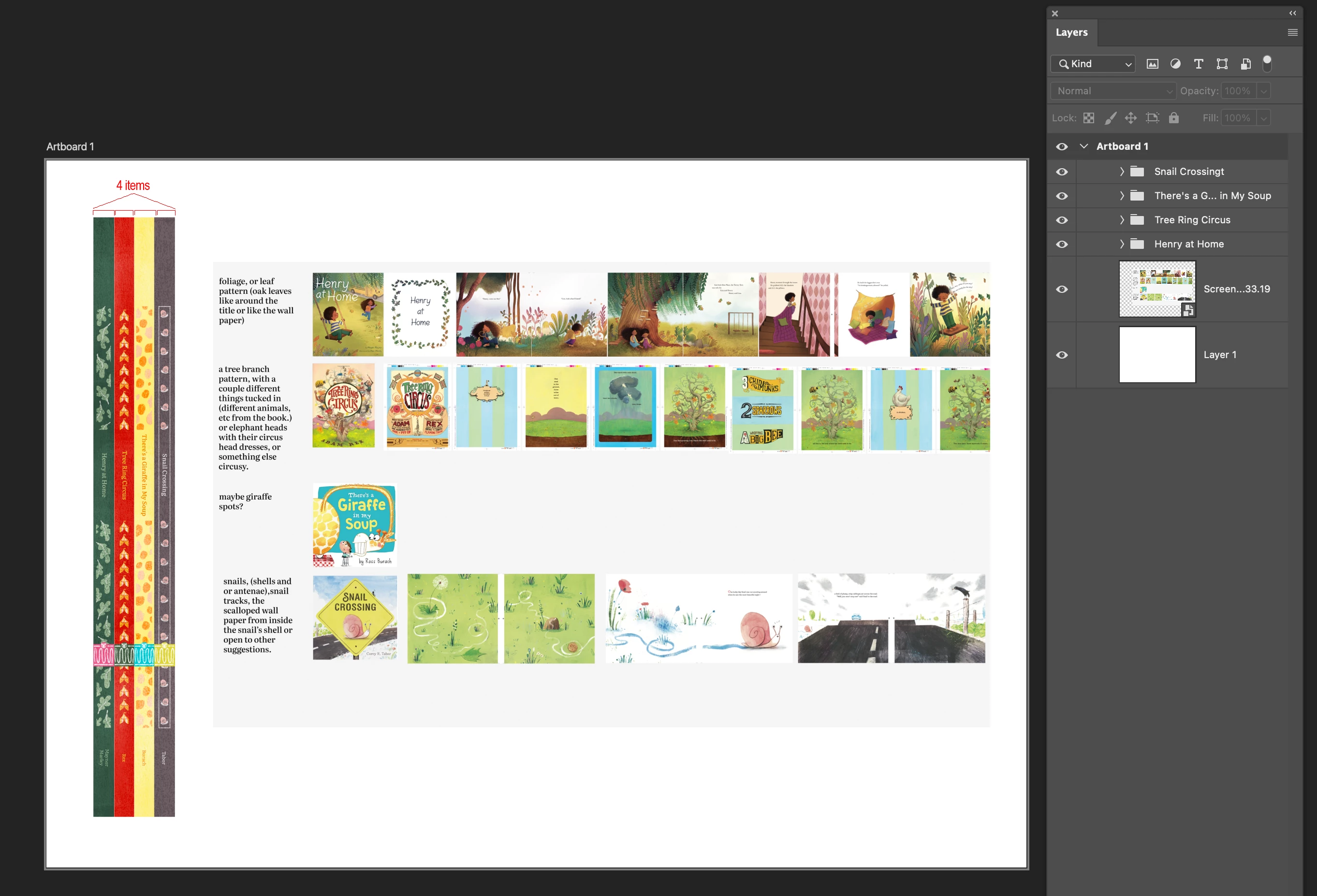
I'm almost embarrassed to ask this, but I am not familiar with the artboard function. I have a client who sends me Photoshop files for use in multiple projects and all of the items are in one Photoshop file using an artboard.


I don't need all of the miscellaneous stuff that's included on these huge artboards--just a few individual items that are organized in individual folders. What is the best way to extract the items I need without all of the extra space and junk? I have a method I've been using, but I'm not sure it's the most efficient or correct way--I've been making the folders for each item a smart object, then double clicking each to open the items in a new window by itself. Is that dumb? What is the proper method?
 

This topic has been closed for replies.
Correct answer Trevor.Dennis

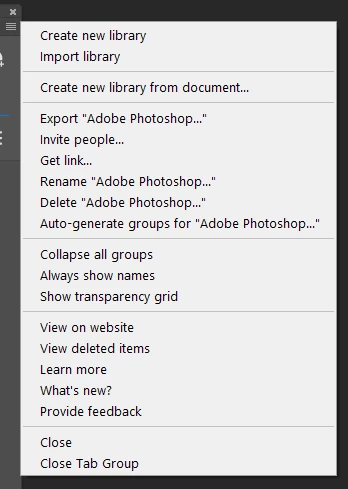
Have a lopok at CC Libraries panel.  It's years and years since I have done this, but if you use the drop down menu from the top right of the Libraries panel, there is a Create New Library from Document option.  This will place all doc assets in a new Library.  What I was able to do then was view those assets in a web browser, and let clients see the same assets.  It was very cool and super useful.  I loved being able to come back to that library however long afterwards, and see colour swatches, fonts, brush presets and layer objects.  I hope I am not BS-ing you on some of that — like I said, it was a long time ago.

6 replies

Participant
March 23, 2024

Hey,

No need to feel embarrassed at all! Learning new features and techniques in design software can be overwhelming sometimes. It's great that you're seeking clarification on how to efficiently work with artboards in Photoshop.

Your current method of converting folders into smart objects and then opening them individually to extract the items you need is definitely a workaround, but there's a more straightforward approach you can take.

To extract individual items from an artboard without the extra space and clutter, you can follow these steps:

  1. Select the Artboard: In the Layers panel, locate the artboard containing the items you need.

  2. Use the Marquee Tool (M): Select the Marquee Tool from the toolbar (shortcut: M).

  3. Draw Around the Item: Click and drag to draw a selection around the specific item you want to extract. Make sure to encompass only the item you need, excluding any unnecessary space or surrounding elements.

  4. Copy the Selection: Once the item is selected, press Ctrl + C (Windows) or Command + C (Mac) to copy the selection.

  5. Paste as New Layer: Now, create a new document or open an existing one where you want to place the extracted item. Then, press Ctrl + V (Windows) or Command + V (Mac) to paste the selection as a new layer.

  6. Adjust and Save: Position the pasted item as needed within your document. Once you're satisfied, save your document.

This method allows you to directly extract specific items from the artboard without the need to convert folders into smart objects or open them individually. It's a more direct and efficient way to work with the elements you require.

Don't worry, it's all about finding the method that works best for you and your workflow. Keep experimenting, and you'll become more comfortable with artboards in no time!

Serene_observer5E99
Inspiring
April 9, 2024

Thanks for your thorough advice. I think your solution would only work for items that are not layered--is that right? My problem is that there are individual items that have been created as layers in the artboard file that I need to extract to use for other projects, but they must remain in layers. That's why I was using the smart object process I described, because that seemed to be a way to open all of the layers in a new file, retaining the size and settings from the original artboard file.


Unless there are problems that can occur that I am unaware of in doing it this way, maybe I'll just stick with the way I've been doing it. It seems to work ok--I just didn't know if there was something "incorrect" about how I was doing it.

Stephen Marsh
Community Expert
Community Expert
December 20, 2023

@Serene_observer5E99 


The following script will automatically save all top-level groups contained within the active artboard to PSD files, named after the original group name (the original document name could also be added as a prefix or suffix if that helped).  The save location will be the same as the original source PSD document. Transparency will be trimmed to the pixel content and the group will be ungrouped. A smart object could be created at a given point, however, I'm not sure if that would be of any benefit?


/*
Save Active Artboard Groups to PSD.jsx
v1.0, 20th December 2023 - Stephen Marsh
https://community.adobe.com/t5/photoshop-ecosystem-discussions/best-way-to-extract-items-from-artboard/m-p/14297779
*/

#target photoshop

if (isArtboard() === true) {

    var origDoc = activeDocument;
    var origDocPath = origDoc.path.fsName;
    var theLayerSets = origDoc.activeLayer.layerSets;

    for (var i = 0; i < theLayerSets.length; i++) {
        activeDocument.activeLayer = theLayerSets[i];
        if (isGroup() === true) {
            var theGroupName = theLayerSets[i].name.replace(/\.[^\.]+$/, '');
            dupeGroup(theGroupName);
            app.runMenuItem(stringIDToTypeID("ungroupLayersEvent"));
            trim(true, true, true, true);
            savePSD(File(origDocPath + '/' + theGroupName + '.psd'));
            activeDocument = origDoc;
        }
    }
    activeDocument.activeLayer = activeDocument.layerSets[0];
    app.beep();

} else {
    alert("Please select the artboard layer and re-run the script...");
}


//// Functions ////

function isArtboard() {
    // modified from a script by greless with hints from jazz-y!
    // returns true or false
    try {
        var d = new ActionDescriptor();
        var r = new ActionReference();
        r.putEnumerated(stringIDToTypeID('layer'), stringIDToTypeID('ordinal'), stringIDToTypeID('targetEnum'));
        var options = executeActionGet(r);
        return options.hasKey(stringIDToTypeID('artboard')); // test for the required key
    } catch (e) {
        alert("Error!" + "\r" + e + ' ' + e.line);
    }
}

function isGroup() {
    // modified from a script by greless with hints from jazz-y!
    // returns true or false
    try {
        var d = new ActionDescriptor();
        var r = new ActionReference();
        r.putEnumerated(stringIDToTypeID('layer'), stringIDToTypeID('ordinal'), stringIDToTypeID('targetEnum'));
        var options = executeActionGet(r);
        return options.hasKey(stringIDToTypeID('layerSection')) && !options.hasKey(stringIDToTypeID('framedGroup')) && !options.hasKey(stringIDToTypeID('artboard')); // test for the required key
    } catch (e) {
        alert("Error!" + "\r" + e + ' ' + e.line);
    }
}

function dupeGroup(theDocName) {
	function s2t(s) {
        return app.stringIDToTypeID(s);
    }
	var descriptor = new ActionDescriptor();
	var reference = new ActionReference();
	var reference2 = new ActionReference();
	reference.putClass(s2t("document"));
	descriptor.putReference(s2t("null"), reference);
	descriptor.putString(s2t("name"), theDocName);
	reference2.putEnumerated(s2t("layer"), s2t("ordinal"), s2t("targetEnum"));
	descriptor.putReference(s2t("using"), reference2);
	executeAction(s2t("make"), descriptor, DialogModes.NO);
}

function ungroupLayers() {
	function s2t(s) {
        return app.stringIDToTypeID(s);
    }
	var descriptor = new ActionDescriptor();
	var reference = new ActionReference();
	reference.putEnumerated( s2t( "layer" ), s2t( "ordinal" ), s2t( "targetEnum" ));
	descriptor.putReference( s2t( "null" ), reference );
	executeAction( s2t( "ungroupLayersEvent" ), descriptor, DialogModes.NO );
}

function trim(top, bottom, left, right) {
	function s2t(s) {
        return app.stringIDToTypeID(s);
    }
	var descriptor = new ActionDescriptor();
	descriptor.putEnumerated( s2t( "trimBasedOn" ), s2t( "trimBasedOn" ), s2t( "transparency" ));
	descriptor.putBoolean( s2t( "top" ), top );
	descriptor.putBoolean( s2t( "bottom" ), bottom );
	descriptor.putBoolean( s2t( "left" ), left );
	descriptor.putBoolean( s2t( "right" ), right );
	executeAction( s2t( "trim" ), descriptor, DialogModes.NO );
}

function savePSD(saveFile) {
    psdSaveOptions = new PhotoshopSaveOptions();
    psdSaveOptions.embedColorProfile = true;
    psdSaveOptions.alphaChannels = true;
    psdSaveOptions.layers = true;
    psdSaveOptions.annotations = true;
    psdSaveOptions.spotColors = true;
    app.activeDocument.saveAs(saveFile, psdSaveOptions, false, Extension.LOWERCASE);
}


https://prepression.blogspot.com/2017/11/downloading-and-installing-adobe-scripts.html


Serene_observer5E99
Inspiring
December 28, 2023

When I use the method of copying the text and pasting it into TextEdit,  what do I name the file?


Thanks.

Stephen Marsh
Community Expert
Community Expert
December 28, 2023

As long as it has a .jsx extension it doesn't matter.


Save Active Artboard Groups to PSD.jsx


Edit: Ensure that Apple TextEdit is using plain text formatting, not Rich Text Format (RTF).

Trevor.Dennis
Community Expert
Trevor.DennisCommunity ExpertCorrect answer
Community Expert
December 20, 2023

Have a lopok at CC Libraries panel.  It's years and years since I have done this, but if you use the drop down menu from the top right of the Libraries panel, there is a Create New Library from Document option.  This will place all doc assets in a new Library.  What I was able to do then was view those assets in a web browser, and let clients see the same assets.  It was very cool and super useful.  I loved being able to come back to that library however long afterwards, and see colour swatches, fonts, brush presets and layer objects.  I hope I am not BS-ing you on some of that — like I said, it was a long time ago.

Trevor.Dennis
Community Expert
Community Expert
December 20, 2023

Here it is.  Inviite to Library


It's not how I remember it, as I thought the assets opened in a web browser, and this is the CC Desctop App, but it has the usual Share icon


Invitees can even be given edit rights and add their own assets to the Library.  It's a very cool tool,'

BTW  I pixelated my email address to save folk from having heart attacks. 😉 

Bojan Živković11378569
Community Expert
Community Expert
December 14, 2023

I am not sure what you mean by "extract". Do you want to save individual items as separate files? If so, you could use File > Export > Layers to Files with some preparation. As the name suggests, this script will export each layer to a file, so you need to hide the layers that you do not want to export and then check the Visible Layers Only option in the Export Layers to Files dialogue.

Serene_observer5E99
Inspiring
December 19, 2023

Won't exporting layers to files create a separate file for each layered item in a folder? That's not quite what I am trying to do. If you look at these 4 screen grabs, it shows how I have been extracting the individual folders that I need and saving them as independent PS files.

I guess what I am asking is if there is a more efficient way to get from step 1 (several items/folders together on one artboard) to step 4 (individual item/folder as a separate independent PS file). Does that make sense?

Stephen Marsh
Community Expert
Community Expert
December 19, 2023

@Serene_observer5E99 


You can semi-automate via an Action or fully automate using a Script (either can be executed via a keyboard shortcut).


Selecting each top-level group within the artboard, then using Layer > Duplicate and selecting a new document, then creating the smart object (why?) and then saving. Of course, you could convert the group to a smart object first, before duplicating the group to a new document.

Stephen Marsh
Community Expert
Community Expert
December 14, 2023

You can select the artboard at the top then use Layer menu > Ungroup Artboards (It doesn't make much sense to use artboards if there is only one artboard).

Myra Ferguson
Community Expert
Community Expert
December 13, 2023

Like most tasks in Photoshop, there are multiple ways you could approach extracting what you need from this one artboard. The conversion to a Smart Object and working in that PSB file is a good workflow for isolating just the content you need and keeping it as a part of the original PSD file. It may eventually make that PSD file fairly large.


If you'd like to try another approach, you could open the Smart Object (PSB file), save it as a PSD file, go back to the main file, select the Smart Object, right-click to the right of the name of that layer in the Layers panel, select Relink to File, and navigate to the saved PSD version of the Smart Object. Now the Smart Object would be a linked asset.