My default colour profile was Rec 2020, but if I instead convert it to Adobe RGB 8-bit using the "Convert colour profile" optionin edit then save the JPEG with embedded colour profile, then it looks a bit better. Still some colour banding, but not nearly as bad.
By @Hjorthmedh
If that solution works, then the root cause was the exceptionally large Rec.2020 color space. Not specifically because of Rec.2020, but because of some basic concepts which are worth explaning, to head off this kind of thing in the future.
When you have an 8 bits per channel image, there are 256 tonal levels per channel. For the more traditional color gamuts we’ve used for decades like sRGB, that’s more or less enough, because those gamuts are small.
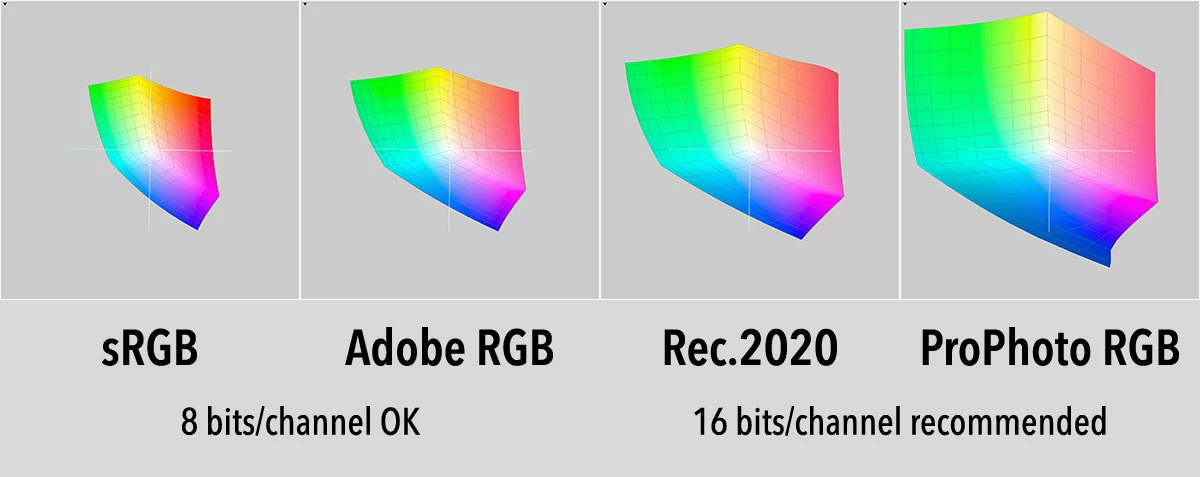
But having just 256 levels get stretched out too much across larger gamuts, causing the banding. Rec.2020 and ProPhoto RGB are very large, and that means they are not recommended for 8 bits/channel because the chance of banding is high. That chance gets even higher for colors that mostly use one or maybe two channels.
It sounds like you might have some knowledge of this because you were asking for a 10 bits/channel format. The problem is, for still images, I don’t think there are any 10bpc formats in wide use. It’s 8 or 16. So if 8bpc isn’t enough, you must go to 16bpc. The reason that helps is instead of having just 256 levels per channel, with 16bpc you get tens of thousands of levels per channel, practically eliminating banding.
Or, you stay at 8bpc but convert down to a smaller gamut. That’s what you did, and that helped. And if there was still banding in Adobe RGB, converting the original to the smaller sRGB probably would have taken care of that.
To generalize this for other situations:
For any color gamut roughly the size of sRGB, 8 bits per channel should work well.
The wider Adobe RGB and Display P3 gamuts are at the edge of being practical for 8bpc, it might work but the chance of banding is higher.
Once you get out to Rec.2020 and ProPhoto RGB, those color gamuts are so large that banding can be difficult to avoid in an 8 bits/channel file. 16 bits/channel is recommended.
As far as file size, the thing about TIFF is that it’s the natural file size of an image if you want to retain full, uncompressed, lossless quality. By “natural size” I mean regardless of the software, the normal size of an image is (number of pixels * number of bits * number of channels). You can get that down a bit by using LZW or ZIP compression, but it won’t be as small as a JPEG. Because JPEG uses lossy compression, which throws out a lot of original data.
If you think you must use JPEG because you don’t have enough storage space, but you don’t want image quality to go down, many here (including myself) would say the real solution is to budget for enough storage with room for future growth. Sure, I don’t like spending money, but I budgeted for three 4TB SSDs, which are becoming much more affordable. Now, I don’t worry about it.
(Why three? One to store more full quality originals without having to constantly fight with low storage space, and two for redundant backups.)
When it comes down to what my time is worth, in the end it is much cheaper to buy three drives than to constantly lose time wrestling with keeping enough space free.


 AdChoices