Participant
November 17, 2018
Question

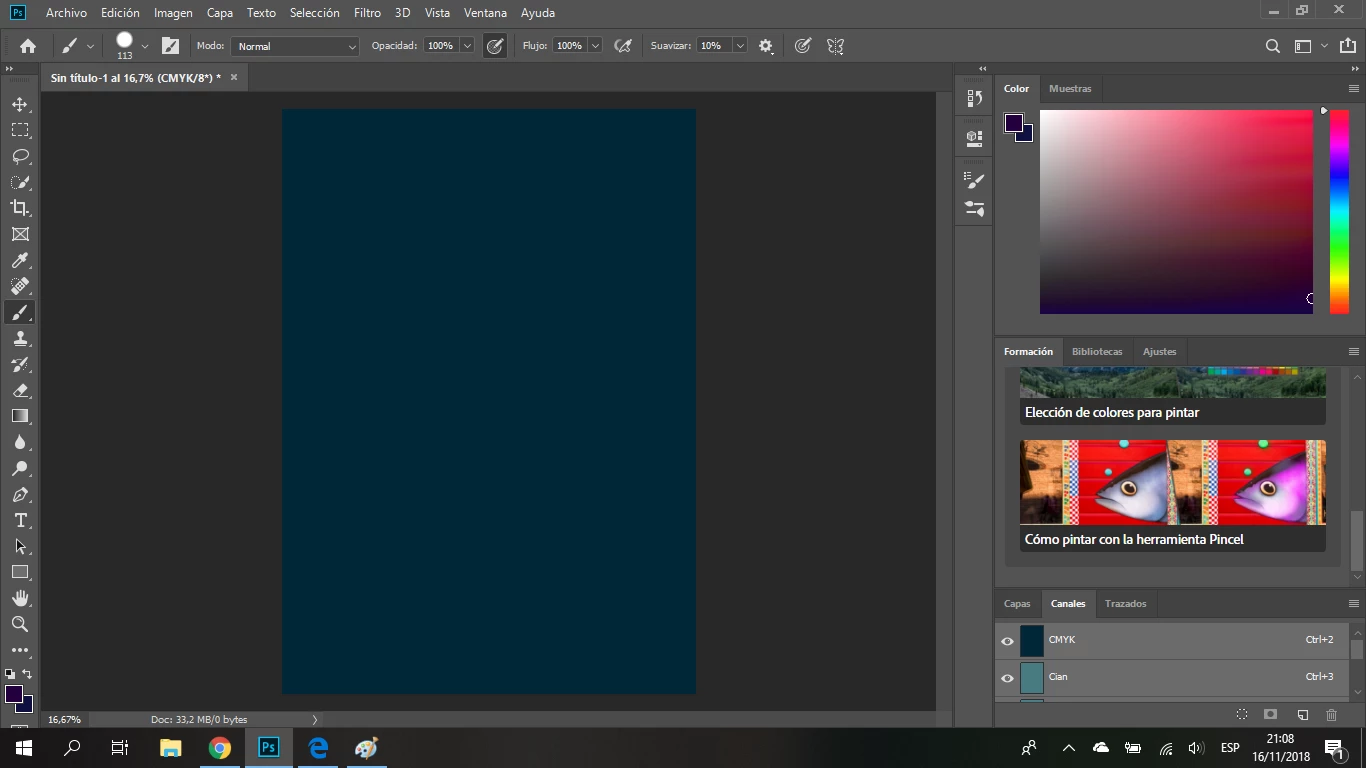
Black isn't black, its blue.

  • November 17, 2018
  • 3 replies
  • 4077 views

I just buyed Photoshop, im learning to use it, but i don't know why, black is not black, its dark blue...

How do i fix this?

This topic has been closed for replies.

3 replies

D Fosse
Community Expert
Community Expert
November 17, 2018

I agree with Lukas - this must be a non-standard/corrupt/defective CMYK profile - so the question is which one is it.

The blue rim in the color picker screenshot could also be caused by a bad monitor profile - but the numbers are strange.

The numbers add up to 312% TAC, which is an odd number. Most other standard CMYK profiles like Web Coated SWOP or ISO Coated are 300%, while Mike's GRACoL is a 330% profile.

And of course the obvious point: don't work in CMYK in the first place. Even when appropriate, CMYK is not for beginners.

occulus.nigra
Inspiring
November 17, 2018

D F:

"...don't work in CMYK in the first place. Even when appropriate, CMYK is not for beginners."

Would you suggest this even for AI? IOW, whether AI or PS... work in RGB and then, convert to the relevant CMYK profile at the last stage before outputting for print?

This makes sense to some degree (a very, very large degree) as RGB (not sRGB) has a far wider gamut. All of which encompasses the CMYK colour space.

But, what if you know the final output will be CMYK and only CMYK? Then? Personally I feel that if we follow the RGB workflow route, it makes sense because then, if the CMYK profile changes, there is no problem in subsequent CMYK conversions...

Cheers....

ON

D Fosse
Community Expert
Community Expert
November 17, 2018

occulus.nigra  wrote

Would you suggest this even for AI?

Producing press-ready material in Ai is not for beginners either. You need to know what you're doing.

You need to know the correct CMYK profile, the one corresponding to the actual process - the press, the paper, the ink used. Without knowing that first, the whole question is moot. Just look above, where Mike refers to GRACoL 2006, whereas the Photoshop default is US Web Coated SWOP - neither of which have any relevance in Europe, where ISO Coated of FOGRA is used. And that's just for coated paper stock.

The problem is that you can't have CMYK to CMYK conversions. That will turn K-only black into 4 color black. To do that, you need so-called Device Link profiles, which is really an expert job.

In Ai you probably need K-only, overprinting blacks, so you may need to work in CMYK from the start. If that's not a consideration - which it isn't for photographs - it's much safer to keep your masters in RGB and convert as needed.

Clara1993Author
Participant
November 17, 2018

I pressed D and this is the "black" i got

Mike_Gondek10189183
Community Expert
Community Expert
November 17, 2018

Start by color calibrating your monitor.

https://www.windowscentral.com/how-calibrate-your-pcs-monitor-windows-10

Please show us your color settings

edit >> color settings

That color should be a very dark brown/muddy black (if your screen is off not  sure what you will see) in CMYK. Disregard LAB RGB HSB, as I do not know what color profile you are using, and CMYK is the document color mode of your file.

Lukas Engqvist
Community Expert
Community Expert
November 17, 2018

If you press "D" and paint do you get black? (D is default which gives black on white). I am not seeing values and so it is difficult to say what colour you are getting but it should be fully possible to get black in photoshop. If you double click a swatch you also get to see the values could you send a screen shot of your colour picker values that give you this blue?

josephlavine
Community Expert
Community Expert
November 17, 2018

My question is why are you working in CMYK? You might have a perfect reason, and if so that is okay, but you'll want to take time to understand the relationship between the different color modes such as RGB and CMYK.  Your settings indicate that you would NOT have a true black.

I suggest working in RGB given that you are a beginner.

Understanding Photoshop color modes