OK....thanks. However, I can't see how it's different: a) an image with texture and a particular color b) change color of image to a selected color without changing the texture or features of the image. That's all I'm asking, too.
Using a gaussian blur would then "blur" the image to some degree and lose texture/features.
I am attaching two example images then. I want to keep a uniform color tone without any degradation of the texture or features. In the first image, changing the entire image to the non-magenta skin tone is optimal. In the second, it doesn't matter too much, as long as it is lighter and uniform. Same process though...
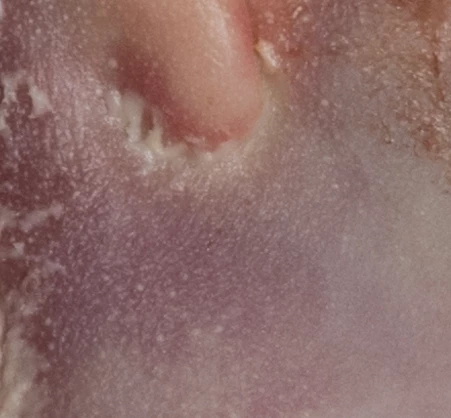
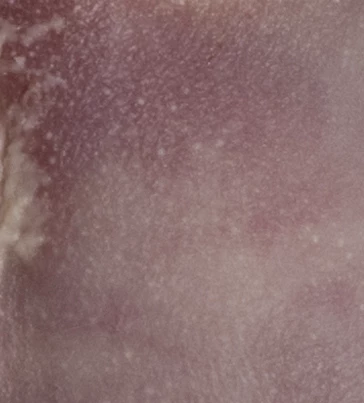
Thanks!
Hi @garymak
Frequency separation works by separating the low frequency detail ( like colour variations in your image) from the high frequency detail such as the skin texture.
It works like this :
1. Make 2 duplicates of your image layer
Name the lower - "Low frequency"
Name the Higher - "High Frequency"
2. Select the Low frequency layer and use Filter Gaussian Blur (around 6.0 should work on these)
3. Select the High frequency layer
Go to menu Image > Apply Image
Set the source layer to Low Frequency
Set the blending mode to Subtract
Set Scale to 2 *
Set offset to 128 *
Click OK
4. Change the blending mode of the high frequency layer to Linear Light
5. Now you can clone out blemishes on the high frequency layer and lighten or darken/recolour areas on the low frequency layer
As an extreme below I have painted out all the colour variation by painting on the low frequency layer - while keeping all the detailed texture on the high frequency layer untouched
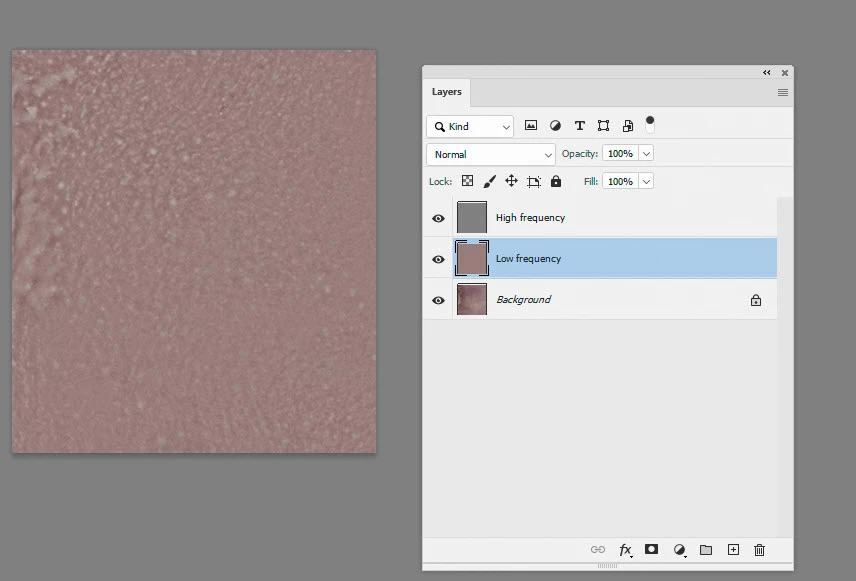
Dave
* Note - the above steps are for 8 bit/channel images. For 16 bit/channel step 3 changes slightly
3. Select the High frequency layer
Go to menu Image > Apply Image
Set the source layer to Low Frequency
Check "Invert" next to channel
Set the blending mode to Add
Set Scale to 2
Set Offset to 0
Click OK
Now carry on with step 4 above


 AdChoices