Known Participant
October 23, 2024
Answered

Blurry pieces

  • October 23, 2024
  • 1 reply
  • 361 views

When I remove backgrounds from geometric images in Photoshop, there are always small blurry pieces scattered throughout the image and I don't know how to remove them quickly and automatically. I have to use the eraser and remove them one by one, which can take a long time. Can you recommend how I can do it in a more optimal way?




This topic has been closed for replies.
Correct answer Ged_Traynor

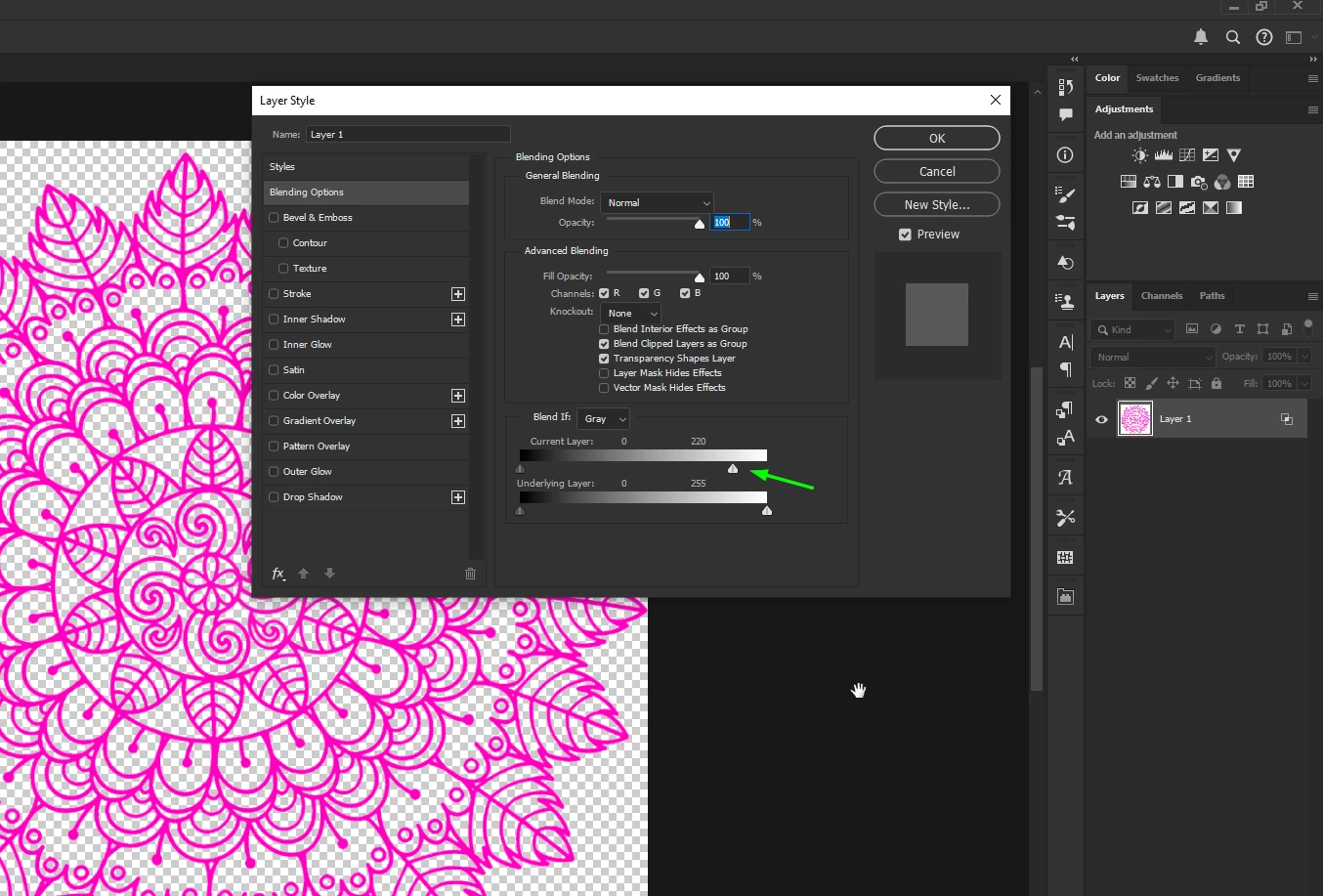
@Hanschrs you could try double-clicking on the layer to open up the layer style panel and then drag this slider to the left

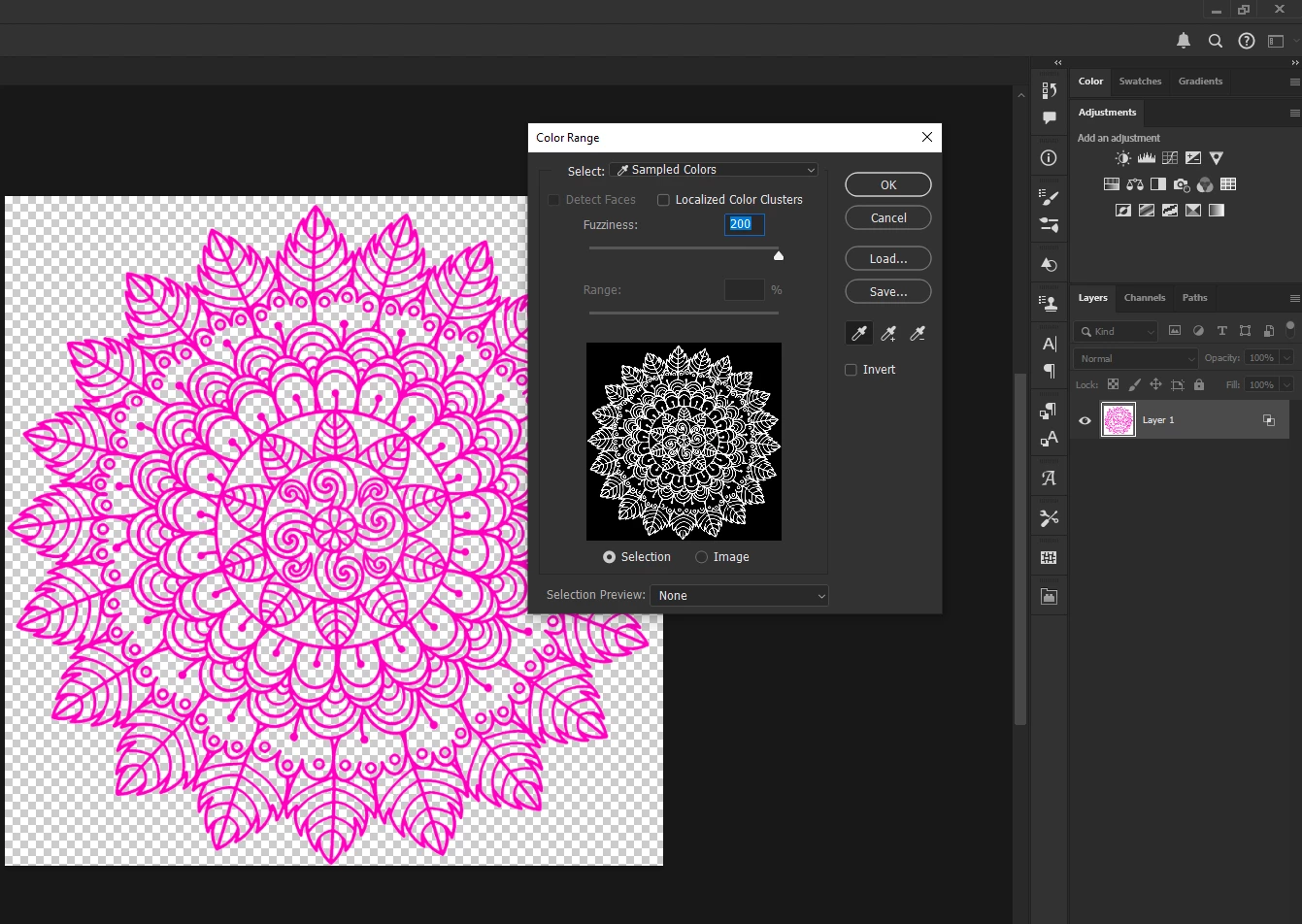
Then use the colour range to select the colour

Create a new layer above the original layer, select the original layer and copy and paste the selection onto the new layer

1 reply

Ged_Traynor
Community Expert
Ged_TraynorCommunity ExpertCorrect answer
Community Expert
October 24, 2024

@Hanschrs you could try double-clicking on the layer to open up the layer style panel and then drag this slider to the left

Then use the colour range to select the colour

Create a new layer above the original layer, select the original layer and copy and paste the selection onto the new layer

HanschrsAuthor
Known Participant
October 24, 2024

Thanks a ton for that awesome explanation. It really came in handy and saved me from a lot of extra work

Ged_Traynor
Community Expert
Community Expert
October 24, 2024

You're welcome 🙂