
Participant
February 7, 2022
Answered

Bring a Batch of photos into a square with Processor and Actions

  • February 7, 2022
  • 2 replies
  • 1985 views

I am in the process of creating images for an online shop.

The images are all needed in 1000x1000. Included are photos in portrait, landscape and square format.

What is my problem?
I need the portrait and landscape pictures inserted into a 1000x1000 square so that a white border remains - i.e. proportional. The square ones should be filling of course.

Maybe it's my logic or the lack of actions and the image processor.

Could maybe someone explain to me how I coul ddo it the best way? unfortunately I haven't found anything in previous feeds that helped me.

thank you!

Translated with [Link removed by moderator] (free version)
 

This topic has been closed for replies.
Correct answer Stephen Marsh

@Ebertero wrote:

Thak you very much for your fast answer Stephan_A_Marsh. 

Unfortunaly I just don't understand what is exactly to do. 
Would it be possible for you to explain it step by step? 

I'm Sorry for that, its my first time using actions and this is a bit confusing. 


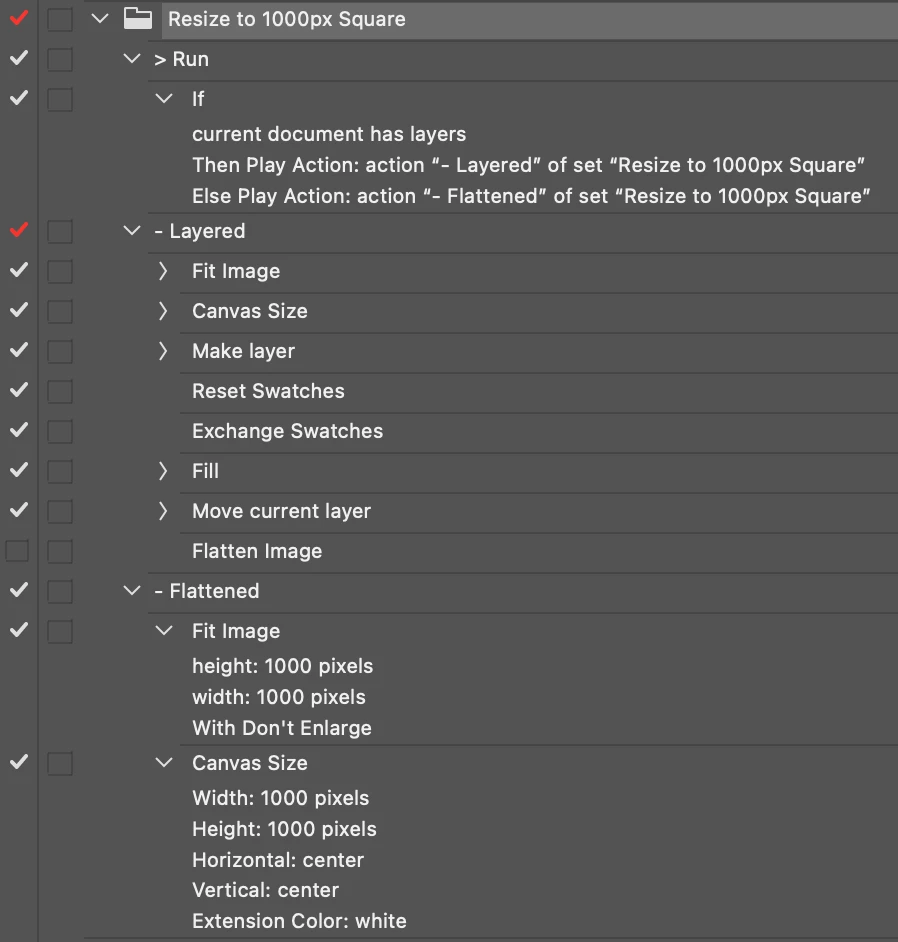
I have created an action here for you:


https://www.dropbox.com/s/1j26uocn7zn1p53/Resize%20to%201000px%20Square.atn?dl=0


Download it and load it into Photoshop via the action panel (you could double click on it from the Mac Finder or Explorer in Windows to load).


This will only automate one image at a time.


It is a conditional action, you only need to play the action titled "> Run" and it will play the appropriate flattened or layered action depending on your file content.


I have not put in a great deal of testing, so work on copies of the originals just in case it messes something up.


To automate multiple images, you either need to use the Batch or Droplet commands, but these would require you to add saving options.


I'd suggest that you use the Image Processor script that ships with Photoshop, as it will handle the opening/saving and you just select the action that it will use as it opens/saves each image. If you need PNG files, then a different script would be required.


2 replies

Kukurykus
Legend
February 7, 2022

If input images has same resolution and height you could use Smart Object.

It'd be easier to help you with attached example of images to your original post.

Stephen Marsh
Community Expert
Community Expert
February 7, 2022

This recent example uses black as the canvas extension colour, you would just use white.


https://community.adobe.com/t5/photoshop-ecosystem-discussions/creating-automation-droplet-for-batch-resizing-and-putting-on-background/m-p/12710977


That being said, you need to take into account whether the images are flattened or have transparency, which may require a conditional action.


EberteroAuthor
Participant
February 7, 2022

Thak you very much for your fast answer Stephan_A_Marsh. 

Unfortunaly I just don't understand what is exactly to do. 
Would it be possible for you to explain it step by step? 

I'm Sorry for that, its my first time using actions and this is a bit confusing. 

PECourtejoie
Community Expert
Community Expert
February 7, 2022

Hi, here's a primer about actions to get you started: https://morris-photographics.com/photoshop/tutorials/actions.html