Known Participant
February 1, 2019
Answered

Brush Panel Not Showing all Control Options

  • February 1, 2019
  • 3 replies
  • 3782 views

Hi

I have been trying to create a new brush following a Youtube video from Piximperfect and there are items missing from my Brushes Control Panel.                               

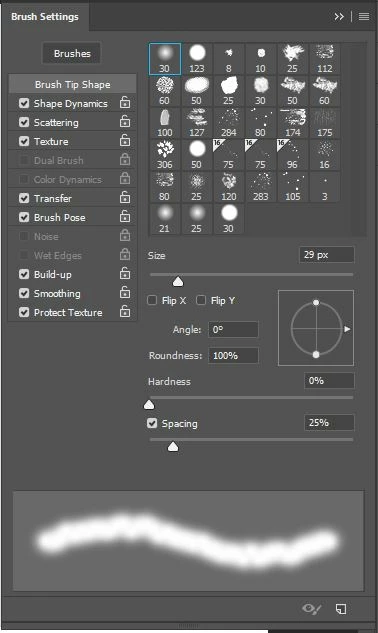
The screen shot below is what my Brushes Panel looks like no matter what I click on. If tried re-setting workspaces and also went back to default preferences to no avail.

It's lost things like Jitter etc.

I'm running Version 20.0.2

Any help would be appreciated.
Correct answer davescm

Hi

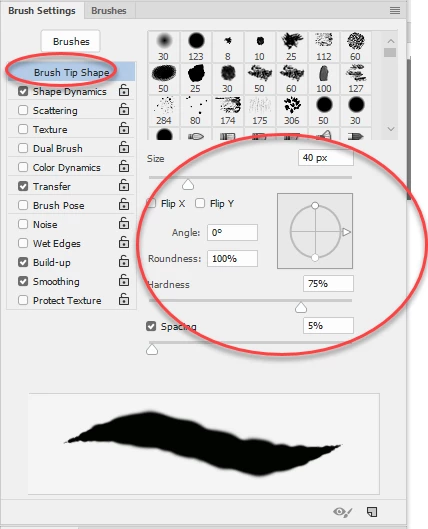
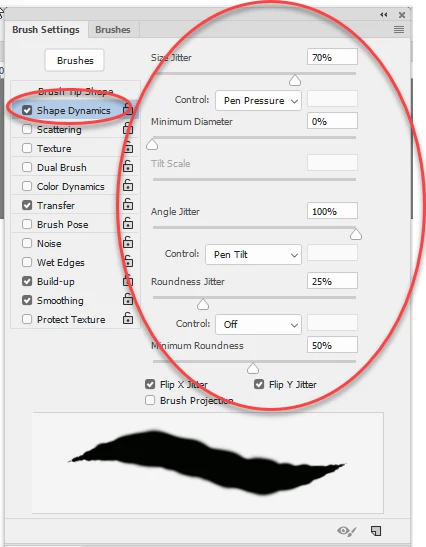
You have the Brush tip shape settings selected.

Pick another feature from the list at the left hand side to see the settings associated with that feature. Don't just tick the box, click on the word - e.g. shape dynamics:

Dave

3 replies

Mike_Gondek10189183
Community Expert
Community Expert
February 1, 2019

We really cannot watch a 38 minute video to find what we need to understand what you want. Please next time post a screenshot of your expected result, and what you are getting and you will get more reponses.

You are not matching Unmesh's settings. Turning off scatter will be a big help. You also have an entirely wrong brush selected. Yours is soft and only one spot, you need a harder edge and multiples post so your brush can do more work for you.

You most important jitters are found under shape, and also under scatter and color dynamics. For hair though you  want size jitters set to pen pressure 0%

I can respond if you have further questions, but will help if you are clear and show screenshots.

Known Participant
February 2, 2019

Hi Mike

Thanks for commenting. The Brush Tip Shape that was selected wasn't the problem and I had thought that the screen shot I had shown was sufficient for people to see where I was coming from so sorry if it wasn't.

Davescm above cleared up the issue in that I had to not only tick the box, I had also to click on the word next to the box to activate the other options like size jitter, angle jitter etc.

Seems a strange way of implementation from Adobe and is not really explained anywhere (although probably in the depths of a tutorial somewhere. (I did look on the Adobe website before posting here, but couldn't find anything that related to my issue.

Thanks again for your input.

davescm
Community Expert
davescmCommunity ExpertCorrect answer
Community Expert
February 1, 2019

Hi

You have the Brush tip shape settings selected.

Pick another feature from the list at the left hand side to see the settings associated with that feature. Don't just tick the box, click on the word - e.g. shape dynamics:

Dave

Known Participant
February 2, 2019

Dave

Thanks. This was what I needed. It's unusual to have to also click on the actual word instead of simply ticking the box, as the tick usually woks.

If only other things were this simple.

Perhaps Adobe should have a 'Help' tip associated with these panels to tell you what you need to do to access various functions.

Thanks again

August 2, 2020

Thank you so much 


Sahil.Chawla
Adobe Employee
Adobe Employee
February 1, 2019

Hi Photodom,

Could you please share the video URL with us so that we can check it and provide you a solution?
Also, what operating system you're working on?

Regards,
Sahil

Known Participant
February 1, 2019

Hi

Here is the video URL.

Cut Out Hair with Very Busy Background in Photoshop - YouTube

I am using Windows 10 on a PC.

Thanks